
Introduction
Think of iCloud as the invisible thread that connects all your Apple devices. It works quietly in the background, ensuring your photos, files, and important data follow you wherever you go. However, many people either ignore its full potential or feel frustrated by storage limits and syncing issues. Understanding how to use it properly transforms it from a backup tool into a powerful digital assistant. Consequently, this guide will walk you through everything you need to know, from the basics to advanced features, so you can take full control of your digital life.
What Exactly Is iCloud?
At its core, iCloud is Apple’s cloud-based storage and synchronization service. Instead of keeping your data only on one device, it stores a copy on Apple’s secure servers. Therefore, when you take a photo on your iPhone, it automatically appears on your iPad. Similarly, when you save a document on your Mac, you can access it from your iPhone or even from a Windows PC. Think of it as the glue that holds the Apple ecosystem together.
Furthermore, it isn’t just about storage. It also handles backups, password management, device tracking, and even email. With a free 5 GB plan, you can start using it immediately. Nevertheless, most users eventually need more space. That’s where iCloud+ comes in, offering plans from 50 GB up to 12 TB for a monthly fee.
Setting Up: Your First Steps
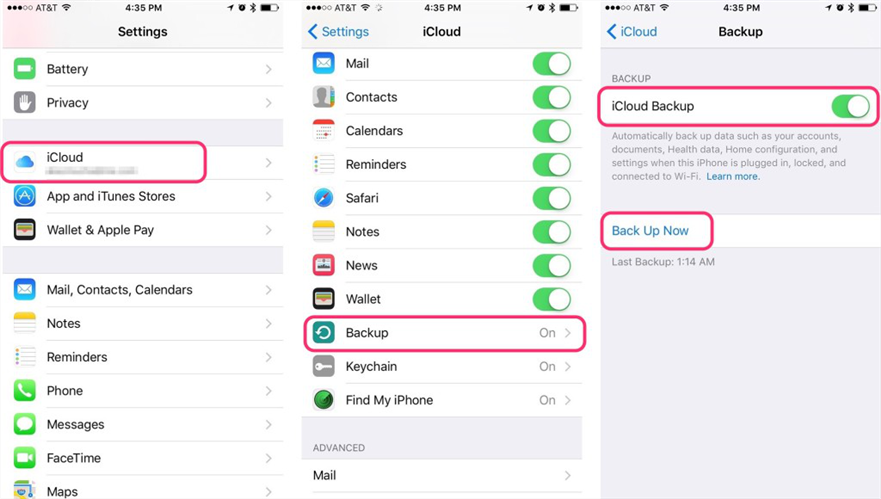
Getting started with it is remarkably simple. When you first set up an Apple device, the setup process will ask you to sign in with your Apple Account. This account serves as your key to all its services. However, if you skipped this step, you can turn on iCloud manually:
On your iPhone or iPad, open Settings, tap your name at the top, and then tap iCloud. From there, you can toggle on the services you want to use—Photos, Contacts, Calendars, and more.
On your Mac, click the Apple menu, go to System Settings, click your Apple Account, then select iCloud. You will see a list of features you can enable.
Nevertheless, always ensure you use the same Apple Account across all your devices. Otherwise, your data won’t sync properly.
Features You Should Know
It offers many services, and each one serves a different purpose. Let’s explore the most essential features.
iCloud Photos
For most people, photos and videos consume the bulk of their storage. iCloud Photos keeps your entire library synced across every device. Therefore, you can snap a picture on your iPhone and view it instantly on your iPad or Mac. Additionally, you can choose between two storage options: Optimize iPhone Storage saves full-resolution photos in the cloud and smaller versions on your device, while Download and Keep Originals stores full-resolution copies everywhere. The first option helps you save precious device space.
Drive
Think of iCloud Drive as your personal file cabinet in the cloud. It works much like Dropbox or Google Drive, allowing you to store documents, PDFs, presentations, and any other files. On your Mac, you will find it in Finder under the sidebar. On an iPhone or iPad, open the Files app and select iCloud Drive. Furthermore, you can sync your Desktop and Documents folders automatically, so your files remain accessible no matter which Mac you use.
iCloud Backup
This feature might be the most important one of all. It backs up your iPhone or iPad over Wi-Fi when connected to power. If you lose your device or buy a new one, you can restore everything from that backup. However, your free 5 GB storage fills up quickly with backups. Therefore, you may need to manage your storage or upgrade to a paid plan.
Find My
Losing an Apple device can feel devastating. Fortunately, Find My helps you locate your iPhone, iPad, Mac, Apple Watch, or even AirTags on a map. Additionally, you can mark devices as lost, play a sound to find them, or remotely erase them to protect your data.
Keychain
Remembering passwords for dozens of websites and apps is nearly impossible. iCloud Keychain securely stores your passwords, credit card information, and Wi-Fi logins. Moreover, it syncs across all your devices, so you never need to type a password again. The system also suggests strong passwords when you create new accounts.
iCloud+ and Advanced Features
When you pay for additional iCloud storage, you automatically get iCloud+. This subscription unlocks several privacy-focused features :
Private Relay encrypts your internet traffic and hides your IP address, so websites cannot track your browsing activity.
Hide My Email lets you create unique, disposable email addresses when signing up for services. This prevents spam and keeps your real email private.
Custom Email Domain allows you to use your own domain name with iCloud Mail.
HomeKit Secure Video supports more cameras for storing and viewing home security footage.
Managing Your iCloud Storage
Running out of storage is a common frustration. To check your usage, go to Settings > your name > iCloud on your iPhone, or System Settings > your Apple Account > iCloud on a Mac. You will see a breakdown of what’s taking up space.
If you need more room, you have two options: delete unnecessary data or upgrade your plan. For instance, you can go to Settings > your name > iCloud > Manage Account Storage and delete old device backups you no longer need. You can also review your Photos library and remove duplicate or blurry images. Additionally, check your Messages and delete large attachments.
Troubleshooting Common iCloud Issues
Even the best services sometimes encounter problems. If you cannot sign in, first check Apple’s System Status page for any outages. Then, ensure you have a stable internet connection and that you are using the correct Apple Account password.
If it Backup fails, try connecting to a different Wi-Fi network, updating your device software, and leaving it plugged in overnight. Sometimes the restore process takes time to complete.
For iCloud Mail issues, go to Settings > your name > iCloud > Mail and ensure the service is turned on. Also, check that Push is enabled for new data under Settings > Apps > Mail > Accounts > Fetch New Data.
Frequently Asked Questions
Q1: What happens if I stop paying for iCloud+?
Your account reverts to the free 5 GB plan. You will not lose your data immediately, but new uploads and backups will stop until you free up space or resubscribe.
Q2: Can I use it on Windows?
Yes. Apple offers iCloud for Windows, which lets you access iCloud Drive, Photos, and passwords on a PC.
Q3: Is iCloud secure?
Yes. Apple uses end-to-end encryption for sensitive data like passwords and health information. However, some data categories like Photos are encrypted in transit and on servers but not end-to-end by default. You can enable Advanced Data Protection for stronger security.
Q4: How do I use iCloud?
Start by turning it on in Settings, then enable the features you need. Always use the same Apple Account on all devices, and regularly check your storage usage.
Final Thoughts
Using iCloud doesn’t have to be complicated. In fact, when you set it up correctly, it becomes a seamless part of your digital routine. Remember to enable two-factor authentication for added security, manage your storage periodically, and don’t hesitate to upgrade to iCloud+ if you need more space. Consequently, your photos, files, and important data will always be safe and accessible. So, take a few minutes today to review your settings—you might discover features you never knew existed.