
Introduction
Let us be honest for a moment. That dreaded “Storage almost full” notification pops up at the worst possible time. Consequently, your first instinct might be to pull out your credit card and upgrade immediately. However, you should not rush into that decision just yet. This comprehensive guide will walk you through everything you need to know about Google One, from its core features to clever tips that might save you from paying a dime.
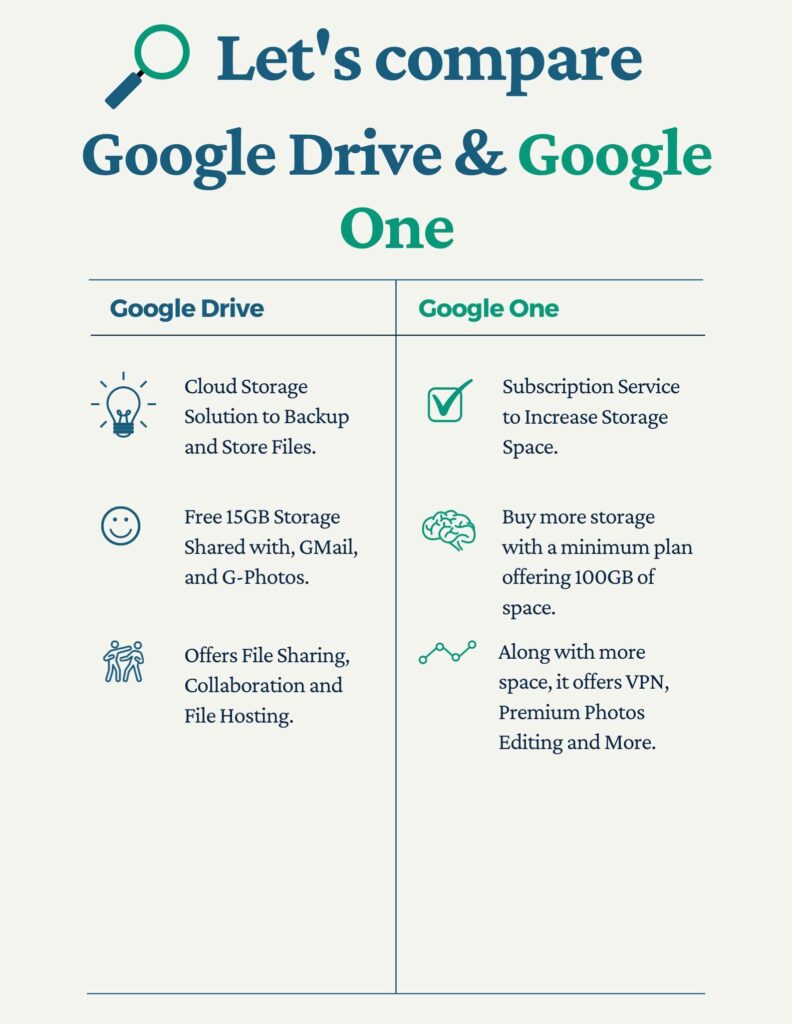
First and foremost, let us understand what Google One actually is. In simple terms, Google One is a subscription service that expands your cloud storage across Gmail, Google Drive, and Google Photos. All Google accounts start with 15 GB of free storage. When this fills up, you either need to delete old files or upgrade to a paid plan. Therefore, your choice depends on your specific needs and digital habits.
What Exactly Comes with a Google One Membership?
Many people assume Google One is just about buying extra space. Actually, the service offers a lot more. You should know that subscribing unlocks several valuable perks beyond storage.
Storage Plans for Every Need
Understanding the pricing structure is your starting point. You pay for storage tiers, and the benefits increase accordingly. Here is a breakdown of the current plans:
- The Basic Plan (100 GB): For $1.99 per month, you get a good amount of space for the average user.
- The Standard Plan (200 GB): At $2.99 monthly, this tier also gives you 3% back on Google Store purchases.
- The Premium Plan (2 TB): For $9.99 a month, you receive 10% back on Google Store purchases and unlimited saves in Google Photos Magic Editor.
- AI Premium Plans: Google has started bundling its Gemini AI with storage. For instance, you can get 2 TB or even 5 TB of storage alongside access to Gemini Advanced in Gmail and Docs. Consequently, these plans cost between $19.99 and $24.99.
Hidden Perks You Might Have Missed
You should not overlook the extra features. They often make the subscription worth the cost. For example, you gain access to:
- Family Sharing: You can share your storage with up to five family members. Importantly, they get their own private storage, but the total comes out of your shared pool.
- Priority Support: Unlike free users, you get 24/7 access to Google experts via phone or chat.
- Enhanced Editing Tools: You unlock exclusive filters and effects in Google Photos that are not available to free users.
- Dark Web Monitoring: This security feature scans the dark web for your personal information.
How to Sign Up and Get Started
Getting started is surprisingly quick and straightforward. You need to visit the Google One website or download the mobile app. Once you are there, click on “Upgrade” and choose the plan that fits your life. Additionally, you should set up account recovery options. This step ensures you can always access your storage even if you forget your password.
Google One: Do You Really Need to Pay? How to Clean Up First
Here is a critical piece of advice: Before you subscribe, you should clean your existing storage first. Often, your 15 GB of free storage is full of digital junk. Consequently, you might save money by simply decluttering. Many people sign up for a subscription only to realize they didn’t need it in the first place.
Think about it this way: $2 per month is roughly $24 per year. Over five years, you would spend $120 to avoid hitting the delete button on old files. This reality check is crucial.
Step 1: Use the Storage Manager
Google provides a tool called the Storage Manager, but it is often hidden away. You should go to the Google One website and click on “Storage.” There, you will see a visual breakdown of how much space Gmail, Drive, and Photos are using.
This manager highlights the heaviest items. For instance, you can click on “Emails with large attachments” or “Large videos” and delete them in bulk. This process takes just a few minutes but can free up gigabytes instantly.
Step 2: Hunt for the “Heavy Hitters”
If you want to be more thorough, use search operators. For Gmail, type larger:10M into the search bar. This command pulls up every email with an attachment over 10 megabytes. Then, you can review them and delete the ones you don’t need anymore.
Step 3: Check Google Drive
Use the “Storage” view in Google Drive. You can sort all your files by size. Videos and ZIP files are usually the worst offenders. Often, you will find old screen recordings or project backups that you no longer require.
Step 4: Don’t Forget the Trash
This is a common trap. When you delete files in Google Drive or Gmail, they move to the Trash folder. They do not free up space until you empty the Trash. Therefore, make sure you permanently delete them to reclaim the storage.
The New AI Bundles Google One: What You Need to Know
Google is increasingly pushing AI as part of its storage offerings. In fact, the company recently crossed 150 million subscribers, with millions on AI Premium plans.
The Google One AI Pro plan now includes features like Gemini in Docs, Gmail, and Vids. You also get access to advanced AI models like 2.5 Pro. This effectively turns the subscription into a powerhouse for both storage and productivity.
FAQ
Q: What is the difference between Google Drive and Google One?
Drive is the app where you store files; One is the subscription that buys you more space for Drive, Gmail, and Photos.
Q: Can I share my Google One storage with family?
Yes. You can add up to five family members to your plan, and they get their own private storage.
Q: What happens if I cancel Google One?
You will lose access to the extra storage. However, Google gives you a grace period to download your files before they are deleted.
Q: Is Google One worth it?
If you value AI features, priority support, and extra storage, it is a great deal. Conversely, if you just need a bit of space, you should try cleaning up your free storage first.
Q: How do I check what is using my Google storage?
Go to the Google One website and click “Storage” to see a breakdown by Gmail, Drive, and Photos.
Final Verdict
Using Google One is not just about paying for space. It is about managing your digital life smartly. Start by using the free 15 GB wisely. Use the Storage Manager to delete junk. Only upgrade when you genuinely need the benefits—and do not forget to enjoy the extra perks you are paying for!