
Squarespace: How to Use It and the Facts You Actually Need
Squarespace: Let’s face it. Building a website used to feel like learning a new language. For example, you needed coding skills, hosting knowledge, and endless patience.
Then, along came Squarespace.
I remember my first try with it. Honestly, I clicked, dragged, and dropped. As a result, within two hours, I had a live site. No stress. No tech headaches.
Today, I want to share how you can do the same. Furthermore, I will reveal key facts that most guides skip. Therefore, grab a coffee. Let’s dive in.
What Exactly Is Squarespace?
Simply put, Squarespace is an all-in-one website builder. In other words, it handles design, hosting, and security. Consequently, you just focus on your content.
Unlike WordPress, you don’t install plugins or update software. Similarly, unlike Wix, your designs look consistently polished. Moreover, Squarespace gives you a clean, professional look from the start.
As a result, millions of people use it. For instance, artists, restaurants, bloggers, and even small stores rely on it daily.
Squarespace: Getting Started: Your First 15 Minutes
First of all, go to Squarespace.com. Then, click “Get Started.” After that, you will see template options. However, don’t overthink this step. In fact, you can change templates later without losing content.
So, pick a template that feels close to your vision. For example, choose a portfolio layout for photography. Likewise, select a store layout for selling products.
Next, click “Start with this design.” Afterward, sign up with your email or Google account. At this point, Squarespace asks you a few questions. Answer quickly. These questions just help tailor your setup.
Finally, you enter the main editor. Without a doubt, this space is your playground.
How to Use the Squarespace Editor (Active Voice Guide)
Let me walk you through the actual process. Just follow these steps right now.
1. Add Your Content Block by Block
First, click the “Edit” button on any page. Then, hover over a section. A blue plus sign appears. Go ahead and click it.
After that, choose a block. For instance, text blocks hold your writing. Similarly, image blocks display your photos. Also, video blocks embed YouTube or Vimeo links.
Do you need a contact form? Simply add a form block. Do you want social media icons? Likewise, add a social links block.
In short, you build your page one block at a time. Moreover, you can drag blocks up or down. You can also delete blocks you don’t need. Honestly, it feels like playing with building blocks.
2. Customize Your Colors and Fonts
Next, go to “Design” in the main menu. Then, click “Site Styles.” This menu controls your entire look.
From there, change the primary color. Afterward, adjust the heading font. Then, increase button sizes. The best part? Every change updates instantly on your screen.
Here’s a pro tip: stick to two fonts maximum. For example, use one for headings and one for body text. As a result, this keeps your site readable and professional.
If you want to read about Code, click here.
3. Create Pages Easily
First, click “Pages” in the left sidebar. Then, click the plus sign next to “Not Linked” or “Main Navigation.”
After that, name your page. Next, choose a page type: standard, blog, store, or events. Squarespace populates the layout for you.
Once you create the page, add blocks. Then, fill it with your content. Finally, drag the page into your navigation menu.
For example, create an “About” page. Then, add a photo of yourself. Afterward, write a short bio. Finally, include a call-to-action button that says “Work With Me.”
4. Set Up Your Store in Minutes
Do you want to sell products? Then, click “Commerce” and then “Products.” After that, click “Add Product.”
First, upload a product image. Then, write the product name. Next, enter the price. Afterward, add a description.
Do you sell digital items? Then, toggle the “Digital Product” switch. Do you sell services? Similarly, choose “Service Product” instead.
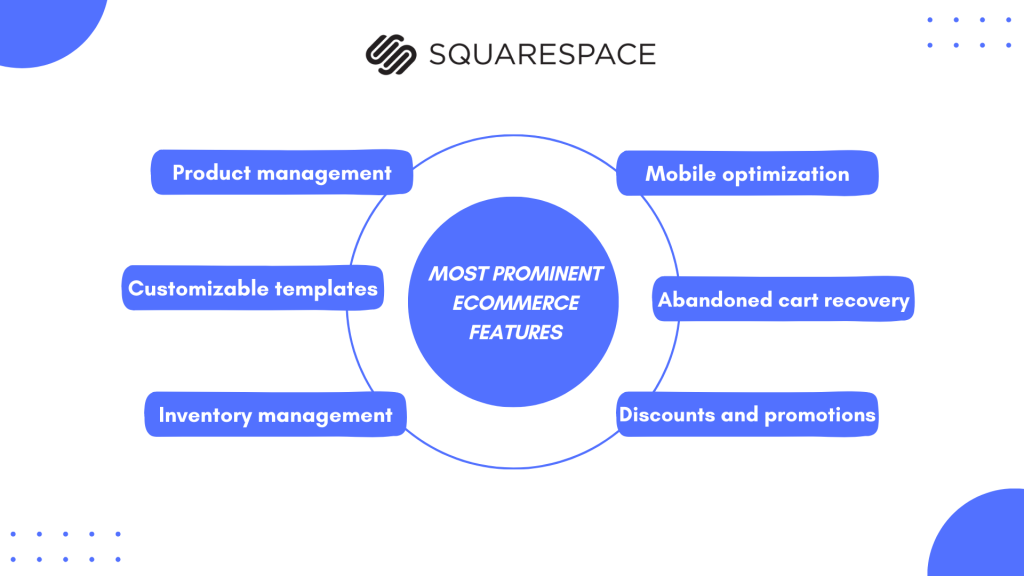
Moreover, Squarespace calculates taxes and shipping for you. Additionally, it sends automatic receipts to customers. Consequently, you save hours of manual work.
5. Launch Your Blog
First, click “Blog” under “Pages.” Then, choose a blog layout. Personally, I recommend the sidebar layout for beginners. As a result, it gives you room for categories and an email signup form.
After that, write your first post. Click “New Post.” Then, write a headline. Next, add your content in blocks. Also, insert images between paragraphs. Finally, add tags and categories.
Afterward, schedule your post. Or, publish it immediately. Squarespace automatically creates an RSS feed and a blog archive page.
Important Facts You Need to Know (No Fluff)
Many tutorials skip these details. But you deserve the truth. So, here are the facts.
Fact 1: Squarespace Uses Drag-and-Drop, But Not Freely
Unlike Wix, you cannot place elements anywhere. Instead, you work within a grid system. This grid keeps your site responsive on phones and tablets.
Honestly, this limitation saves you from messy designs. Therefore, your site will look good on every device without extra work.
Fact 2: Your Content Belongs to You
First of all, you own everything you create. Squarespace never claims rights to your text, images, or products. Moreover, if you leave, you can export your content.
However, you cannot export your design. In other words, the template stays with Squarespace. Therefore, export your blog posts and product data as a backup.
Fact 3: SEO Works Well Out of the Box
Generally speaking, Squarespace automatically generates sitemaps. It also adds meta descriptions. Furthermore, it creates clean URLs.
But you still need to write good titles. For example, use your keywords naturally. Also, add alt text to every image. Then, connect Google Search Console for better insights.
For instance, rename your image files before uploading. Change “IMG_2345.jpg” to “blue-wedding-shoes.jpg.” Squarespace uses these names for SEO.
Fact 4: Mobile Editing Exists
Yes, you can edit your site from a phone or tablet. Just download the Squarespace app. Then, log in. After that, make quick changes on the go.
Nevertheless, save heavy design work for a computer. The mobile app works best for adding blog posts or checking orders.
Fact 5: Customer Support Responds Quickly
Moreover, Squarespace offers 24/7 live chat. In most cases, you wait less than five minutes. Email support takes a few hours.
Additionally, they have a massive help library. So, search for any question there first. You will find step-by-step guides with screenshots.
Transitioning From Idea to Live Site
So, you built your pages. Then, you added your products. Now what?
First of all, preview your site. Click the “Preview” icon (the eye symbol). Then, click through every page. After that, test every link. Also, fill out your contact form to ensure it works.
Second, add a custom domain. Squarespace gives you a free domain for the first year. So, connect an existing domain or buy a new one. Be sure to do this before launching.
Third, remove the “Made on Squarespace” badge. Go to “Design” then “Footer.” Then, uncheck the attribution box. As a result, your site now looks completely custom.
Finally, click “Launch.” After that, Squarespace makes your site public. Then, share your link everywhere.
Common Mistakes to Avoid
Let me save you from frustration. Therefore, avoid these errors.
Mistake 1: Forgetting to save. The autosave works well, but save manually before closing your browser.
Mistake 2: Using too many fonts. Stick to two or three. Otherwise, more fonts make your site look chaotic.
Mistake 3: Ignoring image sizes. Large images slow down your site. Therefore, compress images before uploading. For instance, use TinyPNG or Squoosh for free.
Mistake 4: Skipping the favicon. That tiny icon in browser tabs matters. So, upload your logo as a favicon. It makes your site look legit.
Mistake 5: Not backing up. Squarespace stores your data. However, export your site content every month. Then, save it to your computer.
Frequently Asked Questions (FAQ)
Q1: Do I need coding skills to use Squarespace?
No. You never touch code. Squarespace handles everything visually. However, you can add custom CSS if you want advanced changes.
Q2: How much does Squarespace cost?
Plans start at $16 per month (billed annually). The Business plan costs $23 per month. Commerce plans start at $27 per month. As a result, you get a discount for yearly payments.
Q3: Can I switch templates after building my site?
Yes. Go to Design → Templates → Install New Template. Your content stays intact. But you will need to rearrange blocks because templates organize sections differently.
Q4: Does Squarespace sell my data?
No. Squarespace does not sell your personal data or your visitors’ data. Therefore, read their privacy policy for full details.
Q5: Can I accept payments without a third-party processor?
Yes. Squarespace Payments processes credit cards directly. You can also use Stripe or PayPal. However, transaction fees apply unless you use the highest Commerce plan.
Q6: What happens if I stop paying?
Squarespace takes your site offline immediately. Then, you have 30 days to renew. After 30 days, they delete your site. So, always export your content before canceling.
Q7: Is Squarespace good for blogging?
Absolutely. Many professional bloggers use Squarespace. For instance, it offers clean typography, scheduled posts, categories, tags, and author profiles. Plus, the built-in analytics show your top posts.
Q8: Can multiple people edit my site?
Yes. Add contributors as “Managers” or “Contributors.” Managers can change design settings. Meanwhile, Contributors can only write blog posts or add products.
Q9: Does Squarespace have a free plan?
No. Squarespace offers a 14-day free trial. In fact, you do not enter payment details to start. Therefore, build your entire site first. Then, pay to launch it.
Q10: How do I add a custom font?
Go to Design → Site Styles → Fonts. Then, click “Manage Custom Fonts.” After that, upload your font file. Squarespace supports TTF, OTF, and WOFF files.
Final Thoughts: Should You Use Squarespace?
Here is my honest take.
Use Squarespace if you want a beautiful site without technical work. Also, use it if you run a portfolio, small store, or blog. Furthermore, use it if you hate managing hosting and security updates.
On the other hand, do not use Squarespace if you need a massive online store with thousands of products. Likewise, do not use it if you want complete design freedom like a custom-coded site.
For everyone else? Squarespace works wonderfully.
In fact, I built six sites on Squarespace over the years. Each one took less than a weekend. Moreover, each one still runs smoothly today.
So, stop overthinking. Instead, start your free trial tonight. Then, click around. Break things. Fix them. Finally, build something you feel proud of.
Your website waits for no one. Therefore, go make it.