
Copilot vs Gemini: How to Use & Key Facts (A Human-Side Comparison)
Copilot vs Gemini, you stare at two AI assistants. One comes from Microsoft. Then, the other springs from Google. As a result, you feel confused about which one actually helps you finish your work faster.
To be honest, I asked myself the same question last month. Consequently, I tested both tools side by side. Now, I want to share my real-world experience. Therefore, you won’t need to waste hours comparing them yourself.
First of all, let’s break down each tool simply. Then, we’ll explore how to use them effectively. Finally, I’ll give you the key facts you really need to know.
So, grab a coffee. Without further ado, let’s jump in.
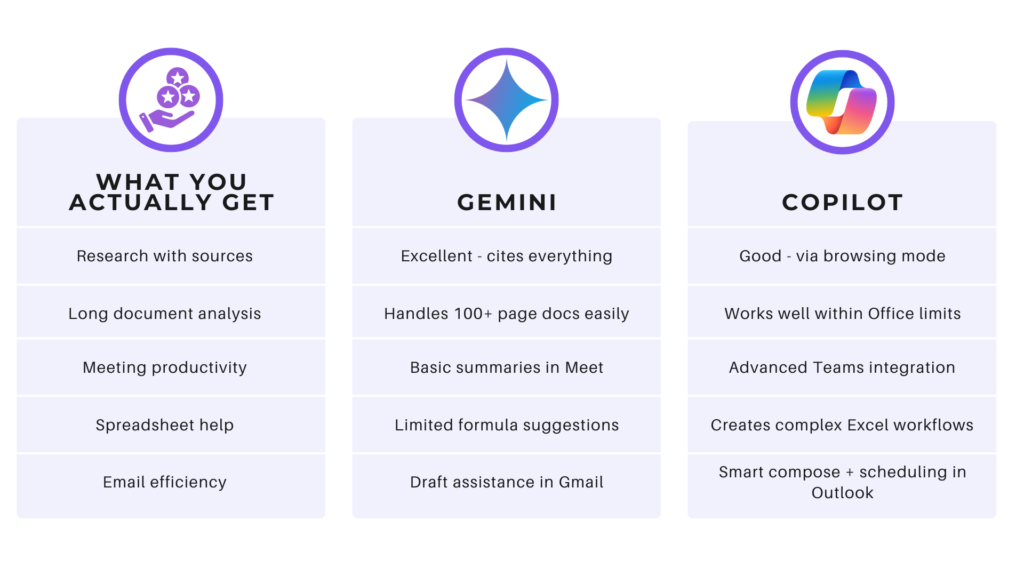
What Exactly Are Copilot vs Gemini?
Before we compare, let’s define both clearly. After that, we can look at their strengths.
On one hand, Microsoft Copilot lives inside Microsoft’s ecosystem. For example, you find it in Word, Excel, Teams, and Outlook. Additionally, a standalone web version exists. Furthermore, Copilot uses OpenAI’s models with Microsoft’s own tweaks. In short, it feels like a professional teammate.
On the other hand, Google Gemini (formerly Bard) is Google’s native AI. For instance, it works inside Google Docs, Gmail, Sheets, and Drive. Moreover, you can access it via a dedicated website or mobile app. Likewise, Gemini uses Google’s own large language models. As a result, it feels more like a creative brainstorm partner.
Transitioning to the main question, how do you actually use them? Let me show you step by step.
Copilot vs Gemini: How to Use Microsoft Copilot (Step by Step)
Copilot vs Gemini: Let me show you the active steps. You can start right now without any hassle.
1. Access Copilot for Free
First, open your browser. Then, go to copilot.microsoft.com. After that, sign in with your Microsoft account. You don’t need a paid subscription for basic use. That’s a huge win.
2. Use Copilot in Word
Next, open Microsoft Word. Look for the Copilot icon on the top ribbon. Click it. A sidebar opens immediately. Now, type your command. For example, say “Draft a project proposal for a new website launch.” Copilot writes it instantly. Consequently, you save twenty minutes of typing.
3. Summarize Long Emails in Outlook
Similarly, open Outlook. Select a long email thread. Click the Copilot icon. Then choose “Summarize.” Copilot pulls out the three key points. As a result, you save ten minutes immediately.
4. Analyze Data in Excel
Likewise, open an Excel sheet. Highlight your data range. Click Copilot. Ask, “Show me sales trends for Q3.” Copilot generates charts and insights. Therefore, you don’t write a single formula.
5. Use Voice Commands in Teams
Finally, join a Teams meeting. Click Copilot. Select “Recap.” Copilot lists action items and decisions. Furthermore, you can ask, “What did John say about the deadline?” Copilot finds the exact quote. That’s incredibly useful.
Pro tip: Always double-check numbers. Copilot is fast, but it’s not perfect.
How to Use Google Gemini (Step by Step)
Now, let’s switch to Gemini. The process feels different, but it’s equally powerful.
1. Start with Gemini Free
First, go to gemini.google.com. Then, sign in with your Google account. The free version works well for most tasks. No credit card is required. That’s a relief.
2. Draft Emails in Gmail
Next, open Gmail. Click “Draft with Gemini” below the subject line. Type a short prompt. For example, “Write a polite follow-up about last week’s proposal.” Gemini writes the full email. After that, you edit or send it directly.
3. Create Content in Google Docs
Similarly, open a Google Doc. On the left side, click the Gemini icon (sparkle shape). Type “Write five blog headlines about home gardening.” Gemini generates them in three seconds. Then, you pick the best one. It’s that simple.
4. Analyze PDFs and Images
Likewise, upload a PDF into Gemini. Ask, “What are the main conclusions of this report?” Gemini reads the file and answers instantly. Additionally, you can upload a chart image. Say, “Explain this data to me.” Gemini describes trends in plain English. Consequently, you understand complex information faster.
5. Use Gemini on Your Phone
Finally, download the Google Gemini app (Android or iOS). Open the app. Tap the microphone. Say, “Remind me to buy groceries at 5 PM.” Or say, “Summarize this news article.” Gemini listens and acts. As a result, it feels like a real assistant.
Pro tip: Connect Gemini to your Google Calendar. Ask, “What’s my schedule today?” Gemini reads your events aloud. That saves you from checking your phone.
Key Facts You Need to Know
Copilot vs Gemini: Let me give you the honest facts. No fluff. Just what works. Here is what I learned after weeks of testing.
Fact 1: Copilot Excels Inside Microsoft Apps
Copilot shines when you live in Word, Excel, and Teams. For instance, I wrote this blog’s outline using Copilot in Word. The integration feels seamless. Conversely, Copilot outside Microsoft feels weaker. So, keep that in mind.
Fact 2: Gemini Excels at Research and Multimodal Tasks
Gemini handles images, PDFs, and YouTube videos better. For example, upload a complex diagram. Gemini explains it. Show a photo of a plant. Gemini identifies it. Copilot can’t do that yet. Therefore, Gemini wins for visual tasks.
Fact 3: Copilot Costs Money for Full Features
The free version works fine. However, Copilot Pro costs $20 per month. Pro gives you faster responses and priority access. Similarly, Gemini Advanced costs $20 per month. Advanced unlocks deeper reasoning and larger context windows. Consequently, both tools cost the same for premium features.
Fact 4: Gemini Has a Bigger Context Window
Context window means how much text the AI remembers at once. Gemini Advanced remembers up to 1 million tokens. That’s like three long novels. Copilot remembers roughly 32,000 tokens. Thus, Gemini wins for long documents. That’s a significant advantage.
Fact 5: Copilot Wins for Business Formatting
Need a formal report? Copilot formats it perfectly. Need a pivot table? Copilot builds it. Need a slide deck? Copilot drafts it in PowerPoint. Gemini struggles with complex formatting. Therefore, Copilot is better for office work.
Fact 6: Both Handle Web Searches Differently
Copilot uses Bing search. Gemini uses Google search. As a result, Gemini often gives fresher news results. On the other hand, Copilot cites sources more clearly. So, choose based on your priority.
Fact 7: Privacy Matters
Microsoft keeps your data within its tenant. That’s good for businesses. However, Google uses your data to improve models unless you turn it off. Therefore, check your settings immediately. That’s a critical step.
Head-to-Head Comparison Table Copilot vs Gemini
| Feature | Copilot | Gemini |
|---|---|---|
| Best for | Office work, data analysis | Research, image understanding |
| Free version | Yes (limited) | Yes (good) |
| Paid price | $20/month | $20/month |
| Context window | ~32K tokens | Up to 1M tokens (Advanced) |
| Image upload | No | Yes |
| PDF analysis | Limited | Excellent |
| Mobile app | Yes | Yes |
| Voice commands | In Teams only | Full app voice |
Which One Should You Choose?
Copilot vs Gemini: Here’s my honest advice. After weeks of testing, I can finally give you a clear answer.
Choose Copilot if:
- You live in Microsoft Word, Excel, and Outlook.
- Then, you create formal business documents daily.
- You need help with data analysis in spreadsheets.
- Your company already uses Microsoft 365.
On the other hand, choose Gemini if:
- You live in Google Docs, Gmail, and Drive.
- Then, you research long reports or academic papers.
- You work with images, PDFs, or YouTube videos.
- You want a voice assistant on your phone.
Alternatively, use both if:
- Your budget allows $40 per month.
- You switch between Microsoft and Google daily.
- You want the best of both worlds.
Personally, I use Gemini for research and Copilot for spreadsheets. As a result, that combination saves me about five hours every week. That’s a huge win for my productivity.
Common Mistakes to Avoid Copilot vs Gemini
Let me save you from my own errors. I made these mistakes so you don’t have to.
Mistake 1: Asking vague questions.
Don’t say: “Write a report.”
Instead, say: “Write a one-page sales report for Q4 with three bullet points.”
Mistake 2: Trusting everything as fact.
Both AIs hallucinate. Therefore, always verify numbers and dates.
Mistake 3: Ignoring privacy settings.
Turn off data sharing in both tools. Go to settings, then privacy.
Mistake 4: Using the wrong tool for images.
Copilot can’t read images. Therefore, use Gemini for any visual task.
Mistake 5: Forgetting to update.
Both tools add features monthly. Consequently, check release notes regularly.
Frequently Asked Questions (FAQ)
1. Is Copilot better than Gemini for students?
Yes, if you use Microsoft Word for essays. No, if you need image analysis. Additionally, Gemini helps more with research papers because of the large context window.
2. Can I use Copilot and Gemini for free forever?
Yes, both offer free tiers. However, free versions have daily limits. For example, Copilot Free gives slower responses during peak hours. Similarly, Gemini Free limits file uploads.
3. Which AI writes better emails?
Copilot writes more formal business emails. On the other hand, Gemini writes more natural, conversational emails. Therefore, pick based on your audience.
4. Does Gemini work offline?
No. Both tools require an internet connection. All processing happens on cloud servers. So, make sure you have Wi-Fi.
5. Can Copilot create images?
Yes, Copilot uses DALL-E integration. Type “Create an image of a cat wearing a hat.” Conversely, Gemini cannot generate images yet. That’s a clear difference.
6. Which is safer for business data?
Copilot (Microsoft) offers stronger enterprise privacy. Google Gemini has caught up, but Microsoft leads here. Therefore, businesses prefer Copilot.
7. How do I switch from Gemini to Copilot?
You don’t need to switch. Instead, use both. Copy text from Gemini into Word. Then, use Copilot to reformat it. That workflow works great.
8. Does Gemini understand code better?
Yes. Google trained Gemini on more coding data. Copilot works for basic code, but Gemini wins for debugging complex scripts. As a result, developers prefer Gemini.
9. Can I cancel my subscription anytime?
Yes. Both offer monthly billing. Cancel directly from your Microsoft or Google account page. Consequently, you aren’t locked into a contract.
10. What’s coming next for both tools?
Copilot will add deeper Excel automation. Similarly, Gemini will add video analysis. Therefore, check back in six months for updates.
Final Take: Stop Comparing, Start Using
Copilot vs Gemini: Here’s the truth. You don’t need the “best” AI. Instead, you need the AI that fits your daily routine. That’s the real secret.
I spent weeks worrying about specs and benchmarks. Then, I realized something simple. Copilot helps me finish spreadsheets faster. Similarly, Gemini helps me understand complex documents. As a result, both make my life easier.
So, start small. First, pick one tool today. Then, use it for three tasks. After that, try the other. In one week, you’ll know your favorite. That’s a promise.
Above all, remember these AIs are assistants, not replacements. You still drive the work. They just help you steer. Consequently, don’t fear them. Instead, embrace them.
Now go write that email. Draft that report. Summarize that PDF. Your AI is waiting. And honestly, that’s pretty exciting.
Have you tried both Copilot and Gemini? Share your experience in the comments below. Which one surprised you more? I’d love to hear your story.