
Introduction: How to Use Dropbox
Cloud storage has become an essential part of daily life. Whether you are a student, a business owner, or a freelancer, you need a safe place to store your files. This is where Dropbox comes in. It offers an easy way to save, organize, and share your documents from almost anywhere.
Instead of carrying a USB drive or emailing files to yourself, you can upload everything to Dropbox and access it whenever you need it. Better yet, your files stay updated across all your devices. As a result, you always have the latest version at your fingertips.
If you are new to Dropbox, don’t worry. This guide explains everything in simple words. From creating your account to sharing files with others, you’ll learn every important feature step by step.
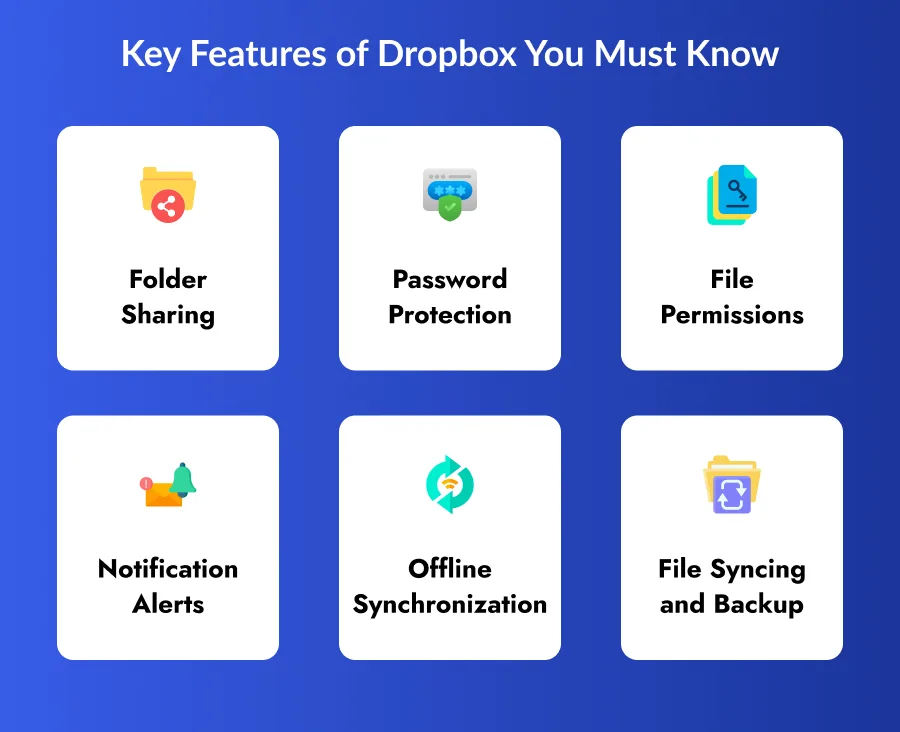
What Is Dropbox?
Dropbox is a cloud storage platform that lets you save files online. In other words, it stores your documents on secure servers instead of only on your computer or phone.
Because your files live in the cloud, you can access them from almost any device with an internet connection. For example, you can start working on a report at the office and finish it later on your laptop at home.
Dropbox supports many file types, including:
- Documents
- PDFs
- Images
- Videos
- Audio files
- Presentations
- Spreadsheets
- ZIP folders
Most importantly, your files remain safe even if your computer stops working.
If you want to read about how to clear iPhone storage, click here.
Why Should You Use Dropbox?
It offers much more than online storage. In fact, it helps you stay organized, work with others, and protect important files.
Here are some of its biggest benefits:
- Access files from anywhere
- Back up important documents automatically
- Share files in seconds
- Work with teammates in real time
- Recover deleted files
- Restore older versions of documents
- Sync files across multiple devices
- Keep your data secure
As a result, you spend less time managing files and more time getting work done.
How to Create a Dropbox Account
Getting started is quick and simple.
Step 1: Visit Dropbox
First, open the website or download the mobile or desktop app.
Step 2: Sign Up
Next, click Sign Up.
You can register with:
- Your email address
- A Google account
- An Apple account
After that, create a strong password.
Step 3: Verify Your Email
It will send a confirmation email. Open it and click the verification link.
That’s it. Your account is now ready to use.
Understanding the Dropbox Dashboard
After signing in, you’ll see the dashboard. At first, it may seem unfamiliar. However, it becomes easy to navigate once you know the basics.
Here are the main sections:
Home
This area shows your recent files and activity.
Files
Here, you’ll find every document and folder you upload.
Shared
This section displays files and folders that you share with others or that others share with you.
Deleted Files
If you remove a file by mistake, you can restore it from here.
Account Settings
Finally, use this section to manage security, storage, notifications, and connected devices.
How to Upload Files
Uploading files is one of the easiest things you can do in it.
On the Website
First, sign in to Dropbox.
Next, click Upload.
Then choose Files or Folder.
Select your items and wait for the upload to finish.
On Your Phone
Open the Dropbox app. Tap the + button. Choose Upload Files. Select the files you want. Finally, confirm the upload.
On Your Computer
Even easier, drag and drop files into your folder. Dropbox uploads them automatically in the background.
How to Organize Your Files
Keeping your files organized saves time later. First, create folders for different categories.
For example, you might have folders for:
- Work
- School
- Personal files
- Photos
- Clients
- Projects
Next, give each folder a clear name.
Likewise, use simple and descriptive file names. This makes searching much easier later.
How Dropbox Syncs Your Files
One of its best features is automatic syncing.
Install Dropbox on every device you use.
Then sign in with the same account.
Now, whenever you edit a file, Dropbox updates it everywhere.
For instance, if you change a document on your office computer, you’ll see the latest version on your phone within moments.
Because of this feature, you never have to worry about outdated files.
How to Share Files
It makes sharing simple.
Share by Email
Firstly, right-click the file. Next, choose Share. Enter the person’s email address. Then select their permission level.
Finally, click Send.
Share with a Link
Alternatively, you can create a sharing link. Copy the link and send it through email, WhatsApp, or any messaging app. This option works especially well for large files.
Understand Sharing Permissions
Before sharing a file, choose the right permission.
For example:
View Only
People can open the file but cannot change it.
Can Edit
People can update the file and save their changes.
Remove Access
Whenever needed, you can stop sharing completely.
Therefore, you stay in control of your files at all times.
Work Together with Dropbox
It is also a great collaboration tool.
Instead of sending many email attachments, everyone works on the same file. As a result, there is less confusion. In addition, team members can:
- Firstly, edit documents
- Secondly, leave comments
- Thirdly, review files
- Then, track updates
Consequently, projects move faster, and communication becomes much easier.
Recover Deleted Files
Everyone deletes the wrong file at some point. Fortunately, Dropbox makes recovery simple.
Firstly, go to Deleted Files.
Secondly, choose the file.
Thirdly, Click Restore.
Within seconds, the file returns to its original folder.
Restore Older Versions
Sometimes you make changes that you later regret.
Thankfully, Dropbox keeps previous versions of many files.
Simply open Version History.
Next, select an earlier version.
Then click Restore.
As a result, you can quickly recover your previous work.
Back Up Your Computer
Dropbox can also protect important folders on your computer.
For example, you can back up:
- Desktop
- Documents
- Downloads
Therefore, even if your computer is lost or damaged, your important files remain safe online.
Access Files Offline
Although it works online, it also supports offline access.
Mark important files as Available Offline.
Then you can open them without an internet connection.
Later, when you reconnect, it syncs your changes automatically.
Keep Your Files Secure
Security matters. Fortunately, includes several powerful safety features.
These include:
- File encryption
- Two-factor authentication
- Password-protected links
- Secure file transfers
- Device management
- Activity history
For even better protection, enable two-factor authentication.
Although it takes one extra step to sign in, it greatly improves account security.
Tips for Staying Organized
Good organization makes it even more useful.
Therefore, try these simple habits:
- Create folders before uploading files.
- Use clear file names.
- Archive completed projects.
- Delete unnecessary documents.
- Separate work and personal files.
- Review shared folders regularly.
Over time, these small habits make a big difference.
Common Dropbox Mistakes to Avoid
Even experienced users make mistakes.
However, you can avoid many problems by following a few simple tips.
Don’t use weak passwords.
Then, don’t share sensitive files with public links unless necessary.
Don’t ignore your storage limit.
Then, don’t keep duplicate files.
Finally, don’t forget to organize your folders regularly.
These simple steps will save you time later.
Dropbox for Students
Students can use it to stay organized throughout the school year.
For example, they can:
- Save assignments
- Store lecture notes
- Share group projects
- Back up research papers
- Access presentations anywhere
As a result, studying becomes much easier.
Dropbox for Businesses
Businesses also benefit from Dropbox.
Teams use it to:
- Share documents
- Manage projects
- Work remotely
- Store client files
- Collaborate in real time
Therefore, companies improve teamwork while keeping their files secure.
Best Practices for Using Dropbox
To get the most from it, follow these best practices:
- Organize folders consistently.
- Keep Dropbox updated.
- Enable two-factor authentication.
- Review shared links often.
- Delete files you no longer need.
- Back up important documents.
- Use descriptive file names.
- Check your storage space regularly.
Although these habits are simple, they help you work more efficiently every day.
Conclusion
Dropbox is much more than a cloud storage service. It helps you store files safely, organize your work, and collaborate with others from anywhere. Whether you are managing school assignments, running a business, or working on personal projects, it makes file management simple and stress-free.
Moreover, its easy-to-use interface means you don’t need advanced technical skills to get started. As you become more familiar with features like syncing, file sharing, version history, and automatic backups, you’ll discover how much time Dropbox can save.
In the end, using Dropbox is all about working smarter. Once you build good habits and organize your files properly, you’ll enjoy faster access, better collaboration, and greater peace of mind.
Frequently Asked Questions (FAQs)
1. Is Dropbox free to use?
Yes. Dropbox offers a free plan with limited storage. However, you can upgrade to a paid plan if you need more space and advanced features.
2. Can I use Dropbox on more than one device?
Yes. You can install Dropbox on multiple computers, tablets, and smartphones. As long as you sign in with the same account, your files stay synced across all devices.
3. Is Dropbox safe?
Yes. Dropbox uses encryption, secure data transfers, and optional two-factor authentication to protect your files and account.
4. Can I recover deleted files?
Yes. Dropbox stores deleted files for a limited time, depending on your subscription plan. Therefore, you can restore them if you delete something by mistake.
5. Can I share large files?
Absolutely. Instead of sending large email attachments, simply create a shareable link and send it to anyone.
6. Does Dropbox work without the internet?
Yes. You can make selected files available offline. Then, once you’re connected again, Dropbox automatically syncs your changes.
7. What types of files can I upload?
Dropbox supports almost every common file type, including documents, images, videos, PDFs, spreadsheets, presentations, and compressed folders.
8. Why is Dropbox not syncing?
Usually, syncing issues happen because of a weak internet connection, low storage space, unsupported file names, or an outdated Dropbox app. Checking these common issues often solves the problem quickly.