
Let’s Settle the Editor Debate Once and For All
VS Code vs. Neovim, you have probably heard the chatter. On one side, developers praise Visual Studio Code for its simplicity. On the other hand, hardcore terminal lovers swear by Neovim for its speed. So, which one should you choose?
Honestly, there is no single right answer. However, understanding how each editor works will save you hours of frustration. Consequently, I wrote this guide to help you decide. First, I will show you how to set up both tools. Then, I will explain the key facts you need to know. Finally, you will walk away with a clear winner for your specific workflow.
Let’s dive right in.
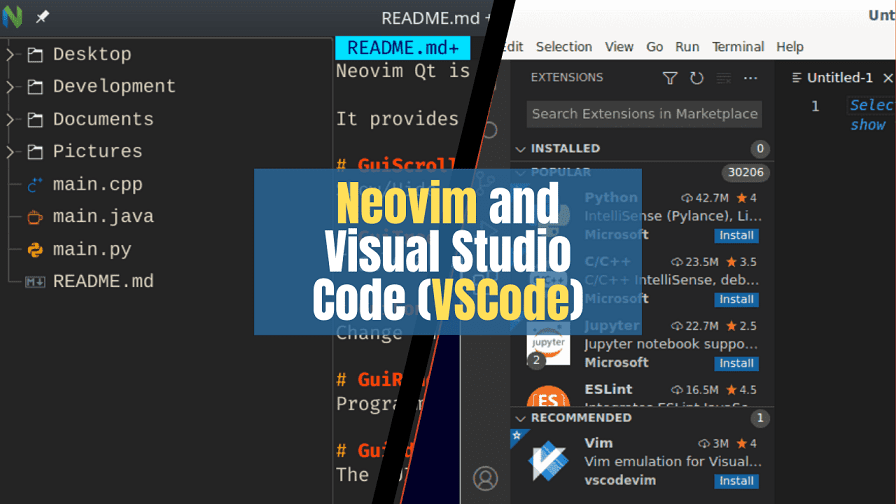
VS Code vs. Neovim Part 1: Getting Started with VS Code
How to Install VS Code in Three Steps
Firstly, go to the official VS Code website. Next, download the version for your operating system. After that, run the installer. You will see a checkbox asking to “Add to PATH.” Make sure you check it. This step lets you launch VS Code from your terminal later.
Finally, open VS Code. You will see a welcome screen. Congratulations—you are ready to code.
How to Make VS Code Powerful (Extensions You Need)
VS Code vs. Neovim. Out of the box, VS Code works fine. However, you want excellence, not fine. Therefore, you need extensions. Here is how to install them:
- Firstly, click the square icon on the left sidebar.
- Secondly, type an extension name in the search bar.
- Then, hit “Install.”
Must-have extensions for beginners:
- Prettier – It formats your code automatically.
- GitLens – It shows you who wrote every line of code.
- Live Server – It launches a local development server instantly.
- Python or JavaScript pack – These add syntax highlighting and debugging.
Transitioning to productivity, you should also learn keyboard shortcuts. For instance, Ctrl + Shift + P opens the command palette. Similarly, Ctrl + B toggles the sidebar. These small tricks save you minutes every day.
Key Fact About VS Code
VS Code is an Electron-based editor. This means it runs on web technologies. Consequently, it consumes more RAM than Neovim. However, you get a beautiful graphical interface in return.
VS Code vs. Neovim Part 2: Getting Started with Neovim
How to Install Neovim (Even If You Fear the Terminal)
Secondly, many beginners think Neovim is too hard. That is not true anymore. Follow these steps:
- Firstly, open your terminal.
- Secondly, on macOS, type
brew install neovim. - Thirdly, on Ubuntu, type
sudo apt install neovim. - Then, on Windows, download the installer from GitHub releases.
After installation, type nvim in your terminal. You will see a blank screen. Do not panic. You are now inside Neovim.
How to Exit Neovim (The First Lesson)
Here is a joke in the developer community: “How do you exit Vim?” New users often get stuck. So, here is the truth:
- Firstly, press the
Esckey to enter normal mode. - Then type
:q!and press Enter.
The :q! Command means “quit without saving.” Conversely, :wq means “save and quit.” Memorize these two commands first. Otherwise, you will feel trapped.
How to Configure Neovim (The Modern Way)
Old Neovim setups required a lot of manual work. Nowadays, you can use a pre-built configuration. For example, LazyVim or NvChad gives you a VS Code-like experience inside the terminal.
Here is how to set up LazyVim quickly:
- Firstly, install Neovim version 0.9 or higher.
- Secondly, Backup your old config:
mv ~/.config/nvim ~/.config/nvim.bak - Thirdly, Clone LazyVim:
git clone https://github.com/LazyVim/starter ~/.config/nvim - Fourthly, remove the .git folder:
rm -rf ~/.config/nvim/.git - Then, run
nvimAnd let it install plugins.
Within five minutes, you will have syntax highlighting, file trees, and auto-completion. Additionally, navigation becomes a breeze with Ctrl + h/j/k/l.
Key Facts About Neovim
Neovim uses modal editing. That means you switch between modes: normal, insert, visual, and command. Initially, this feels strange. Nevertheless, modal editing reduces finger movement. As a result, experienced users edit text faster than anyone using a mouse.
VS Code vs. Neovim Part 3: Head-to-Head Comparison (How-To Use Each for Common Tasks)
Thirdly, let me show you how both editors handle daily coding tasks. I will use the active voice and keep sentences short.
Task 1: Opening a Project Folder
In VS Code:
Click File > Open Folder. Or type code . in your terminal. The folder appears in the sidebar. You can click any file to open it.
In Neovim:
Type nvim. In your terminal. Neovim opens a file explorer called Netrw. Use arrow keys to navigate. Then, press Enter to open a file. Alternatively, install a plugin like nvim-tree for a better explorer.
Task 2: Finding a Specific File
In VS Code:
Press Ctrl + P. Then start typing the file name. VS Code shows matching results instantly. This feature works because VS Code indexes your entire folder.
In Neovim:
Press Ctrl + F (if you use LazyVim). Then type the file name. Similarly, you can use :Telescope find_files if you have Telescope plugin installed. Telescope feels just like VS Code’s search.
Task 3: Editing Multiple Lines Quickly
In VS Code:
Hold Alt and click with your mouse. You will see multiple cursors. Then type or delete on all lines at once. This method is intuitive and visual.
In Neovim:
Go to normal mode. Type Ctrl + V to enter visual block mode. Move down with j key. Then press Shift + I to insert. Type your text. Finally, press Esc. The text appears on every line. This method is keyboard-only and incredibly fast.
Task 4: Running Your Code
In VS Code:
Press Ctrl + F5. Or click the play button in the top right. VS Code runs your file immediately. It also shows output in an integrated terminal.
In Neovim:
Type :term To open a terminal inside Neovim. Then run python myfile.py manually. Alternatively, set up a keymap like F5 to run the current file. For example, add nnoremap <F5> :w<CR>:!python %<CR> to your config.
VS Code vs. Neovim Part 4: Key Facts You Absolutely Need to Know
Fourthly, let me summarize the most important differences. Use this as your cheat sheet.
Fact 1: VS Code is beginner-friendly. Neovim has a learning curve.
VS Code works like any other app. You click menus, drag files, and press familiar shortcuts. Consequently, you can be productive within ten minutes.
Neovim requires memory work. You must learn modal editing and basic commands. Nevertheless, after two weeks of practice, your hands rarely leave the keyboard.
Fact 2: Neovim is lighter and faster.
VS Code uses about 300-500 MB of RAM with a few extensions. Moreover, Neovim uses 30-50 MB. Additionally, Neovim starts instantly. VS Code takes a few seconds.
For example, on a low-powered laptop or a remote server, Neovim feels snappy. VS Code may lag.
Fact 3: VS Code has a better built-in debugger.
VS Code vs. Neovim: You can set breakpoints by clicking next to line numbers. VS Code shows variable values in real time. Neovim can debug too, but setup takes longer. You will need plugins like nvim-dap.
Fact 4: Neovim works over SSH beautifully.
Imagine you connect to a remote Linux server. VS Code requires a server to be set up on the remote machine. Neovim works. Type ssh user@server and then nvim. No extra configuration needed.
Fact 5: Both editors support Language Servers.
Language servers provide auto-completion, go-to-definition, and renaming. VS Code bundles them for popular languages. Neovim uses nvim-lspconfig to connect to the same servers.
Therefore, code intelligence is nearly identical on both editors.
Part 5: How to Choose — A Simple Decision Guide
Follow this flow chart in your head:
- Do you value ease of use above all else? → Choose VS Code.
- Do you work on a weak computer or remote servers? → Choose Neovim.
- Do you hate using a mouse? → Choose Neovim.
- Do you need the best debugging experience? → Choose VS Code.
- Are you a student learning to code? → Start with VS Code. Later, learn Neovim.
- Do you want to look cool in front of your friends? → Choose Neovim. (I am joking. Mostly.)
Transitioning between them is also possible. Then, many developers use VS Code for complex projects and Neovim for quick edits. You do not have to pick one forever.
VS Code vs. Neovim Frequently Asked Questions (FAQ)
Q1: Can I use VS Code keybindings in Neovim?
Absolutely. Install the vscode-neovim extension for VS Code. Or set vim.keymap.set in Neovim to mimic VS Code shortcuts. Some distributions like LazyVim even include a VS Code preset.
Q2: Which editor is better for Python development?
VS Code vs. Neovim: Both work great. VS Code offers a smoother setup with the Python extension. Moreover, Neovim requires you to install Pyright and jedi-language-server. However, once configured, Neovim feels just as powerful.
Q3: Does Neovim have a GUI?
Yes, several. For example, Neovide VimR provides graphical windows. Then, they support animations, smooth scrolling, and native menus. Nonetheless, most users stay in the terminal.
Q4: How long does it take to learn Neovim?
You can edit files after one hour. You feel comfortable after one week. Then, you become truly fast after one month. Do not give up after the first day.
Q5: Is VS Code really free?
Yes, completely free. Microsoft releases it under the MIT license. Then, you can use it for personal and commercial work without paying anything.
Q6: Can I use Neovim on Windows?
Yes. Install via the official installer or with winget install Neovim.Neovim. Then run nvim In PowerShell or Windows Terminal. It works flawlessly.
Q7: Which one has better Git integration?
VS Code wins out of the box. The built-in source control panel shows diffs and lets you commit with clicks. Neovim requires plugins like lazygit vim-fugitive. Nevertheless, vim-fugitive is incredibly powerful once you learn it.
Q8: Do I need to learn Vimscript for Neovim?
No. Neovim uses Lua for configuration. Lua is easier to read and faster. Most modern Neovim configs are 100% Lua.
Q9: Can I migrate my VS Code extensions to Neovim?
Not directly. However, you can find Neovim plugins that do the same job. For instance, Prettier becomes conform.nvim. GitLens becomes gitsigns.nvim. An afternoon of setup will get you there.
Q10: Which editor should a beginner learn first?
Start with VS Code. It removes friction. Once you understand programming basics, spend a weekend learning Neovim. Knowing both makes you a stronger developer.
Final Verdict
VS Code vs. Neovim: Let me leave you with this. VS Code feels like a comfortable sedan. It gets you where you need to go without drama. Then, the air conditioning works. The radio is easy to use. You never worry about breaking down.
Neovim feels like a manual sports car. Then, the first few drives are jerky. You stall at intersections. However, once you learn the clutch, you fly. You feel connected to the machine. Every action becomes intentional.
Choose VS Code if you want to ship code today. Then, choose Neovim if you want to enjoy the journey of editing text for decades.
Either way, you are making a good choice. Now stop reading. Go write some code.
Liked this comparison? Share it with a friend who still uses Notepad. They need help. 😄