
Introduction
Let’s be honest for a second. We’ve all been there. You try to log into your Roblox account, and suddenly, your fingers freeze. Did you use “DogLover123” or “Doglover456”? You type one. Wrong. You try again. Wrong. Your heart sinks a little.
Don’t panic. I’ve got your back.
Changing your Roblox password is surprisingly easy. In fact, you can do it in under two minutes. Whether you want to update an old password, lock out a nosy sibling, or recover a hacked account, this guide walks you through every step.
So grab your device. Let’s fix this together.
Why Should You Change Your Password in Roblox Anyway?
Before we jump into the steps, let’s talk about the why. Many players forget their passwords. That’s normal. However, others share accounts with friends. Furthermore, many people use the same password across multiple games. Consequently, this becomes extremely risky.
Here’s the truth: Hackers love weak passwords. Moreover, they also love reused ones.
As a result, changing your password regularly keeps your account safe. In addition, it protects your Robux, inventory, and game progress. Therefore, it gives you peace of mind. Who doesn’t want that?
So, let’s not wait. Let’s do this.
Roblox: What You’ll Need Before You Start
Firstly, gather a few things. This saves time later.
- Firstly, your current password (if you remember it)
- Then, access to the email address or phone number linked to your Roblox account
- A new password idea (more on that soon)
If you forgot your current password, don’t worry. I’ll show you how to reset it without it.
If you want to read about Clip champ, click here.
Roblox: How to Change Your Password While Logged In (Easiest Method)
This method works best when you already know your current password. You stay logged into your account the whole time. Let’s break it down step by step.
Step 1: Log in to Your Roblox Account
Open Roblox on your browser or launch the app. Enter your username and current password. Click Log In.
Step 2: Go to Account Settings
Look at the upper-right corner of the screen. You’ll see a gear icon (on desktop) or three dots (on mobile). Click it. Then select Settings.
Alternatively, you can go directly to the settings page by typing this into your browser: roblox.com/settings
Step 3: Find the Account Info Tab
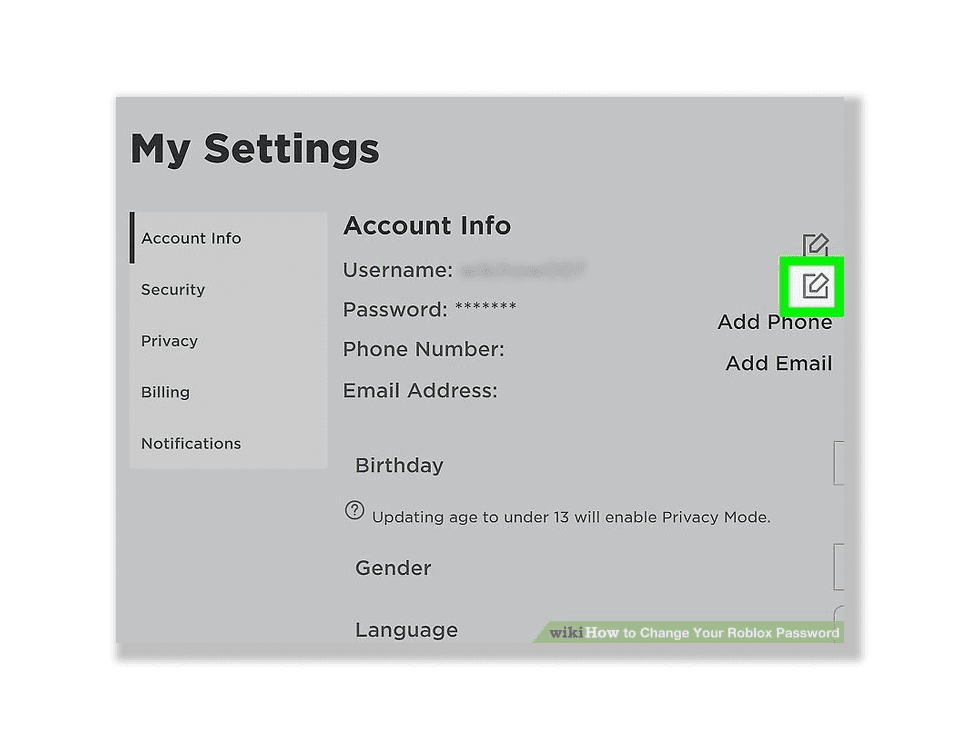
Once you’re inside Settings, look at the left-hand menu. Click Account Info. This tab stores your personal details, including your password.
Step 4: Click the Change Password Button
Scroll down a little. You’ll see a button that says Change Password. Click it. A new window pops up.
Step 5: Enter Your Current and New Passwords
Type your current password into the first box. Then enter your new password twice—once in the “New Password” field and again in the “Confirm New Password” field.
Pro tip: Make sure both new entries match exactly. Otherwise, Roblox rejects the change.
Step 6: Save Your Changes
Click the blue Save button. That’s it. Your password updates immediately.
Next time you log in, use the new password. Don’t forget to write it down somewhere safe.
Forgot Your Password? Here’s How to Reset It
What if you can’t log in at all? No problem. Roblox gives you a backup plan. Follow these steps carefully.
Step 1: Go to the Login Screen
Open Roblox. Don’t try to guess your password. Instead, click Forgot Password or Username? This link sits right below the password box.
Step 2: Enter Your Email or Phone Number
Roblox asks for the email address or phone number linked to your account. Type it in. Then click Submit.
Step 3: Check Your Inbox or Phone
Within a minute, Roblox sends you a password reset link. Look for an email from noreply@roblox.com. If you don’t see it, check your spam or junk folder. Sometimes emails hide there.
On the phone, you’ll receive a text message with a code.
Step 4: Click the Link and Create a New Password
Open the email or text. Then, click the reset link. Roblox redirects you to a new page. Type your new password twice. Then click Submit.
Step 5: Log In With Your New Password
Return to the Roblox login screen. Enter your username and the new password. Congratulations—you’re back in.
Mobile Users: Changing Your Password on the App
Do you play Roblox mainly on your phone? No worries. The mobile app works similarly. Let me walk you through it.
On iPhone or Android:
- Firstly, open the Roblox app.
- Secondly, log in to your account.
- Thirdly, tap the three dots (…) at the bottom-right corner. This opens the menu.
- Fourthly, scroll down and tap Settings.
- Then, tap Account Info.
- Tap Change Password.
- Enter your current password, then your new password twice.
- Finally, tap Save.
If you forgot your password, tap Forgot Password? on the login screen. Follow the same email reset steps above.
That’s all there is to it. Mobile changing takes about 90 seconds.
Xbox Users: A Slight Difference
Roblox on Xbox works a little differently. You cannot change your password directly inside the Xbox app. Instead, you must use a browser or another device.
Here’s what you do:
- Firstly, open a web browser on your computer or phone.
- Secondly, go to Roblox.com.
- Thirdly, log in to the same account you use on Xbox.
- Then, follow the “logged in” steps I shared earlier.
After you change the password, log out of Roblox on your Xbox. Then log back in using the new password. This syncs everything correctly.
What Makes a Strong Password? (Don’t Skip This)
You might think “password123” works fine. It doesn’t. Hackers guess that in seconds. Similarly, “RobloxFan” and your birthdate are too easy.
So, let’s build a strong password together. Use these rules:
- Make it long. At least 8–12 characters.
- Mix it up. Combine uppercase letters, lowercase letters, numbers, and symbols.
- Then, avoid personal info. No names, birthdays, or pet names.
- Don’t reuse passwords. Your Roblox password should differ from your email or school password.
Here’s a good example: Tiger$42Pizza!Moon
See how random that looks? Yet you can remember it. Create a story around it. “A tiger ate 42 pizzas on the moon.” Silly, but memorable.
Roblox: Two-Step Verification: Your Account’s Best Friend
Changing your password helps. However, adding two-step verification (2SV) helps even more. Think of it as a second lock on your door.
With 2SV enabled, Roblox asks for a special code after you enter your password. That code goes to your email or an authenticator app. As a result, even if someone steals your password, they can’t get in without that code.
Here’s how to turn it on:
- Firstly, go to Settings → Account Info.
- Secondly, scroll to Two-Step Verification.
- Thirdly, click Enable.
- Then, choose your method: email, authenticator app, or security key.
- Finally, follow the on-screen instructions.
Do this today. Seriously. It takes three minutes and stops 99% of hackers.
Roblox: Common Mistakes People Make (And How to Avoid Them)
Let me save you some frustration. I see these mistakes all the time.
Mistake #1: Typing your new password wrong in the confirmation box.
Fix: Slow down. Look at both fields before clicking Save.
Mistake #2: Using the same password you used last year.
Fix: Create something fresh. Don’t just change “2023” to “2024.”
Mistake #3: Forgetting to update your password manager.
Fix: If you use a password manager (you should), then update the entry immediately after changing.
Mistake #4: Sharing your new password with friends.
Fix: Don’t. Friends fight. Accounts get hacked. Keep it to yourself.
Mistake #5: Not having a recovery email or phone on file.
Fix: Add both in Settings → Account Info. This saves you if you forget your password later.
What If Someone Else Changed Your Password?
This scenario scares everyone. You try to log in, but your password doesn’t work. Then you realize—someone changed it without your permission.
Firstly, take a deep breath. You have options.
Step 1: Try the “Forgot Password” Method
Use the reset process I described earlier. If the hacker didn’t change your email or phone number, this works perfectly. Roblox sends a reset link to your email. Consequently, you regain control quickly.
Step 2: Contact Roblox Support
If the hacker changed your email too, the reset link goes to them instead. That’s bad. But don’t give up.
Go to the Roblox Support page: roblox.com/support
Fill out the form. Include this information:
- Firstly, your username.
- Secondly, your original email address (when you created the account)
- Thirdly, any purchase receipts (if you bought Robux)
- Then, the date you lost access
Roblox support usually responds within 24–48 hours. Then, they ask a few questions to verify you’re the real owner. Answer honestly. Provide screenshots if you have them.
Step 3: Once You’re Back In, Change Everything
After support restores your account, change your password immediately. Furthermore, enable two-step verification. Then check your account settings for any unfamiliar linked devices or email addresses. Remove anything suspicious.
How Often Should You Change Your Password in Roblox?
This depends on your situation. For most players, changing your password every 3–6 months works fine.
However, change it sooner if:
- Firstly, you shared your password with someone (even once)
- Secondly, you logged in on a public computer (like at a library or school)
- Then, you received a suspicious email about your Roblox account
- Finally, Roblox announces a security breach (rare, but possible)
When in doubt, change it. It never hurts.
Parental Note: Helping Your Child Stay Safe
If you’re a parent reading this, thank you. You’re doing the right thing.
Kids often reuse passwords. Furthermore, they also trade accounts with friends. That’s dangerous. Sit down with your child and follow these steps together:
- Firstly, ask them to log into Roblox.
- Secondly, walk them through the password change process.
- Thirdly, help them create a strong password they can remember.
- Fourthly, enable two-step verification on their account.
- Finally, write down the new password in a safe (like a notebook).
Moreover, teach them this rule: Never share your password. Not with best friends. Not with cousins. even with a boyfriend or girlfriend.
Repeat that rule often. It sticks eventually.
Troubleshooting: Why Isn’t the Reset Email Arriving?
Sometimes the reset email takes a while. Other times, it never shows up. Let’s fix that.
- Firstly, check spam/junk. Roblox emails often land there.
- Secondly, wait five minutes. Delays happen during high traffic times.
- Thirdly, confirm the email address. Did you type it correctly? One wrong letter breaks the link.
- Then, check your phone if you used SMS. Texts sometimes take 2–3 minutes.
- Finally, still nothing? Use a different browser or device. Clear your cache and try again.
If none of that works, contact Roblox Support. They manually send a reset link after verifying your identity.
A Quick Word About Scams
Scammers love targeting Roblox players. They pretend to offer free Robux, password changers, or account recovery tools. Don’t fall for it.
Never click links from strangers.
Never enter your password into a random website.
Then, never trust someone who says, “I can get your account back fast.”
Only change your password through official Roblox channels: the website, the app, or the support team. Nothing else.
Frequently Asked Questions (FAQ)
🔐 General Password Questions
Q1: Can I change my Roblox password without knowing the old one?
Yes. Use the “Forgot Password or Username?” link on the login screen. Roblox sends a reset link to your email or phone.
Q2: How long does it take for a password change to work?
Immediately. As soon as you click Save, your old password stops working. Use the new one from that moment on.
Q3: Can I use the same password I had before?
Technically yes, but don’t. That defeats the purpose. Always choose a brand new password.
Q4: How do I know if my password is strong enough?
Run it through a free online password strength checker. Alternatively, use these rules: 12+ characters, mix of letters/numbers/symbols, no dictionary words, no personal info.
👥 Account & Login Questions
Q5: Does changing my password log everyone else out?
Not automatically. Roblox keeps existing sessions active for a few hours. To force logout on all devices, go to Settings → Security → Sign Out of All Other Sessions.
Q6: Does changing my password affect my game data or Robux?
Not at all. Your inventory, game progress, and Robux stay the same. Moreover, you need a new key to unlock your account.
Q7: Why does Roblox keep asking me to verify after I change my password?
That’s normal. Roblox wants to confirm it’s really you. Then, check your email for a verification code. Enter it quickly—codes expire after 15 minutes.
📧 Recovery & Email Questions
Q8: What if I lost access to my recovery email?
Contact Roblox Support. Provide proof of ownership (like purchase receipts or account creation date). They help you update the email.
Q9: My friend changed my password as a joke. What do I do?
First, ask them for the new password. If they won’t tell you, use the “Forgot Password” method. Then never share your password again.
Q10: Is it safe to change my password on a public Wi-Fi network?
It’s better to wait. Public Wi-Fi risks password theft. Then, use a private, secure connection instead. Your home Wi-Fi or cellular data works fine.
🛡️ Security & Best Practices
Q11: How often should I really change my password?
Every 3 to 6 months for most players. However, change it immediately if you suspect any unauthorized access.
Q12: Should I write my password down?
Yes, but keep it private. Use a notebook stored safely at home. Never save it on a shared computer or in an unsecured note on your phone.
Q13: What’s the difference between changing and resetting a password?
Changing requires your current password. Resetting works when you forgot it. Both end with a new password. The only difference is the starting point.
Final Thoughts: You’ve Got This
Changing your Roblox password feels intimidating at first. However, after reading this guide, you know exactly what to do. Whether you’re logged in or locked out, you have a clear path forward.
So take five minutes right now. Open Roblox. Then, change that password. Turn on two-step verification. Write down your new password somewhere safe.
Your account holds your hard work, your Robux, and your memories. Then, protect it like the treasure it is.
Furthermore, if you get stuck, come back to this post. I’ve covered every problem I can think of. You’re not alone in this.
Now go enjoy your games. Safe and secure.