
Introduction
Zapier, Ever feel like you’re the human bridge between a dozen different apps? You copy data from your website form to a spreadsheet, then manually email your team, and finally log the task in your project management tool. Then this process is not just tedious; it’s a massive drain on your time and creativity. Fortunately, you can eliminate this friction. The solution lies in automation, and one tool stands out as the universal connector: Zapier.
Put simply, Zapier is a web-based service that automates workflows by connecting your apps and services. It moves information between your web apps automatically, so you can focus on your most important work. Therefore, if you’ve ever thought, “I wish this app could talk to that one,” Zapier is your answer.
What Exactly Is Zapier? The Digital Workflow Automator
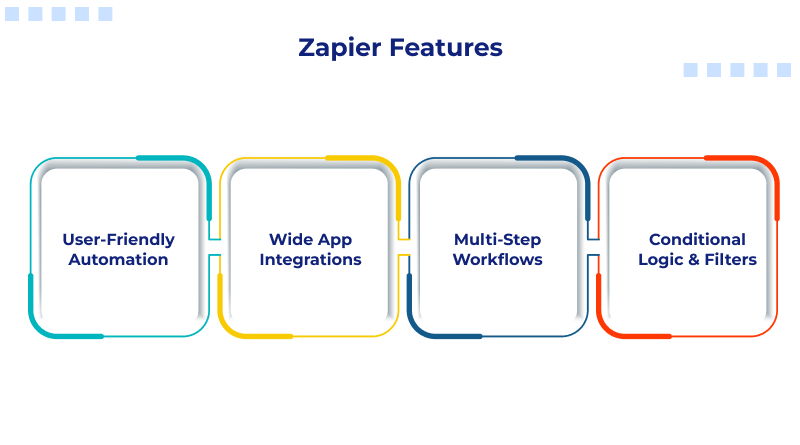
First and foremost, understand that Zapier isn’t an app that replaces your others. Instead, it acts as a powerful intermediary. It links over 6,000 applications—from Gmail and Slack to Salesforce and Shopify—allowing them to work together seamlessly. Consequently, you can create automated sequences, called Zaps, which are built on a simple logic: “When This Happens, Then Do That.”
For instance, imagine this: When a new lead fills out a contact form on your website (Trigger), then Zapier can automatically add their details to your CRM and send a personalized welcome email, and create a follow-up task in your to-do list (Actions). This sequence happens instantly, without you lifting a finger.
Core Concepts You Must Know: Triggers, Actions, and Zaps
Before you build, you need to grasp three fundamental components. These elements form the bedrock of every automation.
Trigger:
Firstly, this is the starting event. The Trigger is the “When This Happens” part. It’s the catalyst that sets your Zap in motion. Common triggers include “New Email in Gmail,” “New Form Submission,” “New Row in Google Sheets,” or then, “New Purchase in Shopify.”
Action:
Secondly, this is the automated response. The Action is the “Then Do That” part. It’s what Zapier does after the Trigger fires. Examples are “Create Contact in HubSpot,” “Send Message in Slack,” “Create Draft in Google Docs,” or “Add Row to Airtable.”
Zap:
Thirdly, the Zap is the complete automated workflow you build. It consists of one Trigger and one or more Actions. You can think of a Zap as a complete recipe, while Triggers and Actions are the ingredients and steps.
How to Use Zapier: Your Step-by-Step Guide to First Automation
Let’s translate theory into practice. Follow this concrete guide to build your first Zap. We’ll automate a common task: saving Gmail attachments to Google Drive.
Step 1: Set Up Your Zapier Account
Firstly, go to Zapier.com and sign up for a free account. The free plan is perfect for learning and offers 100 tasks per month.
Step 2: Click “Create Zap”
Secondly, this is your canvas. You’ll see a two-part interface: a blank space for your Trigger and another for your Action.
Step 3: Choose Your Trigger App
Thirdly, In the “Trigger” section, search for and select Gmail. Then, choose the specific trigger event. For our example, select “New Attachment” from the list. Zapier will now guide you to connect your Gmail account securely.
Step 4: Customize Your Trigger
Moreover, after connecting Gmail, you can often add filters. For example, you might specify you only want attachments from a specific sender or with certain keywords. This step is optional but powerful for precision.
Step 5: Test Your Trigger
Zapier will look for a recent example of an email with an attachment. This test confirms that it can see your data and allows Zapier to pull in sample information for the next step. Always click “Test Trigger.”
Step 6: Choose Your Action App
Now, move to the “Action” section. Search for and select Google Drive. Then, pick the action event. For our goal, choose “Upload File.” Next, connect your Google Drive account.
Step 7: Map Your Data (The Magic Step)
This is where automation comes alive. Zapier will ask where to upload the file and what to call it. Crucially, you can use data from the Trigger (the Gmail test) to populate these fields.
- For the File Name, click in the field and select from the data dropdown. You might choose
{{Attachment Name}}or combine it with the subject:{{Subject}} - {{Attachment Name}}. - For the File field, you will select the actual attachment from the Gmail test, like
{{Attachment 1}}. - Then, choose your destination Google Drive folder.
Step 8: Test Your Action
Click “Test Action.” Zapier will perform a live test, uploading the sample attachment to your specified Google Drive folder. Check your Drive to confirm it worked!
Step 9: Name and Turn On Your Zap
Give your Zap a clear, descriptive name like “Save Gmail Attachments to Drive.” Finally, flip the switch to “On.” Then, your automation is now live and will run for every new email attachment that matches your criteria.
Pro Tips for Zapier Success
Once you master the basics, these strategies will elevate your automations from simple to transformative.
- Use Multi-Step Zaps: Don’t stop at one action. After saving the file to Drive, you could add a second action to notify you in Slack with a link to the file.
- Leverage Filters and Paths: Use Filters to set conditions (e.g., only proceed if the attachment is a PDF). Use Paths to create “if/then” branches in your Zap for more complex logic.
- Explore Built-In Apps: Zapier offers built-in tools like Formatter to adjust text (change dates, capitalize names), Delay to pause a Zap, and Webhooks for connecting to custom apps.
- Start Simple, Then Expand: Begin with a 2-app Zap that solves a daily annoyance. Then, success builds confidence to tackle more complex workflows.
FAQ: Your Zapier Questions, Answered
Q: Is Zapier secure?
A: Yes, absolutely. Zapier uses bank-level 256-bit SSL encryption and follows OAuth protocols where possible, meaning it often doesn’t store your login credentials. It is also SOC 2 compliant, a major auditing standard for security.
Q: How much does Zapier cost?
A: Zapier uses a freemium model. Then, the free plan includes 100 tasks per month and single-step Zaps. Paid plans start around $20/month, offering multi-step Zaps, faster refresh rates, and more tasks.
Q: What’s the difference between a “Task” and a “Zap”?
A: A Zap is your automated workflow. A Task is each step an Action performs. Then, one Zap with one Action uses one Task per run. If that Zap runs 10 times, it uses 10 Tasks. A Zap with three Actions that runs 10 times would use 30 Tasks.
Q: Can Zapier work with apps that aren’t in its directory?
A: Often, yes. Through the use of Webhooks or API calls, you can connect Zapier to custom-built internal tools or apps without a direct integration. Then, this requires some technical knowledge.
Q: What happens if a Zap fails?
A: Zapier has robust monitoring. You will receive an email alert for any Zap failure. You can then inspect the error in your dashboard, which usually provides clear reasons (e.g., app disconnected, invalid data format) and allows you to replay the task after fixing the issue.
Q: Are there alternatives to Zapier?
A: Yes, notable alternatives include Make (formerly Integromat), which offers more visual, complex scenario building, and n8n, a powerful open-source option. However, Zapier remains the leader in ease of use and breadth of app connections.
Conclusion: Automate Your Way to Freedom
Ultimately, Zapier is more than a tool; it’s a force multiplier for your productivity and strategic thinking. By automating the repetitive tasks, you reclaim hours in your week. Then, you reduce human error and ensure critical processes run reliably 24/7.
Start today. Identify one manual, copy-paste task that wastes five minutes of your day, every day. Then, build a Zap to eliminate it. You will immediately feel the relief. From there, the possibilities are endless. Then, automate your lead management, your content posting, onboarding sequences, and then, internal reporting. In short, let Zapier handle the busywork, so you can finally focus on the work that truly matters.