
Unlock the Power of Data Visualization with Tableau
In today’s data-centric world, the ability to transform complex information into clear insights is invaluable. Tableau has emerged as the gold standard for data visualization, enabling professionals across various industries to make informed, data-driven decisions with confidence.
Data doesn’t have to be confusing. With it, you can turn numbers into clear, understandable pictures. Let’s walk through the basics together.
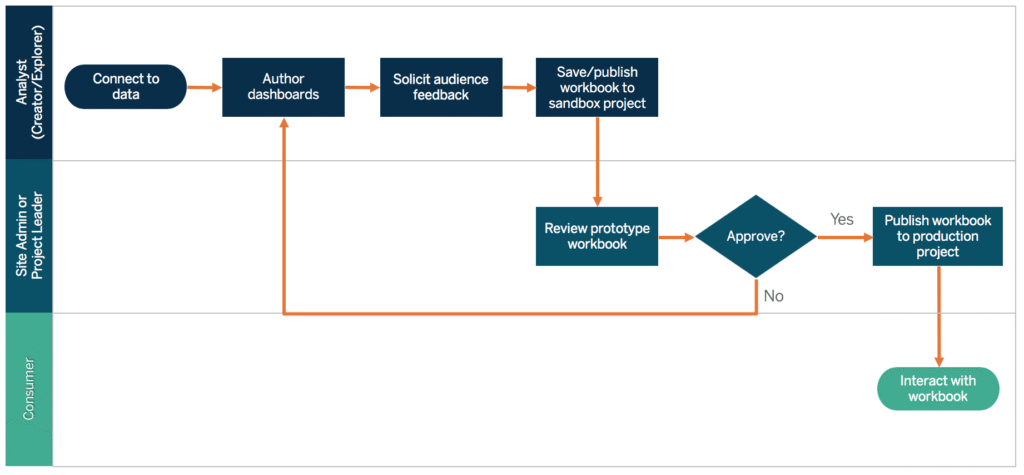
Why Tableau Works So Well
Tableau helps you:
- See your data in colorful charts and graphs
- Connect to information from many places
- Make reports that people can click and explore
- Share what you find with others
Getting Started with Tableau
1. Connect Your Information
- Firstly, click “Connect to Data”
- Secondly, pick where your information lives (like Excel or Google Sheets)
- Thirdly, Tableau will show you a preview
Then, helpful hint: For large files, use “extracts” to speed things up.
If you want to read about FL Studio, click here.
2. Make Your First Chart
- Firstly, drag a category (like “Product Type”) to the top or side
- Secondly, drag a number (like “Sales”) to the other side
- Thirdly, try different chart styles with the “Show Me” button
Moreover, try this: Create two charts that appear together by using “dual axis.”
3. Build Clickable Reports
- Firstly, go to the “Dashboard” tab
- Secondly, drag your charts onto the page
- Then, add buttons people can click to filter
Cool trick: Make one chart change when people click another.
4. Do Simple Math
Moreover, create new numbers like:
- Profit per sale:
Profit/Sales - Growth from last year:
(This Year - Last Year)/Last Year
5. Keep It Fast
- Use smaller data copies (extracts)
- Then, filter early
- Don’t make too many fancy calculations
6. Share Your Work
- Firstly, save as PDF or picture
- Secondly, put it online for your team
- Then, add to websites
Helpful Tips about Tableau
- Use colors carefully to show what’s important
- Make pop-up notes helpful
- Then, learn a few keyboard tricks to save time
Common Questions
Is it free?
There’s a free version with limits. Students can get it free for a year.
Can it handle lots of data?
Yes! It works with big company databases too.
How is it different from Power BI?
Tableau makes prettier pictures. Moreover, Power BI works better with Microsoft stuff.
How do I learn more?
Try free lessons and practice with real numbers.
Why is my report slow?
Make your data smaller, use fewer calculations, and filter first.
Keep Going!
Start small, play around, and soon you’ll be making great reports. Check out Tableau’s free training to learn more tricks.
🔍 Want to accelerate your learning? Dive into Tableau’s official training resources for structured learning paths.