
NotebookLM: How To Start & What You Need To Know
Do you ever feel buried under piles of digital notes and PDFs? You are certainly not alone. In fact, managing information is a modern struggle. Consequently, a new type of tool is emerging to solve this very problem. Meet NotebookLM, Google’s innovative AI research assistant. This tool aims to turn your scattered sources into a smart, conversational library. Therefore, if you write, study, or research, you should understand this tool. This guide will clearly show you how to begin. Moreover, it will explain all the key details you must understand.
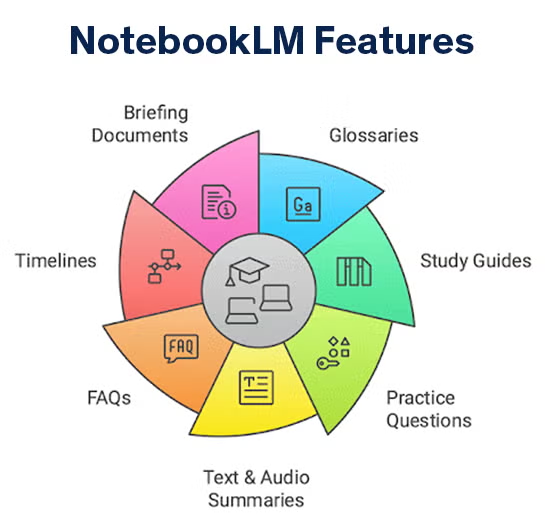
NotebookLM Understanding The Core Concept: Your Personalized AI
NotebookLM functions in three key ways. First, it summarizes your documents. This provides a quick understanding. Second, it answers questions. It does this using only your provided sources. Third, it generates new ideas. For example, it can create outlines from your notes. It can also draft study guides. Ultimately, it acts as a true collaborator. Therefore, it is far more useful than a simple chatbot.
Getting Started: Your First Project In Five Steps
Beginning with NotebookLM is remarkably easy. Follow these simple steps to create your first project in minutes.
Step 1: Access And Account Setup
First, visit notebooklm.google.com. Currently, the service is free in the United States. However, you do need a personal Google account. After you sign in, you will see a clean dashboard. Immediately, click the “New Notebook” button. Subsequently, name your project something descriptive like “Marketing Research” or “Thesis Notes.”
Step 2: Building Your Source Foundation
This step is critically important. Specifically, your notebook’s intelligence depends on your sources. Therefore, click the prominent “Add source” button. Notably, you can upload several file types:
- PDF documents (like academic papers).
- Google Docs files.
- Copied text passages.
- Additionally, you can use audio transcripts in beta.
For example, a student could upload a textbook chapter and lecture notes. Importantly, start with a few strong documents. You can always add more later, of course.
Step 3: Initiating The AI Conversation
Once processing finishes, the main screen appears. On the left, you see your sources. On the right, a chat panel awaits. This is your control center. Instead of a vague greeting, use clear, action-oriented prompts. For example:
- “Please summarize the main points from the uploaded article.”
- “Can you list the steps described in the third PDF?”
- “Based on my notes, please create a project timeline.”
The AI will then generate a response, which becomes a saved note in your central column.
Step 4: Diving Deeper With Follow-Up Prompts
Here is where the real magic happens. Because each chat is grounded, you can ask progressively deeper questions. For example, after a summary, you might ask, “Can you elaborate on the second point and cite the source?” Then, you could say, “Now, rewrite that as a simple blog paragraph.” Transitioning between tasks is, therefore, seamless and powerful.
Step 5: Organizing And Exporting Your Work
As you generate notes, they collect in the center. Consequently, organization becomes key. You can drag notes, create sections, and add your own thoughts. Finally, you can export your entire notebook to Google Docs. This action creates a permanent record of your research journey.
If you want to read about YouTube marketing, click here.
Key Strengths: Why NotebookLM Is Powerful
To use it well, you must leverage its best features. Here are its most notable advantages.
Unmatched Source-Based Accuracy
Above all, this is the core strength. All answers are tied directly to your text. This provides a huge reliability advantage over other AI tools. You get precision, not guesses.
The Essential Citation Feature
This feature is a game-changer. Hover over any AI response. You will immediately see highlighted citations. These citations link straight to the source text. Therefore, fact-checking becomes instant and effortless. This is invaluable for professional or academic work.
A Reliable Idea Generation Partner
Use it to overcome creative blocks. For instance, prompt it with: “Generate five potential blog titles from these documents.” Or, try “Draft three social media posts based on the report’s conclusion.” It is, in effect, a built-in brainstorming partner.
A Superior Study Aid
It is perfect for learning. Upload your textbook and class notes. Then, command it: “Create a quiz for me on Chapter 4.” Or, ask it to “Explain this complex concept in simple terms.” As a result, your study sessions become far more efficient.
Important Limitations: What To Watch For
However, NotebookLM is not perfect. You must be aware of its current constraints to avoid frustration.
Knowledge Is Limited To Your Uploads
Critically, this tool only knows what you give it. In other words, it cannot access the open internet. Therefore, it cannot find new facts on its own. So, if your question is outside your sources, you may not get a good answer. Consequently, you must provide thorough materials. You also need relevant documents for it to use.
Its Experimental Nature
Remember, it is a Google Labs product. Features may change or occasionally glitch. It is a powerful assistant, but not a finalized product. So, maintain reasonable expectations.
Potential For “Hallucination”
Sometimes, the AI can still give wrong answers. This happens if your sources are confusing. Then, it might fill in gaps with incorrect guesses. So, you must always check important answers. To do this, use the citation feature. Click on the highlights. This shows you the source text. Therefore, you can verify every claim easily.
Formatting Can Be A Challenge
Some files can be tricky. For example, complex PDFs may not work well. These PDFs might have columns. They might have images. So, they may not process perfectly. Also, text from websites can be pasted unevenly. This can cause formatting problems. Therefore, for the best results, use clean files. Specifically, use Google Docs. Or, use simple text files. This will help everything work smoothly.
Pro-Tips For Advanced Users
To truly master the tool, refine your prompting strategy. Follow these advanced guidelines.
Start Prompts With Strong Action Verbs
Direct the AI clearly. Use commanding words like: Compare, Contrast, Synthesize, Rephrase, Outline, Extract, List, and Explain. The clearer your command, the better the output. For example, “Extract all statistics from source two and list them in a table.”
Combine Sources For Richer Answers
Do not isolate documents. Instead, ask it to analyze them together. Try: “Compare and contrast the arguments in my first and third articles.” Or, “Synthesize a unified theory from all four uploaded papers.”
Iterate To Improve Outputs
Do not settle for the first answer. Treat it like a conversation. If an output is too long, say, “Please shorten that to three bullet points.” If the tone is wrong, command: “Rewrite that in a more casual style.” Iteration leads to perfection.
Frequently Asked Questions (FAQ)
Q: Is NotebookLM completely free?
A: Currently, yes, it is entirely free. However, as an experimental product, this could potentially change in the future. Therefore, check Google’s official updates for the latest news.
Q: How is this different from ChatGPT?
A: The difference is fundamental. ChatGPT is trained on public data. Conversely, NotebookLM is a specialist focused only on your private documents. Thus, it is a research assistant, not a conversational jack-of-all-trades.
Q: Are my uploaded documents private and secure?
A: According to Google’s policy, your data is not used to train other public AI models. Your documents stay in your notebook. Nevertheless, you should always avoid uploading highly sensitive or confidential information to any web-based AI tool.
Q: What are the absolute best uses for NotebookLM?
A: It excels in specific scenarios. For example: synthesizing academic research, creating content from background materials, analyzing interview transcripts, preparing for client meetings, and distilling long reports into briefs.
Q: Can I work on a notebook with a team?
A: Not yet within the interface itself. However, you can easily share the exported Google Doc. Alternatively, team members can upload the same source set into their own separate notebooks to collaborate indirectly.
Q: What do I do if the AI’s answer seems incorrect?
A: This is a critical workflow step. Firstly, immediately check the citations. Secondly, review the source text yourself. Thirdly, refine your question for clarity. Fourth, consider adding another source document to provide better context.
Final Conclusion: Your New Research Companion
In summary, NotebookLM represents a major shift. This tool moves AI from a simple answer engine to a true thinking partner. You start with your own knowledge base. Then, you steer its power toward your unique goals. The process is beautifully simple. First, gather your sources. Next, ask precise questions. After that, verify answers with citations. Finally, build new ideas creatively.
Therefore, you should take the first step. Start a small notebook today. Experiment with a simple project. See for yourself. Watch how grounding AI in your own work transforms chaos into clarity. The future of personalized research has arrived. Indeed, it is waiting for you in your very first notebook.