
Introduction
Whether you’re a new Mac user or switching from Windows, macOS offers a sleek, intuitive experience—but it can feel unfamiliar at first. This guide covers the essentials, from navigating the interface to mastering key features. By the end, you’ll feel confident using your Mac like a pro.
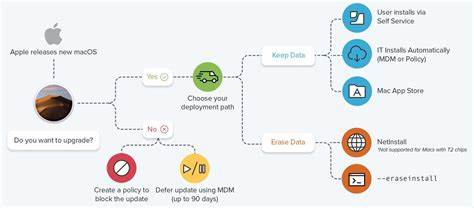
Getting Started with macOS
1. Understanding the macOS Interface
Additionally, when you first power up your Mac, you’ll see the Dock at the bottom of the screen. This is where your most-used apps live. Above it, the menu bar displays system controls, time, and app-specific options.
- Desktop: Your main workspace, where files and folders appear.
- Finder: The file management app (similar to Windows’ File Explorer).
- Spotlight Search (⌘ + Space): Instantly find files, apps, and even web results.
2. Essential Gestures & Shortcuts
Macs rely heavily on trackpad gestures and keyboard shortcuts for efficiency.
Trackpad Gestures
- Two-finger scroll: Move up/down on pages.
- Pinch to zoom: Spread or pinch fingers to zoom in/out.
- Swipe between apps: Three-finger swipe left/right.
Must-Know Keyboard Shortcuts
- ⌘ + C / ⌘ + V: Firstly, copy and paste.
- Space: Secondly, open spotlight Search.
- ⌘ + Tab: Thirdly, switch between open apps.
3. Installing & Managing Apps
Unlike Windows, macOS uses .dmg or .pkg files for installations.
- Firstly, download an app (from the Mac App Store or a trusted website).
- Secondly, open the .dmg file and drag the app to the Applications folder.
- Then, eject the installer after installation.
Moreover, to uninstall, simply drag the app from Applications to the Trash.
Must-Know macOS Features
1. macOS Mission Control for Multitasking
Firstly, press F3 (or swipe up with three fingers) to see all open windows. Create multiple Spaces (virtual desktops) for better organization.
2. Time Machine Backups
Secondly, never lose data! Connect an external drive, go to System Settings > Time Machine, and then set up automatic backups.
3. iCloud Integration
Thirdly, sign in with your Apple ID to sync files, photos, and notes across devices. Enable iCloud Drive in System Settings for seamless access.
4. Siri on Mac
Then, click the Siri icon in the menu bar (or say “Hey Siri”) to set reminders, search files, or control smart home devices.
macOS Troubleshooting Common Issues
1. Mac Running Slow?
- Firstly, close unused apps in Activity Monitor.
- Secondly, clear the cache in Finder > Go > Library > Caches.
- Thirdly, restart your Mac to refresh system processes.
2. Wi-Fi Not Connecting?
- Firstly, go to System Settings > Wi-Fi and toggle it off/on.
- Then, click Advanced to remove and re-add the network.
3. App Crashes Frequently?
- Firstly, update macOS (Apple Menu > System Settings > General > Software Update).
- Then, reinstall the problematic app.
macOS FAQ
1. How do I right-click on a Mac?
- Trackpad: Tap with two fingers.
- Mouse: Hold Control while clicking.
2. Can I run Windows on a Mac?
Yes! Use Boot Camp (for Intel Macs) or Parallels (for Apple Silicon).
3. How do I take a screenshot?
- ⌘ + Shift + 3: Full-screen capture.
- ⌘ + Shift + 4: Select an area.
4. Why is my MacBook battery draining fast?
- Check Activity Monitor for power-hungry apps.
- Reduce screen brightness and disable unnecessary background processes.
5. How do I reset my Mac to factory settings?
- Firstly, restart in Recovery Mode (⌘ + R).
- Secondly, open Disk Utility and erase the main drive.
- Thirdly, reinstall macOS.
macOS Final Thoughts
macOS is designed for simplicity, but mastering it takes a little practice. By learning the basics, gestures, shortcuts, and essential features, you’ll unlock its full potential. Keep this guide handy, and soon, using your Mac will feel like second nature.
Got more questions? Drop them in the comments below! 🚀