
Jupyter Notebook: How to Use & Key Things to Know
Introduction: Why I Love This Tool
Let me be honest with you. When I first started coding in data science, I felt overwhelmed. I bounced between different editors, ran scripts in the terminal, and struggled to visualize my results. Then, I found Jupyter Notebook. It changed everything for me.
You might feel the same way right now. Then, hear the name everywhere. You know you need it. But, where do you start?
Don’t worry. I will walk you through it. By the end of this guide, you will know exactly how to use Jupyter Notebook. More importantly, you will understand the key things that make this tool so powerful.
Let us begin.
What Exactly Is Jupyter Notebook?
First, let us clarify what we are talking about. Jupyter Notebook is an open-source web application. You create and share documents. Specifically, these documents contain live code, equations, visualizations, and narrative text.
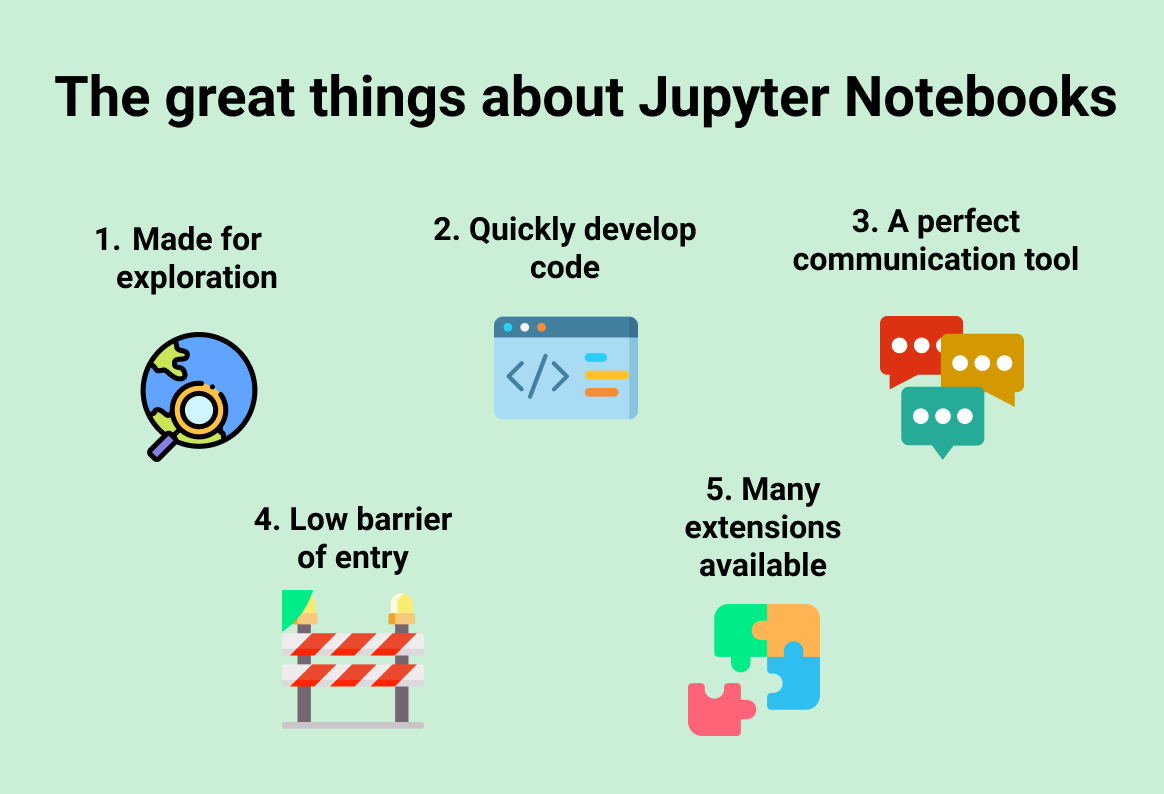
Think of it as a digital lab notebook. In a physical lab, you write your hypotheses, note your steps, record your results, and draw conclusions. Similarly, Jupyter Notebook does the same thing, except it runs code right there on the page.
Consequently, it has become the go-to tool for data cleaning, machine learning, and scientific research. Additionally, it supports over 40 programming languages. However, Python remains its most popular companion.
How to Install Jupyter Notebook
Now, let us tackle the first practical step. You need to get this tool on your machine.
Option One: Use Anaconda
I recommend this route for beginners. Anaconda is a Python distribution. Moreover, it comes with Jupyter Notebook pre-installed.
Here is what you do. First, visit the Anaconda website. Next, download the installer for your operating system. Then, run the installer. After that, you open the Anaconda Navigator. You see a list of applications. Finally, you click “Launch” under Jupyter Notebook.
Your browser opens automatically. At that point, you see the dashboard. It looks like a file explorer. Now, you are ready to go.
If you want to read about PyCharm, click here.
Option Two: Use pip
Alternatively, you might prefer a lighter approach. You can install Jupyter Notebook using Python’s package manager.
To begin, open your terminal or command prompt. Then, type the following command:
pip install notebookOnce the installation finishes, you type:
jupyter notebookAgain, your browser opens with the dashboard. This method gives you more control. On the other hand, you must manage your Python environments yourself.
How to Create Your First Jupyter Notebook
Now, you have the dashboard open. What comes next?
First, you navigate to the folder where you want to store your work. Then, on the right side, you see a “New” button. You click it. A dropdown menu appears. Next, you select “Python 3” under the Notebook section.
At this moment, you have just created your first notebook.
A new tab opens. You see a blank page with one empty cell. Finally, this space is where your journey begins.
Key Things You Need to Know: Jupyter Notebook: The Cell System
Understanding cells is crucial. A cell is a container. You can put code in it. Similarly, you can put text in it. In fact, you can even put raw HTML in it.
Code Cells
By default, a new cell is a code cell. You write Python code inside it. For example, type print("Hello, World!") into the cell. Then, press Shift + Enter to run it. The code executes immediately. As a result, you see the output right below the cell.
This immediate feedback loop is magical. You write a line. Next, you see the result. Then, you adjust. Afterward, you move forward.
Markdown Cells
In addition, you also need to explain your work. Therefore, you use Markdown cells. You change a cell’s type using the dropdown menu at the top. Specifically, select “Markdown.”
In a Markdown cell, you write text. For instance, you can add headings, bullet points, links, or even images. When you press Shift + Enter, The text renders beautifully.
I use Markdown cells to tell a story. I explain my logic. Likewise, I document my findings. Ultimately, this practice makes my notebooks easy to share and understand.
Active Use of Keyboard Shortcuts
Let me share a secret. The mouse slows you down. Therefore, if you want to work efficiently, you should learn the keyboard shortcuts.
First, press Esc to enter command mode. The cell border turns blue. Then, you can use these shortcuts:
A– Insert a new cell above the current one.B– Insert a new cell below.DD– Delete the current cell.M– Change the cell to Markdown.Y– Change the cell to Code.
Next, press Enter to go back to edit mode. The cell border turns green.
Furthermore, you run cells with Shift + Enter. You run a cell and automatically move to the next one.
These shortcuts seem small. However, they save you hours over time. As a result, you stay focused on your logic instead of clicking around.
How to Use Magic Commands
Interestingly, Jupyter Notebook has hidden powers. We call them magic commands. They start with a percent sign.
Line Magics
A single % works for one line. For example, %timeit measures the execution time of a statement. Specifically, type %timeit [x for x in range(1000)] in a cell. You run it. Immediately, you see exactly how long the operation takes.
Cell Magics
On the other hand, a double %% applies to the whole cell. For instance, %%writefile saves the cell content to an external file. Similarly, you use %%matplotlib inline to display plots directly below the code cell.
These commands simplify your workflow. Consequently, you do not leave the notebook to perform common tasks. You stay inside your environment.
Visualizing Data Actively
Now, data without visualization is just numbers. You need to see your data to understand it.
To start, you install libraries. Use !pip install matplotlib inside a code cell to install packages.
Then, you import them.
import matplotlib.pyplot as plt
import numpy as np
Next, you create your data.
x = np.linspace(0, 10, 100)
y = np.sin(x)
Finally, you plot it.
plt.plot(x, y)
plt.title("My First Plot")
plt.show()
The plot appears directly in your notebook. You see the result instantly. After that, you tweak the parameters. Then, you re-run the cell. As a result, you get a new plot. This iterative process is where learning happens.
Keeping Your Work Organized
As your notebook grows, organization becomes vital. You do not want a long, messy list of cells.
Therefore, use headings generously. Create Markdown cells ## for the major sections. Additionally, use ### for subsections. This structure creates a table of contents in your mind.
Moreover, you restart the kernel occasionally. Specifically, go to the Kernel menu and select “Restart & Run All.” This command clears the state and runs every cell from top to bottom. Consequently, this practice ensures your notebook runs sequentially. Also, it catches errors early.
Sharing Your Notebook
Your work is valuable. Eventually, you will want to share it.
Using GitHub
First of all, GitHub renders Jupyter Notebooks natively. You push your .ipynb file to a repository. Then, anyone can view it directly in their browser. They see your code, your outputs, and your narrative all together.
Exporting to Other Formats
Alternatively, you export your notebook. For instance, click “File,” then “Download as.” You can choose HTML, PDF, or Markdown. Thus, this flexibility allows you to share your analysis with non-technical stakeholders. They do not need to install anything. Instead, they just read your beautifully formatted document.
Common Pitfalls and How to Avoid Them
Let me save you some frustration. I have made these mistakes. Hopefully, you do not have to.
Mistake One: Running Cells Out of Order
You might run cell 1, then cell 3, then go back to cell 2. Later, you run cell 5. As a result, your notebook’s state becomes a mess. Variables exist in a confusing order.
How do you fix this? You restart the kernel and run all cells in order. In doing so, this ensures consistency.
Mistake Two: Forgetting to Save
Jupyter Notebook saves automatically sometimes. Still, you should save manually. For example, press Ctrl + S frequently. Alternatively, you enable autosave in the settings.
Mistake Three: Ignoring Virtual Environments
You install packages globally. Then, you share your notebook. However, the other person lacks those packages. Consequently, their code breaks.
Instead, you use virtual environments. You create an environment for each project. Moreover, you list your dependencies in a requirements.txt file. Ultimately, this practice makes your work reproducible.
Transitioning to JupyterLab
Additionally, you should know about JupyterLab. It is the next-generation interface. Specifically, it offers tabs, a file browser, and a more flexible layout.
You install it with pip install jupyterlab. Then, you launch it with jupyter lab. The experience feels more like a full IDE. However, the core concepts remain the same. Cells, kernels, and Markdown still form the foundation.
Frequently Asked Questions (FAQ)
Q1: Is Jupyter Notebook only for Python?
No. In fact, Jupyter Notebook supports many languages. You can use R, Julia, Scala, and more. However, you need the appropriate kernel for each language.
Q2: How do I open an existing notebook?
First, you navigate to the file in the dashboard. Then, you click on the .ipynb file. It opens in a new tab.
Q3: Why do I see a kernel error?
A kernel error usually means the kernel died. To fix this, you restart the kernel from the Kernel menu. If the problem persists, you can check your memory usage or update your packages.
Q4: Can I collaborate with others in real-time?
Yes. For example, you use JupyterHub or Google Colab for real-time collaboration. Specifically, Google Colab offers a similar interface with live sharing features.
Q5: How do I manage large datasets in Jupyter?
For large datasets, you avoid loading everything into memory at once. Instead, you use chunking with pandas or switch to a database connection. Alternatively, you use libraries like Dask that handle larger-than-memory data.
Q6: Is it safe to run code from unknown notebooks?
No. Always review the code before running it. A notebook can contain malicious code. Therefore, only run notebooks from trusted sources.
Q7: How do I add a table of contents?
You use the “Table of Contents” extension. Specifically, in JupyterLab, it comes built into the left sidebar. In classic Notebook, you enable it via the extensions manager.
Q8: What is the difference between a notebook and a Python script?
A script runs from top to bottom. On the other hand, a notebook runs cell by cell. Thus, this interactivity makes notebooks ideal for exploration and teaching. Conversely, scripts are better for automation and production.
Conclusion: Your Turn to Experiment
You now have the knowledge. You know how to install Jupyter Notebook. Additionally, you understand the key things about cells, shortcuts, and magic commands. Furthermore, you can visualize data, organize your work, and share it with others.
Most importantly, you know how to avoid common mistakes.
Now, the real learning begins. Open your terminal. Then, type jupyter notebook. Next, create a new notebook. After that, start playing. Write some code. Break something. Then, fix it. Add some Markdown. Finally, make a plot.
This tool exists to make your work easier. In fact, it removes friction between you and your ideas. So, go ahead. Experiment freely.
I hope this guide helped you. If you have more questions, you can revisit the FAQ. Also, you search the community forums. Above all, you keep learning.
Happy coding.