
Introduction
Keeping track of passwords is tough. Between work logins, streaming services, and online shopping, who can remember them all? That’s where RoboForm comes in. This guide will show you how to use it and share must-know tips to keep your accounts safe.
Why Choose RoboForm?
It makes password management easy and secure. Here’s why millions trust it:
🔐 Military-grade security – Firstly, your passwords stay locked with unbreakable encryption.
📱 Works everywhere – Secondly, use it on phones, computers, and web browsers.
⚡ One-click logins – Thirdly, no more typing passwords manually.
👨👩👧👦 Family sharing – Then, safely share logins with loved ones.
Now, let’s get started!
If you want to read about Dashlane vs. Keeper, click here
Getting Started with RoboForm
Step 1: RoboForm Download and Install
- Firstly, go to RoboForm’s website
- Secondly, pick your device (Windows, Mac, iPhone, or Android)
- Then, install it like any normal app
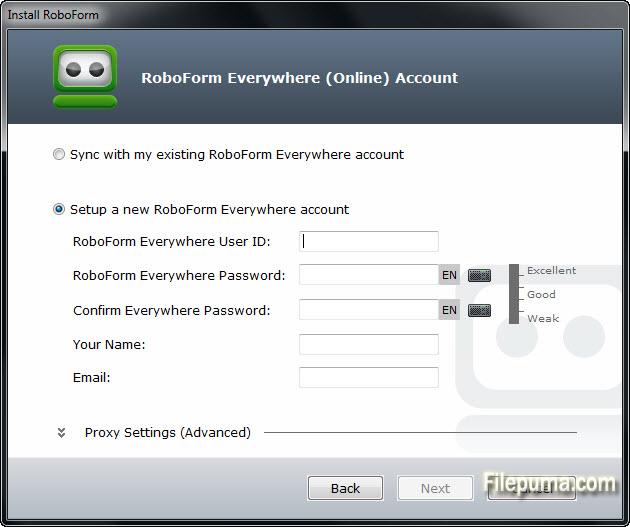
Step 2: Create Your Account
- Firstly, please open it and make a Master Password
- Secondly, this is the only password you’ll need to remember
- Thirdly, make it strong but memorable (think of a favorite song lyric)
💡Moreover, Pro Tip: Turn on two-factor authentication for extra security!
Step 3: Save Your First Password
Next time you log into a website:
- Firstly, RoboForm will ask if you want to save the password
- Secondly, click “Save” – that’s it!
- Next visit, it will auto-fill for you
To learn more about Free VPN, click here.
RoboForm Cool Features You’ll Love
1. Never Make Weak Passwords Again
It can create super-strong passwords for you:
- Firstly, click the RoboForm icon in your browser
- Secondly, choose “Generate Password”
- Then, pick a length (we recommend 16+ characters)
- Boom! You’ve got a hacker-proof password
2. Access Passwords Anywhere
Forgot your Netflix password at a friend’s house? No problem!
- Your passwords sync across all your devices
- Then, just log in with your Master Password
3. Share Without Risk
Need to share your Wi-Fi password? Instead of texting it:
- Firstly, open RoboForm
- Secondly, find the password
- Thirdly, click “Share” and enter their email
- Then they get access without ever seeing the actual password
RoboForm: Your Security Questions Answered
Q: Is it safe?
A: Yes! It uses the same encryption as banks. Even its staff can’t see your passwords.
Q: What if I forget my Master Password?
A: Unfortunately, no one can recover it. That’s why we suggest:
- Making it memorable (but not easy to guess)
- Then, writing it down and keeping it somewhere safe
Q: Does it work on phones?
A: Absolutely! The mobile app lets you:
- Auto-fill passwords in apps
- Store credit cards for easy checkout
- Then, keep secure notes (like locker combinations)
Q: How much does it cost?
A: There’s a free version, but we recommend the paid plan ($23.88/year) for:
- Unlimited password storage
- Sync across all devices
- Priority support
Final Thoughts: Is RoboForm Right for You?
If you:
Forget passwords constantly
Want better security
Hate typing logins on your phone
Then yes, it will make your digital life easier.
👉 Try it today risk-free with their 30-day trial at roboform.com
Got questions? Drop them below – we’re happy to help! 😊