
Introduction
So, you’ve heard the name Maxon. Perhaps a stunning motion graphic caught your eye, or you marveled at a hyper-realistic product render. Now, you’re wondering how to bridge the gap between admiring such artistry and creating it yourself. Welcome! This guide is your comprehensive roadmap into the powerful universe of Maxon’s tools.
Additionally, want to create amazing 3D art? You have probably heard of Maxon. Maybe you saw a cool animation or a realistic product image. Now you want to make your own. This guide will help you start your 3D creation journey. We will make it simple and fun.
Let’s break down how to use these powerful tools. You will learn the basics and feel ready to create.
What is Maxon? It’s a Creative Toolkit
Firstly, let’s talk about what Maxon is. Maxon is a company that makes professional 3D software. Moreover, they have a few key programs that work great together.
The Main Apps You Need to Know
Additionally, think of Maxon as a toolbox. Each tool has a special job.
- Cinema 4D (C4D): This is your main workspace. You build and animate your 3D scenes here. It is known for being user-friendly.
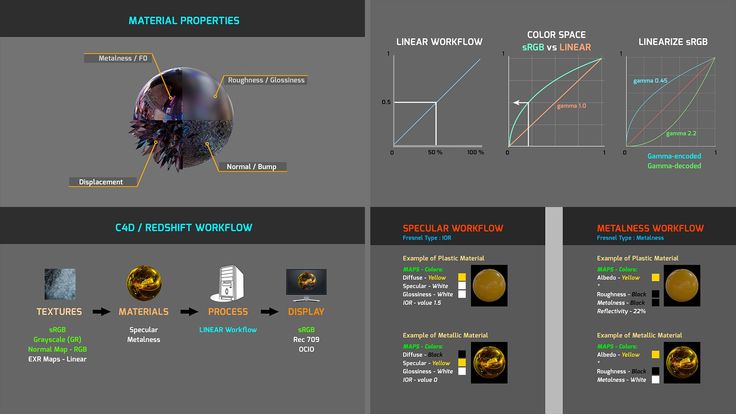
- Redshift: This is your super-powered camera. It takes your 3D scene and makes it look real. It works very fast.
- ZBrush: Then, this is your digital clay. You can sculpt detailed characters and creatures here. It feels like working with real clay.
Furthermore, you can use these programs on their own. But they are strongest when used together. You might sculpt a creature in ZBrush. Then you can bring it into C4D to animate it. Finally, use Redshift to make it look photorealistic.
Your First Steps in Cinema 4D
Let’s focus on Cinema 4D. It is the heart of the workflow. Here is how to start your first project.
Learn the Main Screen
When you open C4D, don’t worry. The screen is set up logically.
- Firstly, the Big Window in the Middle: This is your viewport. It is where you see your 3D world.
- Secondly, List on the Right: This is the Object Manager. It lists everything in your scene.
- Thirdly, Settings at the Bottom Right: This is the Attribute Manager. When you click on an object, its settings appear here.
Moreover, Tip: Spend a few minutes just moving around, using your mouse wheel to rotate. Then, 1 key and drag to pan. Hold the 2 key and drag to zoom.
Maxon starts with Basic Shapes
All 3D projects start simply. C4D has basic shapes like cubes and spheres.
- Make a Cube: Firstly, click
Addin the menu, then chooseCube. You made your first object! - Move It: Secondly, press E the Move tool. You will see red, green, and blue arrows. Drag them to move your cube.
- Change It: Thirdly, look at the Attribute Manager. You can make the cube bigger or add more segments.
- Edit It: Fourthly, right-click the cube’s name in the Object Manager. Then, choose “Make Editable” (or press
C). Now you can change its shape by moving its points.
Use Helpers to Model Easily
You don’t have to edit points right away. C4D has great helpers.
- Generators: These build shapes for you. For example, the
Sweeptool needs two lines. It uses one line as a path and the other as a shape. It can make a cool 3D coil. - Deformers: Then, bend and twist your objects. Add a
Benddeformer to your cube. Now you can curve it without manually moving points. It is easy and fast.
Make Your Creation Move on Maxon
Animation is about setting keyframes. A keyframe remembers an object’s position at a certain time.
- Firstly, find the timeline at the bottom.
- Secondly, move your cube to its start spot. Click the red dot next to “Position” in the Attribute Manager. You set your first keyframe.
- Thirdly, drag the timeline slider to a later time (like frame 60).
- Fourthly, move your cube to a new spot. Click the red dot again.
- Then, press play. Watch your cube move! C4D fills in the animation between your two points.
Maxon Make It Look Real with Color and Light
A gray cube is not very exciting. Let’s give it some style.
- Make a Material: Firstly, double-click in the Material Manager.
- Make it Redshift: Secondly, if you have Redshift, change the material type to “Redshift Material.”
- Add Color: Thirdly, click on “Diffuse” and pick a color.
- Add Shine: Then, click on “Reflection” and turn it on. Make the weight lower if it is too shiny.
- Put it On: Drag the material from the list onto your cube.
- Render: Then, click the render button to see your final image with lights and materials.
Maxon Bringing ZBrush and Redshift Into Your Work
Once you know C4D basics, you can use the other tools.
Try Sculpting in ZBrush
ZBrush is different. You focus on sculpting like an artist.
- Start with a simple sphere or a ZSphere model.
- Then, use the
Dynameshfeature. It keeps your surface easy to sculpt. - Use brushes like
Standard,Move, andClayBuildupto shape your model. - Then, use the
GoZfeature. It sends your model directly to C4D with one click.
Get the Best Render with Redshift
Moreover, Redshift makes your scenes look amazing.
- Use a Redshift Camera: This gives you real camera controls like focus and blur.
- Good Lights: Try
Area Lightsfor soft light. UseDome Lightwith an HDRI image for natural lighting. - Learn Materials: Redshift materials can have many layers. You can make glass, metal, or skin.
FAQ: Your Questions Answered
Is Maxon software hard to learn?
Cinema 4D is one of the easiest professional 3D apps to learn. Then the layout is clear. But 3D art itself takes practice. Be patient and start with simple projects.
What kind of computer do I need?
You need a strong computer for 3D work.
- Graphics Card (GPU): This is the most important part for Redshift. Then, you need a powerful NVIDIA card (like an RTX 3060 or better).
- Processor (CPU): A good modern CPU (Intel i7 or AMD Ryzen 7).
- Memory (RAM): 32GB is a good start. 64GB is better for big projects.
- Storage: A fast SSD hard drive.
How much does it cost?
Maxon uses a subscription system called Maxon One. Then, you pay a monthly or yearly fee to use all the apps. They do not sell permanent licenses anymore.
Does it work with Adobe After Effects?
Yes! This is a huge plus. The connection between C4D and After Effects is excellent. Then, you can easily mix 3D animation with 2D effects.
How is it different from Blender?
Blender is free and very powerful. Maxon’s tools are industry standards. C4D is often seen as easier for motion graphics. Then, ZBrush is the top program for digital sculpting. Redshift is a very fast and professional renderer.
Start Creating Today
Learning Maxon is a fun journey. Then, you can bring your ideas to life. Remember, every expert started as a beginner. Don’t try to learn everything at once.
Open the software and play. Make a simple shape. Animate it. Add color. Most importantly, have fun creating