
How to Use Descript AI: Everything You Need to Know
Do you spend too much time editing videos? If so, you often feel very frustrated. Therefore, you obviously need a much better tool. Luckily, Descript AI is that exact tool. Because it turns hard editing into easy typing. So, let’s look at this amazing tool now. First, we will see its main features. Then, we will follow a simple guide. After that, we will learn some pro tips. Finally, we will answer common questions. In the end, you will master this platform. So, you will save many, many hours.
Understanding Descript AI: A Totally New Way
First, old editing feels very hard. For example, you see confusing sound waves. Also, you see messy timelines. However, Descript changes all of that. Basically, it makes audio into text. Also, it makes video into text. To start, you upload any recording. Right away, AI makes a written transcript. Next, that text becomes your workspace. In other words, you edit just by changing words.
For example, think of a bad pause. Usually, you search a timeline. Instead, find the pause in the text. Then, highlight those words. After that, press delete. As a result, your video is fixed. Also, this works for full sentences. Plus, it works for whole paragraphs. So, you can move parts around easily. Therefore, you save so much time.
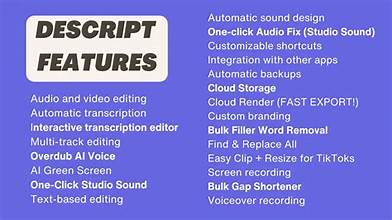
Even better, Descript AI gives you more tools. For instance, it has a screen recorder. Also, it has tools to clean sound. Additionally, it can clone your voice with AI. So, it does every single job. From recording to publishing. Because of this, you work in one place only. Thus, your work feels very smooth.
Your Simple Step-by-Step Guide
Now, let’s learn the steps. So, follow along carefully. Because this makes it easy.
Step 1: Start Your Project
First, open the Descript AI app. Then, click “New Project.” Or, drag a file into the window. For a new recording, pick “Record.” Importantly, check your microphone first. Also, check your camera next. After that, hit the record button. Meanwhile, Descript writes your words live. Once done, your project pops up. So, you are ready for step two.
Step 2: Edit Using Text
Start by reading your new transcript. Because being correct matters. So, listen while you read. If you see a mistake, click the word. Then, type the right word. Because of this, the audio fixes itself. Next, begin your edits. For example, remove words like “um” or “uh.” Simply highlight each one. Then, press delete. Similarly, cut unneeded sentences. Or, move text blocks by dragging. While you do this, watch the timeline. Because it changes right away. Thus, you stay in full control.
Step 3: Use the AI Tools
After simple edits, try the Descript AI. So, you will see powerful tools. For instance, click “Studio Sound” first. With one click, it removes noise. Also, it removes echo. As a result, your audio sounds pro. Next, try “Filler Word Removal.” Go to Tools, then pick it. Right away, AI scans your text. Then, it marks all filler words. After that, delete them all at once. Therefore, your dialogue is clean and fast.
Also, use the “Overdub” tool. But, this needs setup first. Specifically, record a short script. Then, AI learns your voice. After that, you can make new speech. For example, fix a wrong word. Just type the correct word. Consequently, AI says it for you. However, always tell listeners about AI. Because being honest is key.
Step 4: Make It Look and Sound Great
Now, make your project better. First, fix the audio levels. Click each speaker’s track. Then, change the volume up or down. So, everyone sounds even. Next, use “Loudness Normalization.” This keeps volume the same. Especially for places like YouTube.
For videos, add pictures next. First, add B-roll footage. Then, drag it to its own track. Also, use the “Composition” tool. Add clear titles. Plus, add lower-thirds and animations. Because they make videos more fun.
Furthermore, try “Eye Contact.” If someone looks away, use this. Gently, it makes them look at the camera. So, the video feels more direct. But, always use it a little. Because too much looks strange.
Step 5: Share and Publish
Lastly, share your work. Good news: Descript is great for teams. First, click the “Share” button. Then, make a link. Send this to your team. As a result, they can review it. They can leave comments with time stamps. They can do this without an account. So, all feedback is in one clear place.
Once approved, go to publish. Click the “Publish” tab. Here, you have many choices. For example, export as MP3 or MP4. Or, make social media clips automatically. Or, send straight to YouTube or Spotify. Therefore, sharing is very easy.
Top Tips to Work Faster
To get really good, do these things. Because they help a lot.
1. Write Scripts First.
Write your script in Descript before recording. Then, record right into it. So, everything lines up perfectly. Therefore, editing is much faster later.
2. Train Your AI Voice Early.
Do the voice training soon. It takes 30 minutes, but it is worth it. Because then you have a voice copy ready. So, you can fix any mistake quickly.
3. Learn Keyboard Shortcuts.
Remember the key commands. For instance, press Tab to play from a word. Or, use Cmd/Ctrl + D to delete and close gaps. Consequently, you edit much faster.
4. Make Templates.
Build layouts for intros and outros. Save them in your library. Then, use them on new projects. So, your brand looks the same every time.
5. Use the Screen Recorder.
For tutorial videos, use Descript’s recorder. Because it takes great video. And it goes right into your project. Thus, you skip file problems.
Frequently Asked Questions
Q: Is the transcription good?
A: Yes, very good. Especially with clear audio. It is right over 95% of the time. But, always check it. Because technical words can be wrong. Luckily, fixing it is fast.
Q: Is the AI voice okay to use?
A: Yes, if you are fair. You must say yes to make your voice clone. Also, the AI audio has a hidden mark. So, people can tell it is AI. Always tell your audience. Because trust is important.
Q: Can I edit hard videos?
A: It depends. Descript is best for talking videos. Like interviews or podcasts. But, for lots of visual effects, use another editor. Many people edit first in Descript. Then, finish in a tool like Premiere Pro.
Q: How much does it cost?
A: There is a free plan with limits. Paid plans are Creator ($15/month) and Pro ($30/month). These give more hours and full features. Pick based on how much you make.
Q: How does it handle many speakers?
A: Very well. It finds and names each speaker. You can edit each one alone. Or, fix their names in the text. So, group talks are easy.
Q: Is it hard to learn?
A: There is a small start. Because editing text is new. But, most people learn in an hour. The simple design helps. So, you will feel good fast.
Q: Is it good for podcasts?
A: Absolutely. Many podcasters use it. The sound tools are great. Tools like Studio Sound help a lot. Plus, you can send your podcast straight online.
In Conclusion: A New Editing Friend
In short, Descript AI is a big change. Because it is simple and fast. Instead of hard tech, you get easy text. So, you think about your story. Not about hard editing.
Therefore, try it today. Add an old file. Then, delete a sentence in the text. See how fast it works. Soon, you will love the speed. Also, you will get back your time. Time for creating, not fixing.
Finally, Descript is more than an app. It is a new idea. It says making things should feel easy, not hard. So, use this tool. Try all its parts. And change how you work for good. Because in making content, time is everything. And Descript gives you that time back.