
Introduction to Canon Printer
Canon printers are highly regarded for their quality and versatility, making them a popular choice for personal and professional use. To maximize their potential, it’s essential to understand a few key aspects: installing the correct drivers, maintaining the printer, and managing ink levels. this guide, we’ll walk you through these crucial steps to ensure you’re using your Canon printer efficiently.
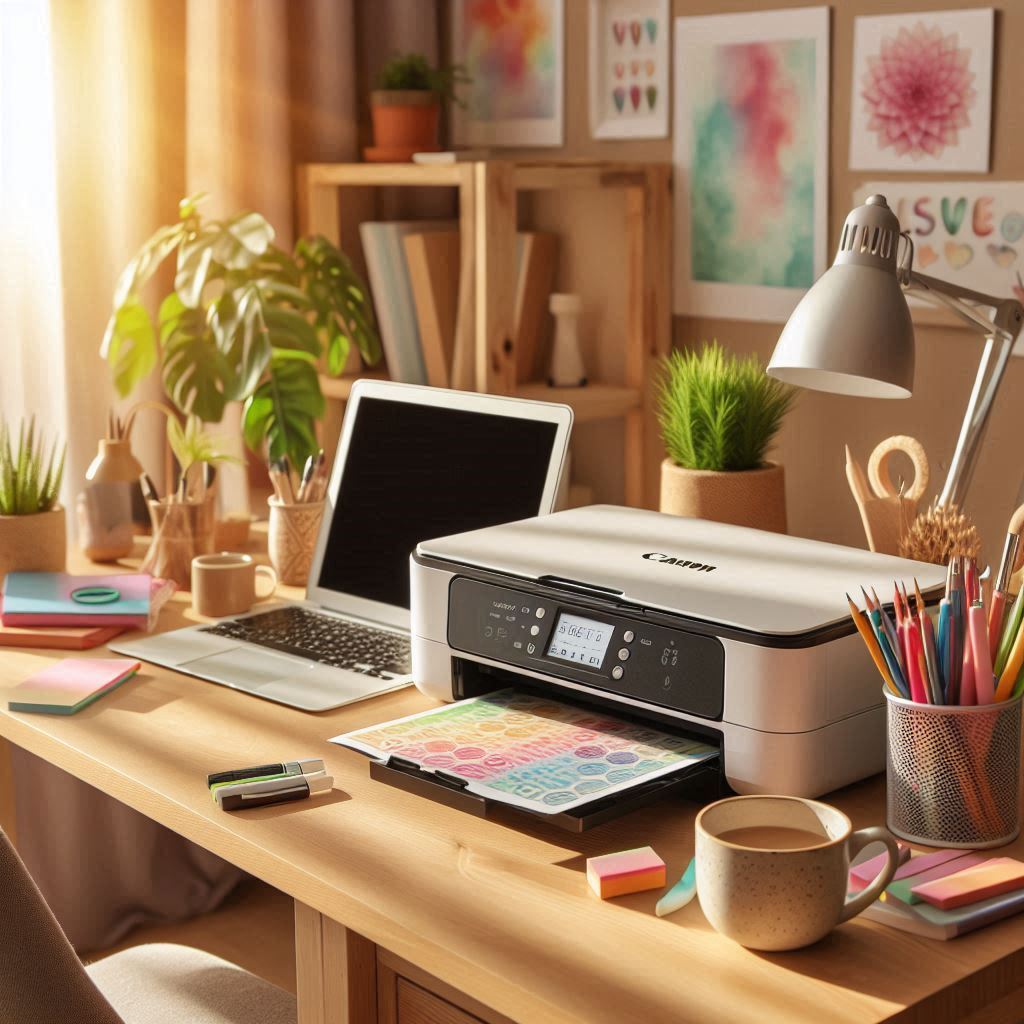
Installing Canon Printer Drivers
Why Drivers Are Important
Printer drivers are the software that enables your computer to communicate with your printer. Without the correct drivers, your printer won’t function properly.
You can install Canon’s drivers for all their models either by using a CD-ROM or by downloading them from Canon’s official website. Alternatively, you can actively download and install Canon drivers from their official site for any model.
Steps to Install Canon Printer Drivers
- Identify Your Printer Model: First, determine your printer’s model number. This is usually printed on the printer itself or can be found in your computer’s settings if it’s already connected.
- Download Drivers: Visit the Canon website and navigate to the support section. Enter your printer model and select your operating system to download the appropriate drivers.
- Run the Installer: Once downloaded, run the installer and follow the on-screen instructions. To avoid potential malware, ensure you’re downloading from Canon’s official site.
- Connect Your Printer: During installation, you’ll be prompted to connect your printer to your computer. This can be done via USB or wirelessly, depending on your printer model.
For a detailed guide on downloading and installing Canon printer drivers, you can refer to online tutorials.
Cleaning the Canon G2010 Inkjet Printer
Common Issues with the Canon G2010
The Canon G2010 is a popular inkjet printer known for its cost-effectiveness and high-quality prints. However, like any printer, it can encounter issues such as clogged print heads or poor ink flow.
How to Clean the Canon G2010
- Check Ink Levels: Ensure all ink tanks are filled to the upper limit. If an ink tank is empty, refill it before proceeding.
- Print Nozzle Check Pattern: This will help you identify if the print head nozzles are clogged. If the pattern is incomplete or shows gaps, proceed with cleaning.
- Clean the Print Head:
- Press the Setup button on your printer until the Setup icon appears.
- Use the + button to select the cleaning option.
- Press the Black or Color button to start the cleaning process.
- Wait for the cleaning to complete; this should take about a minute.
- Deep Cleaning: If regular cleaning doesn’t resolve the issue, perform a deep cleaning. However, be aware that deep cleaning consumes more ink.
For detailed steps on cleaning the Canon G2010, refer to Canon’s official manual.
Managing Canon Printer Ink
Understanding Canon Printer Ink
Canon printers use a variety of ink systems, depending on the model. The G2010 series, for example, uses refillable ink tanks, which can be cost-effective for frequent printing.
Tips for Managing Ink
- Monitor Ink Levels: Regularly check your ink levels to avoid running out during critical prints.
- Refill Ink Tanks: When an ink tank is low, refill it promptly. Make sure to use the correct color ink for each tank.
- Avoid Frequent Ink Flush: While ink flush can help resolve clogs, it consumes a lot of ink. Only perform it when necessary.
For more information on managing ink levels and refilling ink tanks, you can watch tutorials online.
Troubleshooting Common Issues
Black Ink Not Printing
If your Canon printer is not printing black ink, here are a few steps to troubleshoot:
- Check Ink Levels: Ensure the black ink tank is not empty.
- Print Head Cleaning: Clogged print heads can prevent ink from flowing. Perform a print head cleaning as described earlier.
- Ink Flush: If cleaning doesn’t work, try an ink flush. However, be cautious as this can consume a lot of ink.
Color Printing Issues
If your prints come out in incorrect colors (e.g., everything is green), this might indicate a problem with the magenta ink or a clogged print head. Try deep cleaning the print head and ensuring all ink tanks are filled.
Conclusion
Effectively using a Canon printer requires understanding how to install the correct drivers, maintain the printer through regular cleaning, and manage ink levels efficiently. Following these steps and troubleshooting common issues ensures your Canon printer operates smoothly and delivers high-quality prints. Whether you’re using a model like the G2010 or any other Canon printer, these tips will help you get the most out of your device.
Additional Tips for Optimizing Your Canon Printer Experience
Regular Maintenance
Regular maintenance is key to extending the life of your printer. Here are a few tips:
- Dust Protection: Firstly, Keep your printer in a dust-free environment to prevent dust from entering the printer and causing mechanical issues.
- Paper Quality: Secondly, Use high-quality paper that is compatible with your printer. This can improve print quality and reduce paper jams.
- Software Updates: Then, Regularly check for software updates on the Canon website. These updates often include bug fixes and performance enhancements.
Efficient Printing Practices
To make the most of your printer and reduce costs, consider these efficient printing practices:
- Draft Mode: Firstly, Use draft mode for non-critical prints to save ink.
- Double-Sided Printing: Secondly, Enable double-sided printing to reduce paper usage.
- Eco Mode: Then, Many Canon printers come with an eco mode that reduces ink consumption.
By incorporating these practices into your daily printing routine, you can optimize your Canon printer’s performance and longevity.
Frequently Asked Questions
Q: How often should I clean my Canon printer?
A: Cleaning should be done as needed, typically when you notice a decrease in print quality or if the printer indicates a cleaning is required.
Q: Can I use third-party ink for my Canon printer?
A: While using third-party ink is possible, it’s generally recommended to use Canon’s official ink to ensure compatibility and maintain print quality.
Q: How do I reset my Canon printer?
A: Resetting procedures vary by model. Check your printer’s manual or contact Canon support for specific instructions.
Conclusion and Final Thoughts
In conclusion, using a Canon printer effectively involves a combination of proper setup, regular maintenance, and efficient printing practices. Following the guidelines outlined in this guide, you can ensure your Canon printer operates at its best, providing you with high-quality prints and a long-lasting performance. Whether you’re a casual user or a professional, these tips will help you maximize your printer’s potential and enjoy a seamless printing experience.