
Introduction
In today’s digital world, managing passwords securely is a must. Bitwarden, a popular open-source password manager, helps you store, organize, and protect your credentials effortlessly. Whether you’re new to password managers or switching from another service, this guide will walk you through everything you need to know—from setup to advanced features.
Additionally, keeping track of passwords is tough. Writing them down is risky. Reusing them is dangerous. Bitwarden fixes all that. This free, secure password manager stores all your logins safely. Best part? You only need to remember one password.
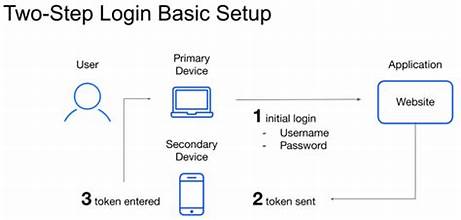
Let’s break down how to use Bitwarden in plain English—no tech jargon, just simple steps.
Why Bitwarden? (In Simple Terms)
Before we start, here’s why people love Bitwarden:
Free forever – Firstly, no sneaky paywalls.
Works everywhere – Secondly, phones, computers, browsers.
Super secure – Thirdly, like a locked vault, only you can open.
Easy to use – Then, even if you’re not tech-savvy.
Now, let’s get your passwords organized!
Step 1: Get Bitwarden in 5 Minutes
1. Sign Up – It’s Free
Firstly, go to Bitwarden’s website. Click “Create Account.”
- Additionally, type your email.
- Then, create a strong master password (make it memorable!).
- Turn on 2FA (like a second lock for safety).
2. Add Bitwarden to Your Devices
Secondly, install it where you need it:
- Browser (Chrome, Firefox, etc.) – Best for quick logins.
- Phone app (iOS/Android) – For passwords on the go.
- Desktop app (Windows/Mac) – If you prefer a program.
Moreover, log in with your email and master password.
3. Move Old Passwords (If You Have Any)
Thirdly, switching from LastPass or another manager? Import your passwords easily:
- Firstly, open it in your browser.
- Secondly, go to Tools > Import.
- Thirdly, upload your password file (CSV or JSON).
Furthermore, done! Now everything’s in one place.
Step 2: Save & Manage Passwords Without Stress
1. Let Bitwarden Remember Logins
When you sign in to a site, it asks: “Save this password?” Click YES.
2. Add Passwords Manually
Furthermore, for accounts that don’t auto-save:
- Firstly, open it (click the icon in your browser).
- Secondly, tap “Add Item” > “Login.”
- Thirdly, fill in the website, username, and password.
- Then, use the password generator (creates unhackable passwords).
3. Keep Things Tidy
Too many passwords? Organize them:
- Folders – “Work,” “Shopping,” “Social Media.”
- Favorites – Then, start your most-used logins.
Step 3: Use Bitwarden Every Day
1. Never Type Passwords Again
It auto-fills your logins. Just click the icon or press Ctrl+Shift+L.
2. Store More Than Just Passwords
It also holds:
- Secure notes (Wi-Fi passwords, license keys).
- Credit cards – Then, fill them at checkout.
3. Share Logins Safely
Then, need to give someone a password?
- Firstly, use “Send” (like a self-destructing message).
- Then, create a shared vault for families/teams.
Step 4: Extra Security (Worth Doing!)
1. Two-Factor Authentication (2FA)
Additionally, add a second lock to your account:
- Authy/Google Authenticator (free apps).
- YubiKey (a physical USB key).
2. Emergency Access
Moreover, pick someone you trust to access your vault if something happens to you.
3. Self-Hosting (For Techies)
Furthermore, want full control? Run it on your server.
Bitwarden FAQ – Quick Answers
1. Is Bitwarden free?
Yes. The free version does everything most people need. Moreover, premium ($10/year) adds extras like 2FA for other apps.
2. Is it safe?
Very. Your data is encrypted before it leaves your device. Even Bitwarden can’t see it.
3. What if I forget my master password?
You’re locked out. Bitwarden can’t recover it. Then, choose something strong but memorable.
4. Can I use it offline?
Yes. Once logged in, then, you can see passwords without internet.
5. Why pick Bitwarden over LastPass?
It is cheaper, open-source, and hasn’t been hacked like LastPass.
Final Tip: Make It Even Easier
🔹 Turn on fingerprint/Face ID unlock – No typing your master password every time.
🔹 Check for weak passwords – Then, Bitwarden flags ones you should change.
If you want to read about Agile, click here.
Ready to Stop Password Headaches?
Finally, It takes 10 minutes to set up and saves you hours of frustration. Try it today—you’ll wonder how you lived without it!