
Introduction
Transfer Google Drive files to another account doesn’t have to be complicated. Whether you’re switching accounts, sharing data, or organizing files, this guide walks you through every step.
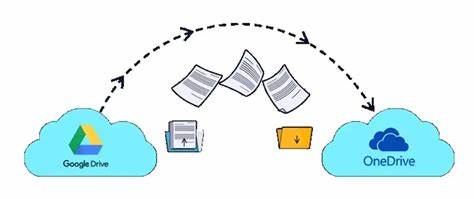
By the end, you’ll know:
Three easy methods to transfer files
What gets transferred (and what doesn’t)
How to avoid common mistakes
Time-saving tricks for large transfers
Let’s get started!
1. Why Transfer Google Drive Files?
People move files between accounts for many reasons:
- Switching emails (personal to work account)
- Sharing large projects with a team
- Backing up important files
- Closing an old account
Moreover, good news: Google provides built-in tools for transfers.
If you want to read about Midjourney AI: How to Use, Click Here
2. What You Can (and Can’t) Transfer Google Drive
Files That Move Successfully
Google Docs, Sheets, Slides
PDFs, images, videos
Folders with contents
What Doesn’t Transfer Well
Firstly, shared files (unless you’re the owner)
Secondly, shortcuts (they’ll break)
Thirdly, comments/edit history (unless you export)
Pro Tip: Check file ownership before starting.
3. Method 1: Transfer Google Drive- Google’s Built-In Transfer Tool (Easiest)
Additionally, Google offers an official transfer method:
- Firstly, go to Google Takeout
- Secondly, select Drive
- Then, choose “Send to another account.”
- Fourthly, enter the new email address
- Finally, confirm the transfer
Time: Takes 1-7 days for large transfers.
4. Method 2: Transfer Google Drive- Manual Download & Reupload (For Small Transfers)
For fewer than 100 files:
- Firstly, select files in Drive
- Secondly, click Download (they’ll compress to ZIP)
- Thirdly, sign in to the new account
- Then, upload the ZIP file
Works best for: Quick, small transfers.
5. Method 3: Transfer Google Drive- Shared Folders (Best for Teams)
If you need ongoing access:
- Firstly, right-click the folder
- Secondly, select Share
- Thirdly, add the new account as Editor
- Then, have the new account make a copy
Bonus: This keeps files synced in real time.
6. Troubleshooting Common Problems with Transfer Google Drive
“Not Enough Storage” Error
- Delete unnecessary files first
- Upgrade storage temporarily
Broken File Links
- Re-share files after transferring
- Update bookmarks
Slow Transfers
- Try off-peak hours (late evenings)
- Then, split into smaller batches
FAQs
1. Does Google Drive charge for transfers?
No! Transfers between accounts are free.
2. Can I transfer ownership of files?
Yes—open Share settings and change the owner.
3. Will shared files stay shared after transferring?
No, you’ll need to re-share them.
4. What’s the fastest transfer method?
Google’s built-in tool handles large transfers best.
5. Can I undo a transfer?
No, once files move, you can’t reverse it automatically.
Final Tips
- Firstly, double-check permissions before transferring
- Secondly, use Google Takeout for full-account backups
- Then, test with a few files first if unsure
Finally, need help? Google’s support team offers live chat.
Ready to move your files? Start your transfer today!