
GitHub Copilot: How to Use It & What to Know
Imagine this: You’re deep in the zone, coffee in hand, trying to figure out why your API call keeps failing. You have a general idea of the fix, but you’re blanking on the exact syntax for the error-handling block. Suddenly, like a mind reader, a greyed-out suggestion appears. You hit Tab, and just like that, the code writes itself. That’s not magic; that’s GitHub Copilot.
Having an AI pair programmer by your side sounds fantastic, and honestly, it is. However, simply installing the extension won’t automatically make you a 10x developer. Consequently, you need to understand how to communicate with it, when to trust its work, and when to double-check it.
Therefore, let’s pull back the curtain. In this guide, we’ll walk through how to harness Copilot effectively, explore the essential features you absolutely need to know, and share practical tips to make it your new favorite development tool.
What Exactly Is GitHub Copilot?
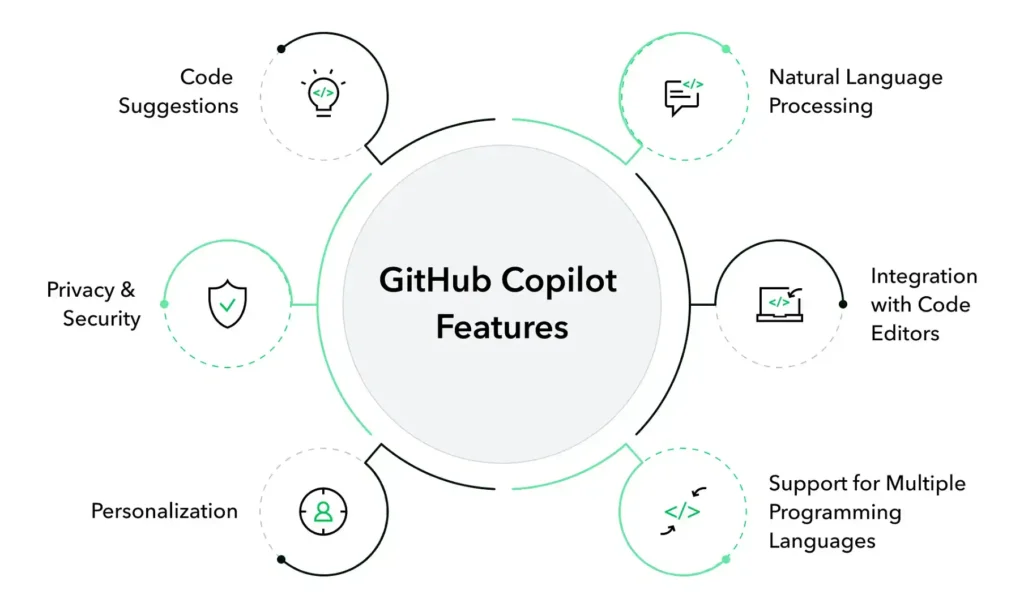
Before we dive into the “how,” let’s quickly clarify the “what.” GitHub Copilot is an AI-powered code completion tool developed by GitHub in collaboration with OpenAI. Unlike traditional autocomplete, which suggests the next word or variable, Copilot suggests entire lines, functions, or even classes based on the context of your code.
Think of it as a seasoned developer who has read billions of lines of public code. It doesn’t just copy and paste; it synthesizes information to generate novel solutions. Whether you’re writing a complex algorithm in Python, styling a button in CSS, or crafting a Dockerfile, Copilot adapts to your workflow.
GitHub Copilot: Getting Started: Installation and First Steps
Getting up and running is surprisingly simple. First, you need to install the extension. If you’re using Visual Studio Code (which most of us are), navigate to the Extensions view, search for “GitHub Copilot,” and hit install.
After installation, you’ll need to authenticate with your GitHub account. Consequently, a prompt will appear the first time you start typing in a file. Follow the instructions, and once you’re signed in, you’re ready to roll.
Pro Tip: As of late 2025, GitHub offers a Copilot Free tier. Therefore, if you haven’t tried it because of the cost, now is the perfect time to jump in without spending a dime.
The Core Mechanics: How to Talk to Your AI Pair Programmer
Here’s the most important thing to remember: Copilot is a mirror. It reflects the quality of the input you give it. If your code is messy and your comments are vague, its suggestions will be equally confusing. Conversely, if you provide clear intent, it will surprise you with its brilliance.
1. Write Clear Intentions (Comments Are King)
Firstly, the most effective way to use Copilot is to write a descriptive comment. For example, instead of writing a vague comment like:
# Calculate stuffTry being specific:
# Calculate the monthly payment for a loan given principal, annual interest rate, and yearsImmediately, Copilot will spring into action, generating a function with the correct parameters and formula. Consequently, you save time searching for financial formulas on the web.
2. Name Your Functions Descriptively
Secondly, Copilot pays close attention to function and variable names. If you name a function fetchData(), it might generate a generic fetch call. However, if you name it fetchUserProfileFromDatabase(), Copilot will infer the context and suggest code that likely includes database connection logic or specific API endpoints.
3. Cycle Through Suggestions
Thirdly, don’t just settle for the first suggestion you see. After Copilot shows you a greyed-out suggestion, hover over it. Then, you’ll see an arrow key tooltip. Use Alt + ] (or Option + ] on Mac) to cycle through alternative solutions. Sometimes the second or third suggestion fits your architecture much better.
Beyond Autocomplete: The Chat Modes You Need to Know
Initially, Copilot was just about inline suggestions. However, the landscape has evolved dramatically. Now, the Copilot Chat interface offers distinct modes that change how you interact with the AI.
Then, transitioning between these modes is like switching tools in a toolbox; then, you use the right one for the right job.
🗣️ Ask Mode (The Explainer)
Best for: Learning and understanding.
If you stumble upon a piece of legacy code that makes sense, highlight it and use Ask Mode. Then, type/explain, and Copilot will break down the code in plain English. It’s like having a senior dev right there to clarify things.
✍️ Edit Mode (The Refactorer)
Best for: Making targeted changes.
Let’s say you have a function that works, but it’s a bit messy. Highlight the block, switch to Edit Mode, and then type a command like “Refactor this to use async/await” or “Add error handling. Then, ” Copilot will show you a diff of the proposed changes, giving you full control before you accept them.
🤖 Agent Mode (The Autonomous Assistant)
Best for: Multi-step tasks.
This is the newest and most powerful feature. In Agent Mode, Copilot doesn’t just write code; it plans. You can give it a high-level task like, “Set up a new React component called ‘UserProfile’ that fetches data from an API and displays it.”
Consequently, Agent Mode will create the file, write the fetch logic, then set up the state, and even suggest the CSS structure. It might even run terminal commands to install necessary dependencies (with your approval, of course).
Best Practices: What You Absolutely Need to Know
To truly master Copilot, you need to move past the basics. Here are the non-negotiable best practices.
1. Break Down Complex Problems
Copilot thrives on simplicity. If you ask it to build an entire e-commerce site in one go, it will fail. However, if you break that task down into smaller steps, then “Create a product card component,” “Write a function to calculate cart total,” “Generate a SQL query to fetch user orders”, it will excel.
2. Provide Examples (Few-Shot Prompting)
You can “prime” Copilot by giving it examples. If you want it to generate code in a specific style, write a small example of that style first. For instance, if you want all your functions to have specific logging, write one function that way. Then, Copilot will recognize the pattern and continue it.
3. Always Review the Output
This cannot be overstated. Copilot is a tool, not a replacement for judgment. It might suggest deprecated library methods, introduce security vulnerabilities, or be wrong. Therefore, treat its output as a highly intelligent draft, not a final product.
4. Use Tests as Guardrails
Copilot is fantastic at writing tests. Start by writing a comment like // Test that the login function rejects invalid passwords. Then, Copilot will generate the test block for you. By writing tests first (TDD). You give Copilot a clear specification of what the code should do. Resulting in higher-quality implementations.
Practical Use-Cases: Where Copilot Shines
Let’s look at some scenarios where Copilot saves the day.
- Writing Boilerplate: Nobody enjoys writing repetitive CRUD operations or configuration files. Copilot generates them in seconds.
- Creating Data Visualizations: If you have a dataset and need a quick chart, you can prompt Copilot with, “Generate a Python script using matplotlib to create a bar chart of sales by region”.
- Refactoring Legacy Code: Highlight a messy block of code and ask the Chat to “Optimize this for readability.” Then, it will suggest cleaner variable names and more efficient structures.
- Generating Documentation: Then, use the
/docslash command to instantly generate Javadoc or docstrings for your functions.
Frequently Asked Questions (FAQ)
Q: Is GitHub Copilot free?
A: Yes and no. GitHub introduced Copilot Free for limited use in late 2025. For heavy, professional use, there are subscription plans (Individual, Business, Enterprise). However, the free tier is a great way to get started and see if it fits your flow.
Q: Does Copilot copy code from the internet? Will I get sued?
A: This is a common concern. Copilot generates novel code based on patterns it learned, but it can occasionally regurgitate verbatim snippets. GitHub has implemented filters to block suggestions that match public code. You should always treat Copilot as a suggestion engine.
Q: Can Copilot work with languages other than Python and JavaScript?
A: Absolutely. Copilot is language-agnostic. It works with HTML, CSS, SQL, Java, C#, Ruby, Go, Dockerfiles, and even Bash scripts. If it’s code, Copilot can help write it.
Q: How does Copilot know about my entire project?
A: When you use commands like @workspace In the chat, Copilot scans the files in your current project (respecting your .gitignore) to understand the structure, dependencies, and existing patterns.
Q: I got a bad suggestion. What should I do?
A: First, try to cycle through other suggestions using the keyboard shortcuts. If those are still bad, refine your prompt or comment. Be more specific. If the code is generated, you can highlight it and ask the chat to “Fix this” or “Optimize this,” and it will often correct itself.
Conclusion
GitHub Copilot is more than just a code generator; it’s a paradigm shift in how we approach software development. It handles the mundane, accelerates the familiar, and helps us learn new things faster. However, like any powerful tool, its effectiveness depends entirely on the skill of the users.
By writing clear intentions, breaking down problems, and always reviewing the output, you move from being a passive recipient of AI suggestions to an active co-pilot in the cockpit of your own code.
So, go ahead. Install it, play with it, challenge it, and watch your productivity soar. Happy coding!