
Introduction
GIMP vs Photoshop: You stand before a digital crossroads. One path is well-trodden, lined with professional signposts and a hefty toll booth. The other is a powerful, open-source trailblazer’s path, free for all travelers. This is the classic dilemma: Adobe Photoshop versus GIMP.
Additionally, choosing software is hard. You will spend time learning it. The big choice is Adobe Photoshop or GIMP. This guide makes it simple. Then, we will show the strengths of each tool. You will learn what fits your needs and wallet.
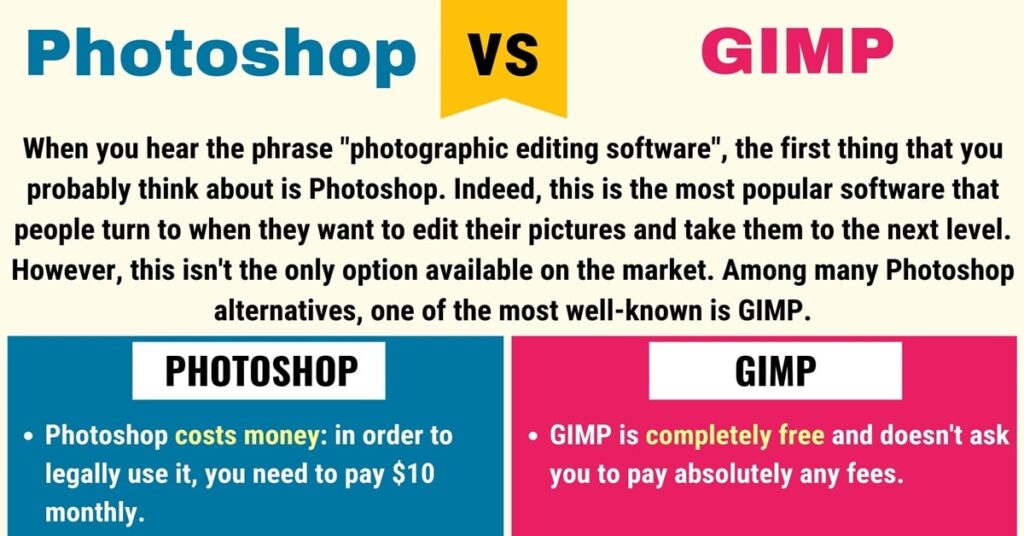
GIMP vs Photoshop: The Big Difference: Cost and Purpose
The main difference is simple. Photoshop costs money. GIMP is free.
Adobe Photoshop: The Pro Tool
Firstly, you pay a monthly fee for Photoshop. Professionals around the world use it. Then, it is a precise tool for experts.
GIMP: The Free Option
Then, GIMP is free software. A global team builds it. It is a powerful tool for everyone.
GIMP vs Photoshop: Pick GIMP for Freedom and No Cost
Moreover, the best part is the price. GIMP is free. This helps many people.
GIMP is best for:
- Firstly, People edit photos for fun.
- Secondly, students with little money.
- Thirdly, small business owners.
- Then, beginners are learning to edit.
What GIMP does well:
- Firstly, good editing: It can crop, fix colors, and retouch photos.
- Secondly, design work: You can make logos and web graphics.
- Thirdly, digital art: It works with drawing tablets.
- Fourthly, plugins: People make free add-ons for more features.
- Runs anywhere: Then, it works on old or slow computers.
GIMP vs Photoshop: Pick Photoshop for Professional Work
Additionally, Photoshop costs money for a reason. It has advanced tools. Professionals see the cost as an investment.
Photoshop is best for:
- Firstly, professional photographers.
- Secondly, graphic designers at agencies.
- Thirdly, serious digital artists.
- Then, UI/UX designers.
What Photoshop does well:
- Firstly, AI tools: Features like Sky Replacement use smart tech to save time.
- Secondly, works with other apps: It connects with other Adobe programs.
- Flexible editing: You can change your mind without starting over.
- Professional files: Then, it handles complex project files and print colors.
- Good support: Adobe helps if you have problems.
Quick Comparison
| Feature | GIMP | Photoshop |
|---|---|---|
| Cost | Free | Monthly Fee |
| Best For | Beginners, Hobbyists | Professionals |
| Photo Editing | Good for most tasks | Excellent for all tasks |
| AI Tools | Few | Many |
| Support | Online Community | Company Support |
Which One Should You Choose?
Moreover, ask yourself these questions.
1. What is my budget?
- No money to spend? Pick GIMP.
- Can you pay a fee? Then, think about Photoshop.
2. What will I make?
- Personal projects and basic edits? Firstly, GIMP is perfect.
- Professional work? Then, Photoshop is the standard.
3. What computer do I use?
- Old or slow computer? Firstly, GIMP will run better.
- New powerful computer? Then, Photoshop can use the power.
4. Who do I work with?
- Working alone? Firstly, GIMP works fine.
- Working with a team? Then, you might need Photoshop files.
The Bottom Line
There is no perfect tool. The best software is what works for you.
Choose GIMP if:
You want a free tool, learning. Then, you work on personal projects.
Choose Photoshop if:
You are a professional. Your job needs the best tools. Then, you work with teams.
Your skill is more important than the software. Then, a good artist can make great art with any tool. Pick the one that helps you create.
Frequently Asked Questions
Q1: Can GIMP open Photoshop files?
A: Yes. GIMP can open PSD files. It keeps the layers. Then, some very new effects might not work.
Q2: Is GIMP hard to learn?
A: Both tools take time to learn. Many tutorials exist for both. Then, start with simple projects.
Q3: Are there other options?
A: Yes. Affinity Photo is a good choice. You pay for it once. Then, it has many pro features.
Q4: Is GIMP unprofessional?
A: No. Your final work is what matters. A good design from GIMP is still a good design.
Q5: Can I try Photoshop?
A: Yes. Adobe has a free 7-day trial. Test it before you buy.