
Introduction
If you’re diving into video editing, Final Cut Pro (FCP) is one of the best tools you can use. Whether you’re a beginner or a seasoned editor, this guide will walk you through everything you need to know, from basic setup to advanced techniques.
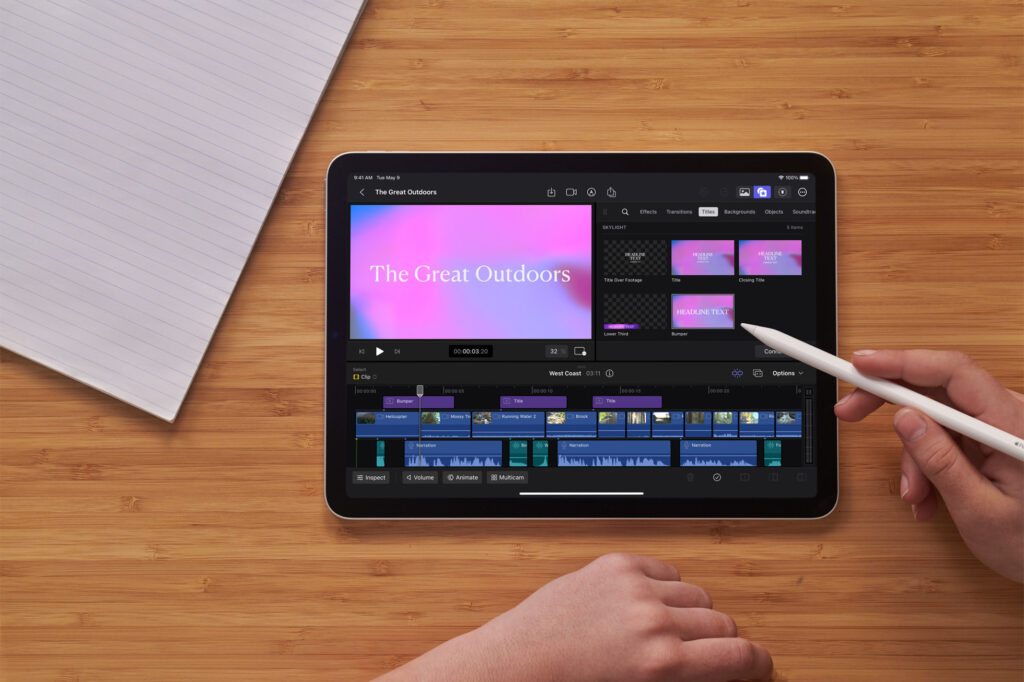
Why Choose Final Cut Pro?
Before jumping into the how-to, let’s talk about why it stands out:
- Optimized for Mac: It runs smoothly on Apple hardware.
- Magnetic Timeline: Then this makes editing faster and more intuitive.
- Powerful Features: Multicam editing, HDR support, and AI-powered tools.
- One-Time Purchase: Unlike Adobe Premiere Pro, you pay once and own it forever.
Now, let’s get into the step-by-step guide on how to use it effectively.
Getting Started with Final Cut Pro
1. Install & Set Up
Firstly, download Final Cut Pro from the Mac App Store. Once installed:
- Firstly, open the app and create a new project.
- Choose your settings (resolution, frame rate, format).
- Then, import media by dragging files into the browser or using File > Import Media.
2. Understanding the Interface
It has a clean but feature-packed layout:
- Browser: Where your media files live.
- Viewer: Preview clips before editing.
- Timeline: Where you arrange and edit clips.
- Inspector: Then, adjust effects, speed, and audio settings.
3. Basic Editing Techniques
Now, let’s edit a simple video:
If you want to read about Cinema 4D, click here.
- Cut & Trim: Use the Blade Tool (B) to split clips.
- Move Clips: Drag and drop on the timeline.
- Add Transitions: Then, go to Effects > Video Transitions and drag one between clips.
- Adjust Audio: Lower background noise via the Audio Inspector.
4. Advanced Features
Once comfortable, try these pro-level tools:
Color Grading – Use the Color Wheel for cinematic looks.
Motion Tracking – Then, attach text or effects to moving objects.
Multicam Editing – Sync and switch between multiple angles.
Keyboard Shortcuts – Speed up workflow (e.g., Cmd+B for Blade Tool).
Common Mistakes & How to Avoid Them
- Not Organizing Media: Use Keyword Collections to sort clips.
- Ignoring Backups: Enable Library Backups in settings.
- Overusing Effects: Then, keep edits clean and purposeful.
Final Cut Pro FAQ
1. Is Final Cut Pro better than Premiere Pro?
It depends. FCP is faster on Mac, but Premiere works across all platforms.
2. Can I use Final Cut Pro on Windows?
No, it’s Mac-exclusive, but alternatives like DaVinci Resolve are compatible with Windows.
3. How much does Final Cut Pro cost?
A one-time $299 payment, unlike subscription-based software.
4. Does Final Cut Pro support 4K editing?
Yes, it handles 4K, 8K, and HDR with ease.
5. What’s the best way to learn Final Cut Pro fast?
Practice with tutorials and then, real projects, hands-on learning works best.
Final Thoughts
It is a powerful, user-friendly tool for video editors. By mastering its features, you can create professional-grade videos efficiently. Start with the basics, experiment with advanced tools, and soon, you’ll be editing like a pro!
Ready to try it out? Download Final Cut Pro and start your editing journey today!