
Introduction
Artificial intelligence is changing how we work, and Microsoft Copilot is leading this change. This smart assistant helps with writing, coding, and analyzing data, saving time and making work easier.
But how does it work? What can it do? And how can you use it well?
This guide explains everything in simple terms. You’ll learn:
- What Microsoft Copilot is
- How does it help with everyday tasks
- Easy steps to use it
- Tips to get the best results
- Answers to common questions
Let’s get started!
What Is Microsoft Copilot?
Microsoft Copilot is a smart helper built into Microsoft apps like Word, Excel, and Outlook. It uses AI technology to understand what you need and give helpful suggestions.
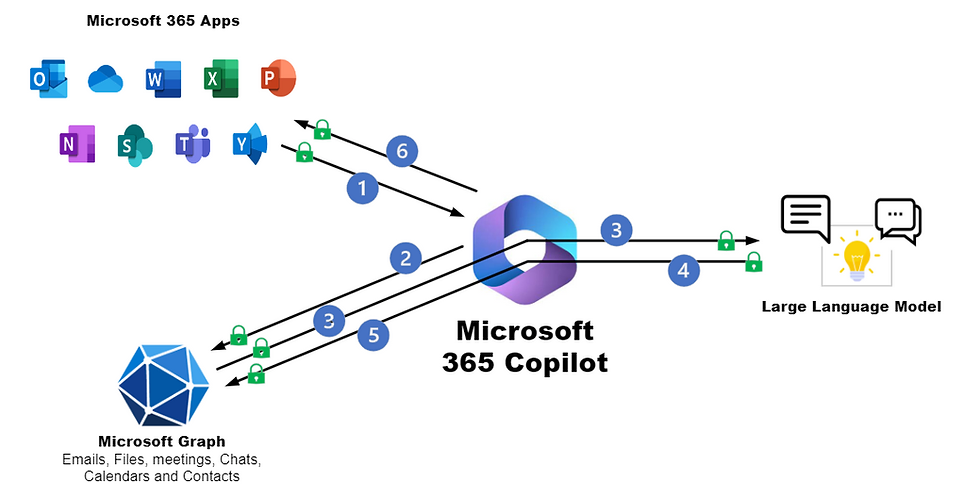
Unlike basic tools, Copilot thinks about context. It can read your files, emails, and calendar (with permission) to give better answers.
How Copilot Works in Simple Terms
- You ask for help – Type something like “Write a meeting summary.”
- It checks your files – Looks at your documents and emails
- It gives smart answers – Creates drafts, summaries, or even code
- learns your style – Gets better the more you use it
What Can Copilot Do For You?
1. Writing Help
- Firstly, write emails and reports fast
- Secondly, makes sentences clearer
- Then, summarizes long documents
2. Excel Made Easy
- Firstly, explains numbers in simple terms
- Secondly, makes charts with one command
- Thirdly, helps with tricky math
3. Coding Assistance
- Firstly, suggests code as you type
- Secondly, find mistakes in your code
- Thirdly, works with many programming languages
4. Works with Microsoft Apps
- Firstly, it helps in Word, Excel, PowerPoint, Outlook, and Teams
- Secondly, connects to your OneDrive files
5. Saves Time
- Firstly, plan meetings for yourself
- Secondly, turns notes into slides
- Thirdly, makes to-do lists from emails
How to Use Copilot: Easy Steps
1. Getting Started
- Firstly, you need a Microsoft 365 business account
- Secondly, your company admin must turn it on
- Thirdly, look for the Copilot button in your apps
2. Using Copilot in Different Apps
📝 In Word
- Firstly, say, “Write a project update.”
- Secondly, ask, “Make this shorter.”
- Thirdly, try “Explain this in simple words.”
📊 In Excel
- Firstly, ask “Show sales trends.”
- Secondly, say “Calculate average costs.”
- Then, command “Make a pie chart.”
📧 In Outlook
- Firstly, type “Write a polite reply.”
- Secondly, ask “What’s important in these emails?”
- Then, say, “Find time to meet with the team.”
💻 For Coding
- Firstly, starts suggesting code as you type
- Secondly, fixes errors when you ask
- Thirdly, explains what the code does
3. Copilot Tips for Best Results
Ask clearly – “Write a friendly email about the delay” works better than “Write an email.”
Check the work – AI isn’t perfect, so review suggestions
Use for boring tasks – Great for emails, reports, and data work
Keep private info safe – Don’t share secrets in your requests
Common Questions Answered
❓ How much does Copilot cost?
It’s part of Microsoft 365 business plans, not free.
❓ Is my data safe?
Yes, Microsoft keeps your information private.
❓ Will it take my job?
No, it’s just a helper. People still need to make decisions.
❓ Does it work on phones?
Yes, in Outlook and Teams mobile apps.
❓ How good are its answers?
Very good, but not perfect. Always check important work.
❓ Can I use it offline?
No, it needs the internet to work.
Final Thoughts
Microsoft Copilot is like having a smart coworker. It helps with writing, numbers, and coding. While it’s not perfect, it saves hours on boring tasks.
The key is to ask clear questions and check its work. Used right, it can make your workday much easier.
Want to try it? If your company uses Microsoft 365, ask about turning on Copilot!
Need More Help?
- Microsoft’s Help Page: Microsoft Support
- Coding Help: GitHub Copilot