
Introduction
Have you ever wished for a digital assistant that does more than answer questions? Imagine one that truly understands context, creates stunning visuals, and even speaks. In the busy world of AI, one tool does exactly this. Meet ChatSonic. It’s an AI powerhouse built not just to chat, but to create, solve, and innovate with you. So, learning to use this tool can unlock huge gains in productivity. This guide will walk you through everything, from your first prompt to the most advanced features. By the end, you’ll know how to turn this AI from a cool gadget into a vital partner for your work and creativity.
First, let’s clarify what ChatSonic is. Developed by Writesonic, it’s a supercharged AI chatbot. It works a lot like other leading models, but it stands out with one major difference: real-time, built-in superpowers. Think of a conversational AI that does all this at once:
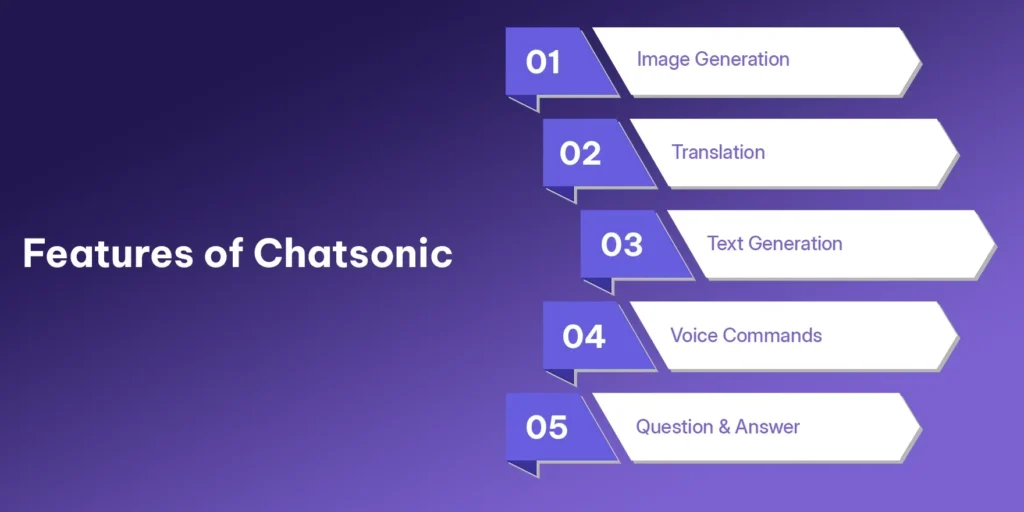
- Searches the internet for fresh facts.
- Creates art from your words.
- Remembers your conversation.
- Speaks its answers out loud.
In short, it combines multiple AI tools into a simple, friendly interface.
Getting Started: Your First Steps with ChatSonic
To begin, head to the Writesonic platform and sign up. After creating your account, you’ll usually get some free credits to test the features. Once you log in, you’ll see a clean chat screen. It looks familiar, like a messaging app, which makes it easy to start.
Now, find the main text box. This is your command center. Here, you can type any question or instruction. Also, look for the small microphone and camera icons. These buttons unlock two powerful features: voice commands and image prompts. Instead of typing, you can just talk to the AI. Or, you can upload a picture and ask ChatSonic to tell you what’s in it. This blends seeing and understanding cleverly.
If you want to read about Pippit.AI, click here.
Mastering the Art of the Prompt
To go from a beginner to an expert, you need one key skill: writing good prompts. ChatSonic works best with clear, detailed instructions. For example, don’t just say, “Write a blog.” Instead, try this: “Write a friendly, 500-word blog intro for small business owners. The topic is using ChatSonic for customer service to save time.” The second prompt gives the AI a role, tone, length, audience, and focus. This guides it to a much better result.
Next, use its special features right in your prompts. You can directly ask it to find new information. Try this: “Search the web and summarize the key points from yesterday’s big tech news.” To make an image, describe what you want. Say, “Create a digital art image of a peaceful forest with glowing mushrooms at night.” The AI will then create and show that picture in your chat.
Exploring the Standout Features of ChatSonic
Now, let’s examine the features that make ChatSonic unique.
Firstly, it’s real-time knowledge
This fixes a common AI problem: outdated information. Many chatbots are stuck in the past. However, ChatSonic can grab current data from Google Search. Then this makes it perfect for checking news, trends, or stock prices.
Secondly, the AI Image Generation.
This feature, powered by models like DALL-E, is built right in. You don’t need to switch between different apps. You can discuss an idea and then immediately create a visual representation of it, all in the same place.
Thirdly, Voice Command & Response.
This adds a layer of ease. You can have hands-free chats while driving or cooking. You can also listen to articles or emails read aloud. This makes talking to AI feel very natural.
Finally, it’s Memory.
This is a big deal. ChatSonic can remember what you said earlier in your chat. So, you can refer back to previous points without repeating yourself. This creates a smooth, continuous conversation, like talking to a person who is actually listening.
Practical Applications Across Fields
So, how can you use this tool in real life? Here are some powerful examples.
For Content Creators & Marketers:
- Don’t just write article drafts. Also, make social media posts, ad copy, and banner images in one go. Use the web search to find recent stats and then make your content timely and accurate.
For Students & Researchers:
- Use ChatSonic as a study buddy. Ask it to explain hard topics, sum up long articles, or find the latest research. The voice feature can read your notes to you, which helps with memorization.
For Businesses & Professionals:
- Save time on daily tasks. Use it to write professional emails, plan meeting notes, understand data charts, and brainstorm new ideas with real-world data.
For Developers & Creatives:
- Ask it to check code for errors, suggest programming ideas, or write story details for games. Then, use the image generator to visualize those game characters.
Navigating Limits and Best Practices
Remember, ChatSonic is powerful, but it’s not perfect. It has some limits. Its knowledge is current, but you should still check critical facts yourself. Maybe the image generator does not get your vision right on the first try. You may need to tweak your description a few times.
Therefore, work with the AI, not just through it. Treat ChatSonic as a first-draft partner. Always review and edit your work, especially for facts and your brand’s style. Also, don’t be afraid to experiment. The real magic happens when you mix its features. Try using a voice command to ask for a report, which the AI then reads back to you.
In summary, ChatSonic is a big step toward a more connected and helpful AI. By learning its prompts and using its mix of text, voice, images, and search, you boost your own skills. Start by trying one new feature each day. Use it for a real task and see how it helps. Then the future of AI is active, creative, and linked together. With ChatSonic, you can start using that future today.
Frequently Asked Questions (FAQ)
Q1: Is ChatSonic completely free to use?
A1: Writesonic offers a free plan with limited credits to test the main features. For regular use, especially for images and high-volume tasks, you will need a paid plan for more credits and access.
Q2: How does ChatSonic’s internet search work?
A2: Most AI models use old, static data. ChatSonic is different. When you turn on the search option, it can find the very latest information from Google, giving you answers about recent news and events.
Q3: Can I use the content I create for my business?
A3: Yes. Under their standard terms, you usually own the content you generate. This means you can use the blog posts, ads, and images for commercial purposes. Still, it’s smart to check their latest terms of service.
Q4: Is there a mobile app?
A4: Yes. You can download the ChatSonic app on both iOS and Android phones. Then this gives you full access to all features, including voice commands, wherever you are.
Q5: Is my conversation history private?
A5: Writesonic states that it values user privacy. The company may use conversation data to improve the AI, but you should read their privacy policy for details. As a best practice, avoid sharing very private or sensitive personal information in the chat.
Q6: How do I get the best images from the AI?
A6: Use very detailed descriptions. Talk about the style (like “oil painting” or “cartoon”), the subject, the colors, and the mood. You often get the best image by trying a few times—use the first result as a starting point for your next, better prompt.