
How to Use WordPress: Everything You Need to Know
So, you want to build a website. First of all, congratulations. Secondly, you made a smart choice with WordPress. Honestly, nearly half of the web runs on this platform. That includes small blogs, huge news sites, online stores, and even celebrity portfolios.
But here is the truth. WordPress can feel overwhelming at first. The dashboard looks busy. The options seem endless. As a result, you might ask yourself, “Where do I even start?”
Relax. I will walk you through everything. Step by step. No confusing jargon. Instead, just clear, active advice you can use today.
Let’s dive right in.
What Exactly Is WordPress?
First, let’s clear up a common confusion. Specifically, there are actually two versions of WordPress.
One is WordPress.com. That is a hosted service. It handles everything for you. However, you have fewer freedoms.
The other is WordPress.org. That is the real deal. You download the software for free. Then you find your own hosting company. Consequently, you own your site completely.
This guide focuses on WordPress.org. Why? Because you need full control. For instance, you want to install custom designs, add any plugin, and even run ads. That power belongs to you.
Why Should You Choose WordPress?
You have many website builders out there. For example, Wix, Squarespace, and Webflow all work fine. Nevertheless, WordPress offers unique advantages.
First of all, it is free. Yes, you pay for hosting and a domain name. However, the software itself costs nothing.
Second, you can change everything. Do not like your theme? Swap it in seconds. Need a contact form? Add a plugin. Want to sell products? WooCommerce integrates perfectly.
Third, you own your data. As a result, no platform can shut you down or change your URL structure without permission.
Finally, help is everywhere. Millions of people use WordPress. That means you will find tutorials, forums, and YouTube videos for any problem. In short, you are never alone.
If you want to read about NameCheap, click here.
What Do You Need Before You Start?
Let me save you some frustration. Before you install anything, gather these three things.
First, a domain name. This is your website’s address, like yourawesomeblog.com. Keep it short, memorable, and easy to spell.
Second, web hosting. Think of hosting as your site’s home on the internet. Many great hosts exist. For instance, Bluehost, SiteGround, and Cloudways all work beautifully. Moreover, most hosts offer one-click WordPress installation.
Third, a little patience. Learning takes time. Therefore, do not expect a perfect site in one hour. You will make mistakes. That is fine. Just fix them and move on.
Transitioning to the actual setup, let me show you how to install WordPress.
How to Install WordPress (The Easy Way)
Remember when I mentioned one-click installation? That is your best friend.
To begin, log in to your hosting account. Next, look for a section labeled “WordPress” or “Softaculous.” Click it. Then click the install button.
After that, the system asks for a few details. Enter your site title. Use your admin email. Choose a strong password. Then wait thirty seconds.
Boom. WordPress installs automatically. Consequently, the system gives you a login link. Save that link immediately.
Now, type yourdomain.com/wp-admin into your browser. Enter your username and password. Welcome to the dashboard.
Understanding Your WordPress Dashboard
Open your dashboard. Do not panic. It looks busy, but you only need a few sections right now.
Look at the left sidebar. This is your control panel. For example, Posts is where you write blog articles. Meanwhile, Pages are for static content like your About or Contact page. Likewise, Media stores all your images, videos, and PDFs.
In addition, Appearance lets you change your design, menus, and widgets. Plugins add new features like SEO tools or contact forms. Finally, Settings adjust basic site rules like timezone and comment moderation.
Focus only on Posts, Pages, and Appearance for your first week. Ignore the rest for now. After a while, you can explore the others.
Writing Your First Blog Post
Ready to create content? Let me show you exactly how.
First, click “Posts” then “Add New.” You will see a large editor box. This is where the magic happens.
Write a headline first. Make it clear and interesting. For instance, instead of “Recipes,” write “10 Easy Pasta Recipes for Busy Weeknights.”
Then write your content. Break up long paragraphs. Use short sentences. Add bullet points or numbered lists. People scan online, so help their eyes move quickly.
When you finish, look at the right sidebar. Finally, click the “Publish” button. Your post goes live immediately. That is it.
Creating Essential Pages
Every website needs a few core pages. Let us build them now.
To start, go to “Pages” then “Add New.”
Begin with an About Page. Tell your story. Why did you start this site? What can readers expect? Use real emotion. People connect with honesty, not corporate speak.
Next, create a Contact Page. You do not need anything fancy. Just write a sentence inviting people to reach out. After that, install a simple contact form plugin later.
Finally, make a Privacy Policy Page. The law requires this in many places. Do not worry about writing it yourself. Several free generators exist online. As a result, you can copy and paste the result.
After publishing these pages, set up your menu. Go to “Appearance” then “Menus.” Drag your new pages into the menu structure. Then save it. Now visitors can navigate your site.
Choosing a Theme (Without Overthinking)
Your theme controls your site’s appearance. Thousands of free options exist in the WordPress directory. However, do not get analysis paralysis.
Here is a simple rule. Pick a theme that looks clean and loads fast. In contrast, avoid overly flashy designs with sliders and animations. They slow you down.
To begin, go to “Appearance”, then “Themes”, then “Add New.” Filter by “Popular” or “Latest.” Look at a few options. Then install one that feels right. You can always change it later.
After installation, customize your colors and logo. Go to “Appearance” then “Customize.” Play around. Change fonts, upload your logo, and adjust your homepage layout.
Remember, you can switch themes anytime without losing your content. Therefore, stop worrying. Pick something and move forward.
Essential Plugins You Actually Need
Plugins add functionality. However, too many plugins slow down your site. Consequently, install only what you truly need.
Start with these four.
First, a security plugin. For example, Wordfence or Solid Security works great. It blocks hackers and monitors for threats.
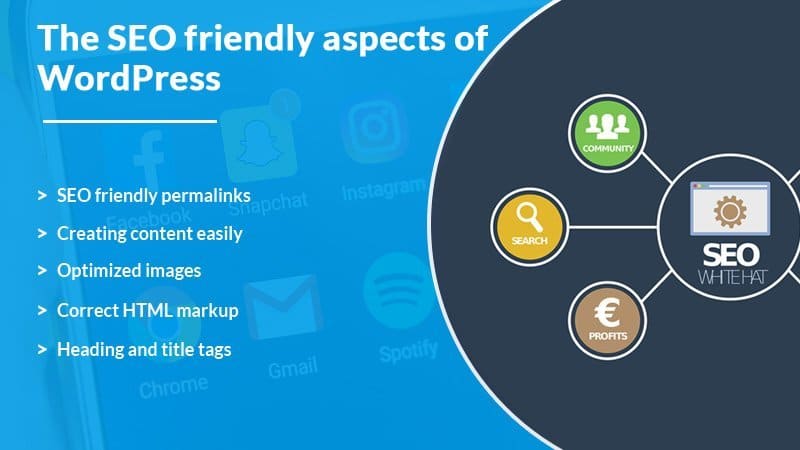
Second, an SEO plugin. Rank Math or Yoast SEO helps Google find your content. In addition, these tools give you simple checklists for each post.
Third, a caching plugin. WP Rocket or W3 Total Cache makes your site load faster. Speed matters for both visitors and search rankings.
Fourth, a backup plugin. UpdraftPlus or Jetpack VaultPress saves copies of your site. If something breaks, you restore a backup in minutes.
To install a plugin, click “Plugins” then “Add New.” Search for the name. Click “Install Now” then “Activate.” That is all.
Managing Comments and Spam
As your site grows, people will leave comments. Most comments are wonderful. On the other hand, some are spammy garbage.
First, go to “Settings” then “Discussion.” Check the box that says “Comment must be manually approved.” This stops spam from appearing automatically.
Then install Akismet. This plugin comes pre-installed with WordPress. Just activate it and get a free API key. Akismet catches 99% of spam comments before you ever see them.
After that, check your comments section every few days. Approve genuine comments. Delete the rest. Finally, reply to your readers. Engagement builds community.
Search Engine Basics (SEO Made Simple)
Do you want people to find your site? Then pay attention here.
SEO stands for search engine optimization. Fancy term, simple concept. In other words, you just help Google understand your content.
Start with your post titles. Include your main keyword naturally. For example, if you write about vegan pancakes, use “Easy Vegan Pancakes” in the title.
Next, write a meta description. This is the short blurb that appears under your link on Google. Keep it under 160 characters. Make people curious enough to click.
Then use headings. Break your post into sections with H2 and H3 tags. Google reads these headings to understand your structure.
Finally, link to your own content. When you mention a previous post, hyperlink it. This keeps people on your site longer.
Do not obsess over SEO. Instead, write for humans first. Search engines will catch up.
Keeping Your Site Secure
Hackers target WordPress sites. That sounds scary, but simple habits protect you completely.
First, always update everything. When WordPress releases a new version, install it immediately. Likewise, do the same for your themes and plugins. Outdated software causes almost all hacks.
Second, use strong passwords. “Password123” invites trouble. Therefore, use a password manager like Bitwarden or LastPass. Generate random, complex passwords.
Third, limit login attempts. Install a plugin called Limit Login Attempts Reloaded. It blocks anyone who guesses wrong too many times.
Finally, never use “admin” as your username. Hackers guess that first. If your username is admin, create a new admin user. Then delete the old one.
Common Mistakes Beginners Make (And How to Avoid Them)
Let me save you some headaches. Avoid these five traps.
First, ignoring backups. You will break something eventually. It happens to everyone. Without a backup, you lose everything. As a result, set up automatic backups today.
Second, use “localhost” as your site URL. If you build your site offline, change the URL before going live. Otherwise, images break, and links fail.
Third, forgetting mobile users. Over half of your traffic comes from phones. Consequently, check your site on a smartphone. If text looks tiny or buttons overlap, fix your theme.
Fourth, buying too many plugins. Each plugin adds code. More code means slower load times. Therefore, stick to what you genuinely need.
Fifth, giving up too soon. Learning WordPress takes weeks, not hours. Celebrate small wins. For instance, your first published post matters more than perfection.
Frequently Asked Questions (FAQ)
Q1: Is WordPress really free?
Yes, the WordPress software is completely free. You only pay for hosting and a domain name.
Q2: Do I need coding skills to use WordPress?
No. You can build an entire site without touching a single line of code. Drag-and-drop builders and themes handle everything.
Q3: How long does it take to learn WordPress?
You can publish your first post within one hour. However, mastering all features takes one to three months of regular use.
Q4: Can I switch from WordPress.com to WordPress.org?
Absolutely. First, export your content from WordPress.com as an XML file. Then import it into your self-hosted WordPress.org site.
Q5: What happens if my site breaks?
Restore a backup. That is why backups matter so much. Next, deactivate your most recent plugin or theme change. Nine times out of ten, that fixes the problem.
Q6: How do I add a logo?
Go to “Appearance” then “Customize.” Look for “Site Identity” or “Logo.” Upload your image. Finally, adjust the size if needed.
Q7: Can I sell products on WordPress?
Yes. Install WooCommerce. This free plugin turns your site into a fully functional online store.
Q8: Why does my site look different on mobile?
Some themes handle mobile devices poorly. Therefore, switch to a responsive theme. Most modern themes adjust automatically to any screen size.
Q9: How often should I blog?
Consistency beats frequency. For example, post once per week on the same day. Your audience learns to expect new content.
Q10: Where can I get help if I am stuck?
First, search YouTube. Thousands of video tutorials exist. Next, visit the WordPress Support Forums. Finally, hire a freelancer from Codeable or Upwork for complex fixes.
Final Thoughts: Start Already
You now know everything to launch your WordPress site. Therefore, do not wait for perfect conditions. Likewise, do not buy expensive courses. Also, do not overthink your theme choice.
Instead, take action today. Buy a domain. Install WordPress. Write your first headline. Then publish something imperfect but real.
Every expert started exactly where you stand now. Confused. Excited. A little nervous. However, that feeling fades after your first week.
So close this guide. Open your dashboard. Finally, build something that matters.
You have got this.