
How to Use GoDaddy & What You Need to Know First
Let me tell you a quick story. A few years ago, I decided to start a blog. My heart raced with excitement. I had the name. I had the passion. But I had zero clue about domains or hosting. Then, someone said, “Just use GoDaddy.” So I did.
But here’s the truth. I made mistakes. I clicked the wrong buttons. Then, I bought things I didn’t need. I felt lost.
That’s why I write this guide today. I want to save you from that confusion. So, let’s sit down. Let’s talk about GoDaddy. I will show you how to use it. And more importantly, I will tell you what you absolutely need to know before you spend a single dollar.
Firstly, What Exactly Is GoDaddy?
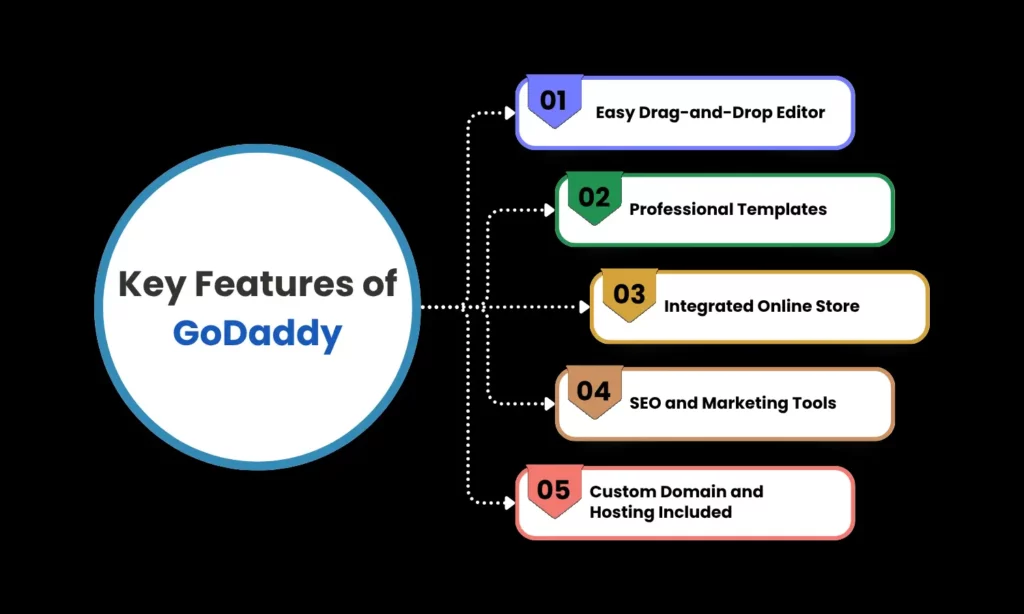
It is a giant in the web services world. Think of it as a one-stop shop for your online ideas. You need a domain name (like www.yourname.com)? GoDaddy sells it. You need a place to store your website files (that’s hosting)? It provides. Do you need a tool to build your site without coding? It offers that too.
In short, GoDaddy helps you get online fast. But remember, fast doesn’t always mean simple. You still need a plan.
How to Start with GoDaddy: A Step-by-Step Guide
Let me walk you through the process. I use active voice here because you are in control. You take action. You build your site.
Step 1: Search for Your Perfect Domain Name
Firstly, go to its homepage. You will see a big search bar. Then, type your dream website name there. For example, type “BestCoffeeBlog.com.” Then, click the search button.
Now, watch what happens. It immediately tells you if the name is free or taken. Don’t panic if your first choice is gone. Most good .com names are already taken.
Instead, try these tricks:
- Add a small word like “try,” “go,” or “get” (GetBestCoffee.com).
- Use a different extension like .co, .blog, or .site.
- Use your own name if it’s a personal site.
Transitioning to the next point, once you find an available name, you click “Select.” Then, you add it to your cart. Easy, right? Not so fast. Let’s talk about the cart.
If you want to read about Nano banana pro, click here.
Step 2: Understand the Checkout Game (This Is Crucial)
Secondly, here is where most people get frustrated. You add a domain for $11.99. But when you go to checkout, the price shows $45. Why? Because GoDaddy automatically adds extras. These extras include:
- Domain privacy protection (hides your personal info from public records)
- Professional email mailbox
- Website builder subscription
- SSL certificate (keeps your site secure)
You don’t need all these right now. You really don’t. So, you must uncheck what you don’t need.
For example, you should keep domain privacy. It costs a little extra, but it stops spammers from getting your home address. However, you can skip the email mailbox for now. Use Gmail instead. Also, skip the website builder if you plan to use WordPress.
Therefore, always review your cart carefully. Scroll down. Look for pre-checked boxes. Uncheck them unless you want them. This single habit saves you hundreds of dollars.
Step 3: Create Your Account or Log In
After you review your cart, you need an account. Then, it asks for your name, email, and password. Use a strong password. I mean it. Write it down somewhere safe.
Transitioning to the next step, you then enter your payment details. GoDaddy accepts credit cards and PayPal. Once you pay, congratulations. You now own a domain name.
Step 4: Choose Your Hosting Plan
Now you have a domain. But a domain alone does nothing. It’s like buying land with no house. You need hosting. Hosting is the land where your website lives.
It offers several hosting types. Let me simplify them for you:
- Shared Hosting (Economy): Firstly, best for beginners. Cheap and simple. You share a server with other sites. Perfect for small blogs or business sites.
- WordPress Hosting: Secondly, specifically built for WordPress users. It comes with automatic updates and faster speeds.
- VPS Hosting: Thirdly, for bigger sites. More power and control. But you need technical skills.
- Dedicated Server: Then, only for huge businesses. Very expensive.
For most of you reading this, start with Shared Hosting. It costs around $5–$10 per month. Select the plan, add it to your cart, and again, review those extra offers. Uncheck things like “Site Backup” or “SEO tools” for now. You can add them later.
Step 5: Connect Your Domain to Your Hosting
This step confuses many people. But it’s simple once you know how. After you buy hosting, it sends you a welcome email. That email contains your “Nameserver” addresses. They look like this: ns1.godaddy.com and ns2.godaddy.com.
Then, you go to your It account dashboard. Find “My Products.” Click “Domains.” Find your domain name. Click “Manage DNS.” Then, replace the old nameservers with the new ones from your email.
Wait 10 minutes to 24 hours. During that time, the internet updates itself. This process is called propagation. Be patient. Make a cup of coffee. After that, your domain points to your hosting.
What You Absolutely Need to Know Before Using GoDaddy
Now, let me share the real talk. GoDaddy is powerful. But it has quirks. Here is what you need to know.
1. The Renewal Price Jumps
Listen carefully. Your first year with GoDaddy feels cheap. You pay $0.99 for a domain or $5.99 for hosting. That feels amazing. But when year two arrives, the price jumps to normal rates. A domain renews at $18–$22 per year. Hosting renews at $10–$15 per month.
Therefore, always check the renewal price before you buy. GoDaddy shows it in small text. Look for “Renews at” something. Budget for that higher price. Otherwise, you get a shock on your credit card statement.
2. Customer Support Can Be Slow, But It Exists
It offers 24/7 phone and chat support. I have used it many times. Sometimes, you wait 15 minutes. Other times, you get an expert in seconds. The quality varies. But overall, they solve most problems.
Pro tip: Use the chat support first. It’s faster than the phone. Have your account number ready. Explain your problem clearly. For example, say, “I cannot connect my domain to my hosting.” Do not say, “My website is broken.” Be specific.
3. The Dashboard Is Busy but Learnable
When you first log into It, you see many buttons. You see “Domains,” “Hosting,” “Email,” “Marketing,” “SSL,” and more. It feels overwhelming. But do not worry.
Focus on only two tabs: “My Products” and “Domains.” That’s it. Ignore the rest for the first month. Once you feel comfortable, then explore the other tools.
Transitioning to another important point, never click “Delete” unless you are 100% sure. Deleting a domain or hosting removes your entire website. There is no undo button.
4. You Can Get a Refund Within 30 Days
Yes, It offers a 30-day money-back guarantee on most hosting plans. If you buy hosting and hate it, you can ask for a refund. However, domain name purchases are usually final. Once you register a domain, you cannot refund it. So, be sure about your domain name before you buy.
How to Build Your Actual Website on GoDaddy
You have your domain and hosting. Now what? You need a website. Here are your three best options.
Option 1: Use GoDaddy’s Website Builder (Easiest)
It offers a drag-and-drop builder. You do not need coding skills. Then, you choose a template. You add text, images, and buttons. You drag things around. Then, you publish. The builder also works on phones.
But there is a trade-off. You cannot easily move your site away from GoDaddy later. You also have fewer design options. Still, for a simple business site or portfolio, it works fine.
Option 2: Install WordPress (Most Flexible)
WordPress powers over 40% of the internet. It gives you total control. It offers one-click WordPress installation. You go to your hosting dashboard. You find “WordPress.” You click “Install.” Then, you answer a few questions. Five minutes later, WordPress runs on your site.
Then, you choose a theme (design) and plugins (extra features). You write blog posts. You add images. WordPress takes longer to learn, but it rewards you with freedom.
Option 3: Hire a Pro (Expensive but Fast)
If you have money but no time, hire a web designer. You can find freelancers on Fiverr or Upwork. They build your site for you. You give them access to your account. Then, you review their work. This option costs $300–$1,500, depending on complexity.
For most beginners, I recommend Option 2 (WordPress). It gives you the best balance of control and cost.
Common Mistakes People Make on GoDaddy (And How You Avoid Them)
Let me save you from pain. Here are the top mistakes I see.
Mistake 1: Buying the longest term without testing.
Solution: Buy one year first. Test the service. If you like it, then renew for multiple years later.
Mistake 2: Forgetting to turn off auto-renew.
Solution: Go to your account settings. Find “Auto-Renew.” Turn it off for products you don’t want. Otherwise, GoDaddy charges you automatically.
Mistake 3: Using the same password for GoDaddy and your email.
Solution: Use a unique password. If GoDaddy ever has a security issue (rare but possible), your email stays safe.
Mistake 4: Not backing up your site.
Solution: Use a free backup plugin like UpdraftPlus (for WordPress). Or pay GoDaddy $2/month for their backup tool. Backups save you if you accidentally break your site.
Frequently Asked Questions (FAQ)
Let me answer the questions you are probably thinking right now.
Q1: Is It good for beginners?
Yes, absolutely. GoDaddy makes the technical parts easier. You don’t need to know code. However, you do need to read carefully during checkout. That’s the only tricky part.
Q2: Can I transfer my domain away from GoDaddy later?
Yes, you can. GoDaddy allows domain transfers. Then, you unlock your domain, get a transfer code, and give that code to your new registrar. The process takes about 5–7 days. GoDaddy may charge a small fee.
Q3: Does It include free email?
No, not usually. GoDaddy sells email separately. You can use your domain name to create name@yoursite.com. But it costs around $2–$5 per month per mailbox. Alternatively, use a free Gmail address for now.
Q4: How long does it take for my website to go live?
If you use GoDaddy’s website builder, your site goes live instantly after you publish. If you use WordPress, your site goes live as soon as you install WordPress and add some content. Domain propagation (the waiting period) can take up to 24 hours, but usually only 30 minutes.
Q5: What happens if I don’t renew my hosting?
GoDaddy gives you a grace period. That’s usually 30 days. During that time, your site goes offline, but you can still renew it and get it back. After 30 days, GoDaddy may delete your files. After 60–90 days, they may sell your domain name to someone else. So, renew on time.
Q6: Can I host multiple websites on one GoDaddy account?
Yes, you can. But it depends on your hosting plan. The cheapest shared hosting plan usually hosts only one website. The Deluxe or Ultimate plans host unlimited websites. Check your plan details before you buy.
Q7: Is It better than Namecheap or Bluehost?
That depends on your needs. GoDaddy has better phone support and a bigger brand. Namecheap is often cheaper for domains. Bluehost is simpler for WordPress. I tell my friends this: use GoDaddy if you want an all-in-one solution. Use Namecheap if you only need a domain. Use Bluehost if you only need WordPress.
Q8: Does It sell my personal information?
GoDaddy has a privacy policy. They do not directly sell your email or phone number. But they do share data with partners for advertising. You can opt out of most data sharing in your account settings. Also, buy domain privacy protection to hide your address from the public WHOIS database.
Q9: Can I get a refund if I change my mind?
For hosting, yes, within 30 days. For domain names, no, not after the first 48 hours. website builder subscriptions, yes, within 30 days if you have not used it much. Always read the refund policy before you buy.
Q10: What’s the cheapest way to start with GoDaddy?
Buy a domain for $0.99 (first-year promotional price). Then, buy the Economy shared hosting for one year at $5.99 per month. Uncheck all extra add-ons. Your total should be around $70 for the first year. That’s a full website for less than dinner for two.
Final Thoughts: Should You Use It?
Here is my honest answer. It works great for millions of people. I have used it myself. I still use it for some of my domains. It’s reliable. It’s beginner-friendly. And it gets you online fast.
But you must stay alert. You must read every screen during checkout. Then, you must uncheck what you don’t need. You must remember that renewal prices go up. If you do these three things, you will have a smooth experience.
So, take action today. Search for your domain name. Click that button. Start your website. You don’t need to be perfect. You need to begin.
Now go build something awesome.
Have you used GoDaddy before? What was your experience like? Drop a comment below or share this post with a friend who needs to read it.