
Introduction
Imagine an IDE that works with you like a true partner. It does not wait for your commands. Instead, it actively collaborates with you on every task. It feels almost like a mind-meld with a brilliant developer by your side. That is exactly what Windsurf AI delivers every single time. It is Codeium’s next-generation, agentic IDE for modern programmers.
It is rapidly changing how we approach software development today. Therefore, if you want to move beyond simple autocomplete. You have come to the right place. You can truly supercharge your workflow with this tool. Consequently, this guide will walk you through everything you need. You will learn how to use Windsurf AI effectively right away. We will cover the initial setup process first. We will also unleash its most powerful hidden features.
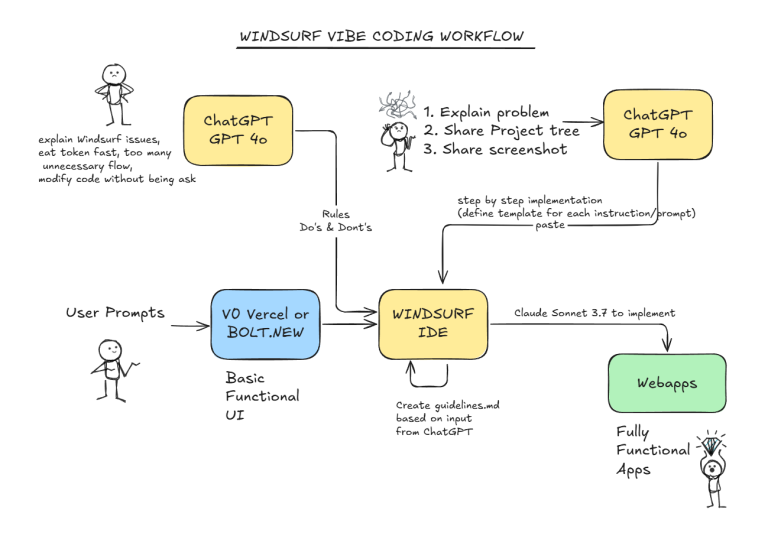
What Exactly is Windsurf AI?
First, let us clarify what makes Windsurf AI special. Many coding assistants are available today. Windsurf stands out from them. Unlike traditional tools, it functions differently. Traditional tools act as a “copilot.” They require constant prompting. Windsurf is built on a new paradigm. It is called AI Flows. Fundamentally, it acts as a collaborative agent. This means it can work alongside you. It can also independently tackle complex tasks.
Getting Started with Windsurf AI
Are you ready to dive in? Fortunately, getting started is easy. Follow this straightforward guide. You will have Windsurf AI running on your machine soon.
Step 1: Installation
Firstly, head over to the official Windsurf download page. Grab the installer for your operating system. It works on Windows, macOS, and Linux.
- For Windows: Firstly, run the installer executable. Follow the on-screen instructions.
- For macOS: Then, drag the application into your “Applications” folder.
- For Linux: Extract the archive. Execute the installation script.
Step 2: Initial Configuration
Once installed, launch the editor. You will then see a prompt. Then, you can import your existing VS Code settings. You can also start with a fresh configuration. Windsurf has a VS Code-like foundation. Therefore, the interface will feel instantly familiar. Subsequently, you can select your preferred theme. You can also set up your keybindings.
Step 3: Account Setup
To unlock the AI features, you need to sign up. Create a free account using your Google account. You can also use your GitHub or email address. After logging in, your session will be authenticated. This grants you access to free AI credits. Most users find this free tier sufficient. It lasts for nearly a month of heavy use. You can thoroughly test its capabilities. Then you can decide on paid plans.
If you want to read about React native, click here.
Understanding Cascade and Its Modes
With the setup complete, it is time to explore Windsurf’s heart. That heart is Cascade. Understanding its two primary modes is crucial. It helps you collaborate effectively.
Chat Mode
In essence, Chat Mode serves as your on-demand expert for any coding challenge. It functions much like a knowledgeable colleague sitting right beside you. You can consult it freely without making any changes to your actual code. Subsequently, you can ask it to explain a complex algorithm in simple terms. You can brainstorm different architectural approaches for your project. You can even analyze a confusing error message that appears.
For instance, you can simply paste a compiler error directly into the chat. Thereafter, you can ask, “What does this mean exactly?” You can also follow up by asking, “How can I fix this problem effectively?”
Write Mode
Conversely, Write Mode is where the real action takes place. When you switch to this mode, Cascade springs into action quickly. It directly edits your files based on your needs. Specifically, it proposes intelligent changes for your code. It implements new features exactly as you instruct. Then, it generates fresh code from scratch. It refactors existing functions for better efficiency. It even creates new files automatically when necessary.
Practical Techniques for Using Windsurf AI
Knowing the features is one thing. Using them effectively is another. Therefore, here are some practical techniques. They will elevate your Windsurf experience.
1. The Power of “@.”
One of the simplest yet most powerful tricks is using the @ symbol in your chat prompts. Consequently, you can directly reference specific files. You can reference classes. You can reference functions within your project. For example, instead of saying, “Fix the error in the login function,” you can type differently. You can say, “What is wrong with @login.js’s authenticateUser function?” This immediately grounds the AI in the correct context. It leads to far more accurate responses. It also leads to more relevant responses.
2. Supercharge Prompts with Examples
You can dramatically improve code consistency. Provide Windsurf with examples of your preferred coding style. This technique is called few-shot prompting. For instance, you might implement similar React components. First, write one perfectly. Then, ask Windsurf to create the next one. Select the finished component as a reference. The chat input will show this as a citation. You can then prompt it further. Say, “Please create a new component for a user profile card.” Add, “Follow the style and pattern of this referenced component.” This ensures the new code matches your existing architecture.
3. Harnessing Multi-File Editing
Where Windsurf truly shines is its ability to handle multi-file edits with ease. Imagine you need to migrate from an old API client to a new one. Previously, this task would have involved hours of tedious work. It would also be error-prone across dozens of different files.
Now, you can ask Cascade for help instead. You can say, “Please refactor the entire project for me.” You can ask it to. “Replace the old API-client with the new super-api-client throughout.” You can also tell it to “Update all imports and method calls automatically.”
4. Turbo Mode and Terminal Integration
For repetitive tasks, you can enable Turbo Mode in the settings. This allows Cascade to execute terminal commands. It considers them safe. For example, it can install packages. It can build scripts. It does this without asking for permission for every single action. Additionally, you can ask Cascade to suggest terminal commands. For example, you can type something simple. Say, “I need to find all the large files in this project.” It will provide the appropriate find or du command. You can then run it with a single click.
Customizing Your AI Experience
To truly make Windsurf your own. You need to customize its behavior. Consequently, the platform offers several powerful features.
Setting Global and Workspace Rules
First, you can define Rules. Think of them as a system prompt. Cascade will always follow them. You can set these globally. You can also set them on a per-workspace basis.
Global Rules:
- Apply to every project. You could use this to tell Windsurf to always respond in a specific language. You could also tell it to follow your general coding principles. For example, say “follow SOLID principles.” Say “write concise, well-commented code.”
Workspace Rules:
- Specific to the current project. This is perfect for outlining the project’s unique tech stack. It also outlines the folder structure. For example, you can say, “This project uses React with TypeScript. ” Say, “All API calls go through the
/servicesdirectory. ” With this context, Windsurf will never suggest Vue.js code. It will never place files in the wrong folder.
Cascade Memories
Additionally, Cascade Memories allows you to set preferences. These automatically influence the AI’s decisions. They work across all chats and projects. For example, you can create a simple memory. State clearly, “Always use two-space indentation for JavaScript files. ” Once set, you will never have to mention this again. Windsurf will do it automatically.
The .codeiumignore File
Finally, just as you use .gitignore for Git, you can create a .codeiumignore file. Place it in your project’s root. This is incredibly useful. It excludes large asset folders. It excludes generated code. Then, excludes dependency directories like node_modules. Consequently, this keeps Windsurf focused. It focuses on your unique, hand-written code. It also improves performance significantly.
Hidden Features You Might Not Know
Beyond the headline features, Windsurf has hidden gems. These can further enhance your workflow.
Image-to-Code:
- You can upload a screenshot directly into Cascade. It can be a website screenshot. It can be a UI mockup. Windsurf can then generate the underlying code. It creates HTML, CSS, and JavaScript. It brings that design to life.
DeepWiki Integration:
- By hovering over a function or variable, you can access new cards. These are DeepWiki-powered cards. Instead of just showing basic type, they provide more. They give an AI-generated explanation. It explains what the symbol does. It generates this from the project’s context.
Automated Linting:
- If Cascade generates code that violates your linting rules, it acts differently. It will automatically attempt to fix those errors. This ensures every contribution is clean. It also ensures every contribution is consistent.
Dead Code Cleanup:
- You can ask Cascade to identify unused variables. It can find unused functions. It can even find entire unused files. Then it helps you remove them. This keeps your codebase lean. It also keeps it maintainable.
Frequently Asked Questions.
Is Windsurf AI really free?
Yes, the free version is incredibly robust. It includes all the core AI features. You get Cascade, multi-file editing, and intelligent autocomplete.
Which programming languages does it support?
Windsurf supports a vast range of languages. These include JavaScript, TypeScript, and Python. It also supports Java, C++, Go, Rust, and PHP. It works seamlessly with popular frameworks.
How is Windsurf different from GitHub Copilot?
While Copilot is an excellent autocomplete tool, Windsurf is different. Windsurf is a full agentic IDE. It does not just suggest the next line. Then, it understands your entire project. It can perform complex, multi-step tasks. These tasks can span many files.
Can I use my existing VS Code extensions?
Absolutely. Windsurf is built on the same foundation as VS Code. You can install your favorite extensions. You can use them from the VS Code Marketplace. They work without any issues.
Does it work offline?
You can still edit code offline. However, all the AI-powered features need something. They require an internet connection to function properly.
Conclusion
In conclusion, Windsurf AI represents a monumental shift in software development. Moreover, it is far more than a simple tool. Instead, it functions as a true partner in your coding journey. Consequently, it not only understands your underlying intent. It also consistently respects your established coding style. Then, it effectively handles the heavy lifting for you. It manages complex refactorings with ease. Then, implements entirely new features from scratch. It does all of this work efficiently.