
Introduction
10Web.io, Feeling stuck trying to build your website? You are not alone. In fact, many people find the process hard, struggling with confusing tech words. They often get lost in complex steps, which stops them before they even start.
Fortunately, there is good news. 10Web.io fixes this problem completely. Specifically, it is a simple all-in-one platform that uses smart AI for WordPress sites, doing the hard work for you. Therefore, this guide will show you exactly how to use it. Ultimately, you will learn to create a professional website that looks great and works fast.
Let’s begin.
Understanding 10Web.io: Your All-in-One Solution
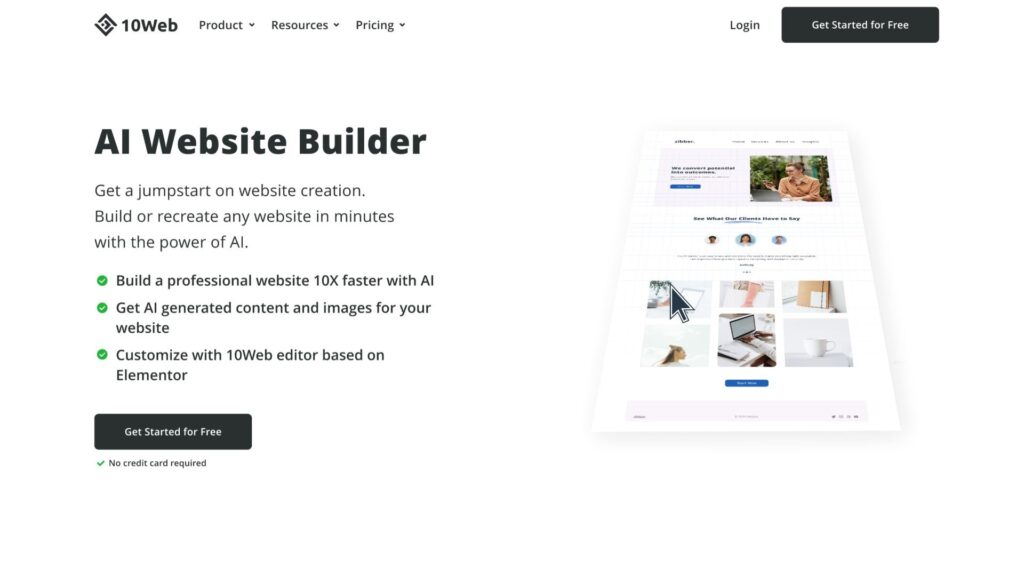
Firstly, understand what 10Web truly is. Unlike other website builders, it’s a complete package. Think of it as your ultimate website toolbox.
Essentially, it has three main parts:
Smart Hosting.
Secondly, this is where your website lives online. Importantly, 10Web’s robust Google Cloud servers mean your site is fast and reliable from day one.
Easy Editor.
Thirdly, you build your site by clicking and dragging. As a result, you see changes instantly without needing any confusing code.
Helpful AI.
Then, this is the best part. Tell the AI about your business, and it will write text, find pictures, and design pages for you.
In summary, the platform combines all these tools. Consequently, you get a powerful website without the usual stress.
Kicking Things Off with 10Web.io: Simple Steps to Start
Getting started is straightforward. Firstly, go to the 10Web website and choose a plan that fits you. Next, begin with their free trial to test everything out.
After that, you will see your Dashboard, which is your main control screen. Indeed, everything you need is right here.
Now, you must make your first choice. Do you have an old website to move, or are you making a brand new one?
For moving an old site:
Use the 10Web Migrator plugin because it handles the entire process for you. It’s remarkably simple.
For creating a new site: Click the big “Create Website” button.
10Web.io: Choosing Your Creation Method
Then, you choose your preferred method:
Option 1: Let the AI Build It.
Type a simple description of your business. For instance, type: “a friendly dog grooming service in Miami.” After that, click “Generate.” In just one minute, the AI creates a complete website for you, crafting all the pages, writing the words, and adding nice photos. Ultimately, it’s a wonderful starting point.
Option 2: Start from a Template.
Browse through 10Web’s template library to pick a design you like. Remember, you can change everything in it, making this a good choice if you already know your style.
Option 3: Start Totally Blank.
Alternatively, choose a blank page to build every part yourself. This option is ideal for people who want full control.
Most people should try Option 1 first since it is fast and provides an excellent foundation.
10Web.io: The Design Phase: Building with Click, Drag, and AI
Now that your site exists, it’s time to make it your own. You will do all this work in the intuitive 10Web Editor.
The screen is simple: your website preview is on the right, and all your editing tools are on the left.
10Web.io: How to Change Any Element
Click on it.
Firstly, see the text you want to change? Just click it. Immediately, a small menu pops up. Then, click “Edit” to type your new words.
Drag things around.
See a picture or a button? Click, hold, and move it to a new spot on the page. It really is that easy.
Use the AI Helper.
Look for the magic wand icon and click it. From here, you can ask the AI for direct help. Try commands like:
- Firstly, “Write a better welcome message.”
- Secondly, “Find a picture of a happy customer.”
- Thirdly, “Add a section for our weekly specials.”
Then, the AI will execute these commands instantly.
10Web.io: Creating a Consistent Brand
Next, go to the “Site Settings” menu to pick your main color and primary font. After you set these, every new button or headline will use these styles automatically. As a result, your site will look professional and unified.
If you want to read about Dropshipping, click here.
Adding Key Features with Plugins
Furthermore, your dashboard has a “Plugins” section. Plugins are like apps for your website. Luckily, 10Web includes several great ones for free. For example, turn on the form plugin to add a contact form, or activate the slider plugin to create beautiful image galleries—each with just one click.
Your Command Center: Mastering the 10Web Dashboard
While your website editor is for design, your dashboard is for power and management.
Make It Blazing Fast.
- Firstly, find the “Speed Optimization” button and turn it ON. Consequently, 10Web will apply over 90 technical tweaks to optimize your site’s performance, ensuring that your pages load significantly faster for visitors. This, in turn, helps you rank better on Google.
Keep It Safe.
- Secondly, simultaneously, 10Web protects your site. It scans for malware every day, blocks hackers, and saves a complete copy of your site daily. Made a big mistake? Simply click “Restore” to go back to yesterday’s version. It’s a true safety net.
Understand Your Audience.
- Additionally, connect Google Analytics (it’s free). Then, find the place in your dashboard to add your tracking code. Now you can see how many people visit your site and what pages they like. This valuable information will help you grow.
Pro Strategies for a Top-Tier Website
To truly succeed, follow these actionable tips.
Firstly, Iterate with the AI.
Your first AI-generated site is merely a draft. Therefore, improve it by clicking the AI button again. For instance, say, “Make the colors softer” or “Write shorter paragraphs.” Keep guiding it for better results.
Secondly, Optimize Your Images First.
Since large photos slow down your site, always use a free tool like CompressJPEG before uploading. This makes your image files smaller while keeping them looking great, so they load faster.
Always Test on a Staging Site.
Found under “Tools” in your dashboard, this is a secret copy of your website. Always test big changes here first, try a new design or add a new page. If you like it, click “Push to Live” to update your real site safely.
Then, Verify Your Backups.
Moreover, go to “Backups” in your dashboard to ensure they are running daily. For a busy online store, consider switching to hourly backups. This way, you never risk losing important data.
The Launch Sequence: Going Live
Your site is ready. Now, it’s time to publish and share it with the world.
Firstly, use 10Web’s built-in “Go Live” checklist. Then, it will remind you to verify your contact page and privacy policy.
Next, connect your custom domain name (like YourBusiness.com). To do this, go to your dashboard’s “Hosting” area and find the “DNS” or “Domain” section. Here, you will see two lines of text labeled ‘nameservers’. Copy them.
Now, visit the website where you bought your domain (like GoDaddy or Namecheap). Find your domain’s settings and look for “Nameservers. Then,” Delete the old ones and paste the two new ones from 10Web. Finally, save your changes.
Please wait a little while, as it can take a few hours for this change to work globally. Soon, when someone types YourBusiness.com, they will see your beautiful new 10Web site.
Congratulations! You did it.
Frequently Asked Questions (FAQ)
Q1: I have never built a website. Can I use 10Web?
Absolutely. 10Web is specifically made for beginners. The AI builds the first version, and you edit by clicking and typing. Then, no step requires code or complex tech skills. If you can use email, you can successfully use 10Web.
Q2: Is 10Web hosting good? How is it different?
It is excellent. To illustrate, standard web hosting is like renting empty land where you must build the house yourself. In contrast, 10Web hosting is like moving into a new, fully-furnished smart home. Then, everything, walls, furniture, security, utilities, is perfectly set up for you, making it faster and safer from the start.
Q3: I have a site on WordPress.com (or GoDaddy, Wix). Can I move it?
Yes, you can. The 10Web Migrator plugin is compatible with most platforms. Then, install it on your old site and follow the steps. 10Web will copy your entire site, pages, photos, everything, and bring it to your new, faster home.
Q4: Does the AI write the content? Is that okay for Google?
The AI writes original text based on your instructions; it does not copy from other sites. While this is a great start, always add your own personal stories and details for the best results. Then, talk about why you started your business, as this human touch is what Google and your customers love most.
Q5: What if I don’t like 10Web later? Am I trapped?
Not at all. You own your website entirely. If you ever want to leave, you can pack up your entire site and move it to another WordPress host. Importantly, 10Web makes this process straightforward, ensuring there is no lock-in.
Q6: Does 10Web create my business email address?
No. 10Web is dedicated to your website only. For a professional email like you@yourbusiness.com, you need a separate email service. We recommend Google Workspace or Microsoft 365, as they are reliable and integrate well with 10Web sites.
Q7: How much does 10Web cost?
They offer several plans. Pricing starts affordably for one website and increases for more sites or advanced features. Always begin with their free trial to test all the tools and decide if you like it before paying.
Q8: What if I need help?
10Web provides outstanding support. Look for the “Help” or “Support” button in your dashboard. Then, you can read their detailed articles or contact their support team directly, as they are known for answering questions quickly.
Final Thoughts: Simplifying Your Online Presence
In conclusion, building a website should not be scary; it should be exciting. 10Web.io effectively removes the fear by handing you the right tools and guiding you with AI.
As a result, you can focus on your passion, whether it’s your business, your art, or your message, while 10Web handles the technical details.
The best part? You can try it with no risk. Use their free trial, type in your business idea, and in minutes, you will have a real website. You will see firsthand how easy it can be.
So, stop merely dreaming about your website. Start building it today. With this guide and 10Web, you have everything you need to succeed. Good luck—we are confident you will create something amazing.