
Introduction: Welcome to Your E-Commerce Journey
First and foremost, welcome to the exciting world of online business. Consequently, you have made a smart choice by selecting Shopify. Therefore, this guide will walk you through every single step. Specifically, we will use simple, clear language. Moreover, we will answer all your common questions. Ultimately, by the end, you will have a live, functioning store. So, let’s begin this journey together without delay.
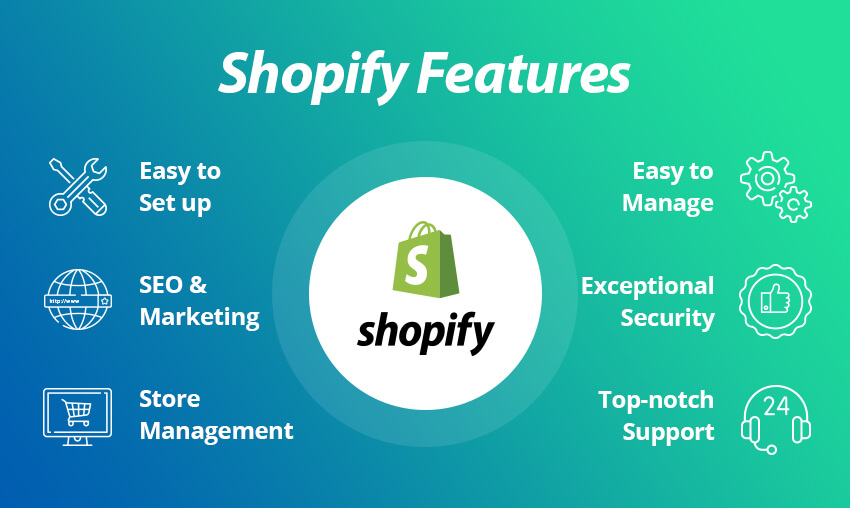
Shopify Part 1: The Initial Setup Process
Step 1: Starting Your Free Trial
Initially, navigate to the Shopify website. Immediately, you will see a prominent button labeled “Start free trial.” Subsequently, click this button to begin. Next, you will see a straightforward sign-up form. Here, you must enter your email address. Then, create a secure password. After that, you will choose a name for your store. Importantly, do not stress about this name. Later, you can change it completely. Finally, click the “Create your store” button. Instantly, your account is created.
Step 2: Answering the Onboarding Questions
Following your sign-up, Shopify will ask a few brief questions. For instance, it will ask about your experience level. Additionally, it will inquire about your current business revenue. Primarily, these questions help customize your dashboard. However, you can skip any question if you prefer. Afterwards, you will need to enter your business address. Essentially, this address is for tax and shipping calculations. Importantly, it remains private and secure. Thus, you can proceed with confidence.
Step 3: Exploring Your New Dashboard
Upon entering your dashboard, you might feel slightly overwhelmed. Conversely, the layout is very intuitive. On the left-hand side, you will see the main menu. For example, you will see sections for “Products,” “Orders,” “Customers,” and “Analytics.” Accordingly, spend a few minutes clicking each one. Meanwhile, remember you are simply exploring. As a result, you will quickly become familiar with your new command center.
Shopify Part 2: Building Your Store’s Foundation
Step 4: Designing Your Store’s Look
Now, it is time to make your store visually appealing. First, click on “Online Store” in the menu. Then, select “Themes.” Subsequently, browse the gallery of free themes. Meanwhile, look for a design that matches your brand’s feeling. Once you find one, click “Add theme.” After that, click “Customize.” Immediately, you will enter the editor. Here, you can change colors, fonts, and layouts. For instance, you can upload your logo. Similarly, you can rearrange sections with simple drag-and-drop. Consequently, you can create a professional look within minutes.
Step 5: Adding Your First Products
With your theme ready, you must add products. Therefore, go to the “Products” section. Next, click the “Add product” button. At the top, add a clear, descriptive title. Below, write a compelling description that highlights benefits. Afterwards, upload several high-quality photos. Additionally, set your price and compare-at price. Also, track your inventory quantity. Finally, ensure the product is set to “Active.” Then, click “Save.” Repeat this process for every item. Consequently, your virtual shelves will be fully stocked.
Step 6: Configuring Payments
To actually make money, you must set up payments. Hence, navigate to “Settings” and then “Payments.” First, you will see “Shopify Payments.” Typically, this is the best option. So, click “Activate” and follow the steps to connect your bank details. Alternatively, you can activate other providers like PayPal. Importantly, offering multiple payment options increases trust. Therefore, consider activating at least two gateways. Subsequently, your store will be ready to accept orders and process money securely.
Step 7: Setting Up Shipping
Clearly, you need a plan for getting products to customers. Thus, go to “Settings” and then “Shipping and delivery.” First, create a shipping profile. Then, click “Add rate.” Here, you can set up simple rates. For example, you can offer “Free shipping.” Or, you can charge a flat rate like “$5.99.” Additionally, you can set rates by weight or order price. After configuring your domestic rates, you can add zones for other countries. Ultimately, clear shipping settings prevent customer confusion at checkout.
If you want to read about Nano Banana, click here.
Shopify Part 3: Finalizing and Launching Your Store
Step 8: Creating Essential Pages
Before launching, you must build key pages. Specifically, every store needs an “About Us” page. This page tells your story and builds a connection. Similarly, a “Contact” page is non-negotiable. It gives customers a way to reach you. Furthermore, you need clear policy pages. These include Refund, Privacy, and Terms of Service pages. Fortunately, Shopify can generate templates for these. To do this, go to “Settings” then “Legal.” Then, review and customize the templates. As a result, you will build legal trust with your customers.
Step 9: Removing the Password and Going Live
By default, your new store is hidden behind a password page. So, when you are absolutely ready, you must remove it. To do this, go to “Online Store” then “Preferences.” Scroll to the “Password protection” section. Then, uncheck the box that says “Enable password.” Finally, click “Save.” Immediately, your store will be live on the internet. Consequently, anyone can visit and shop.
Step 10: Placing a Critical Test Order
Before announcing your store, you must test it. Therefore, place a real order yourself. Open your store in a new browser window. Then, add a product to your cart. Proceed to checkout. Use a real email address, but a fake shipping address. To avoid charging yourself, use a 100% discount code. You can create one in the “Discounts” section. Complete the purchase. Afterwards, check if you received an order confirmation email. Also, check if the order appears in your admin. This test ensures the entire buying process works perfectly.
Part 4: Growing and Optimizing After Launch
Immediate Post-Launch Actions
After launching, your work shifts to marketing. First, announce your store on all your social media channels. Then, send an email to your personal network. Additionally, consider setting up a simple Google Ads campaign. Meanwhile, install the Shopify “Kit” app. It acts as a free virtual employee for marketing. Furthermore, focus on customer service. Respond to inquiries quickly. As a result, you will build a positive reputation from day one.
Long-Term Optimization Strategies
For sustained growth, focus on optimization. Regularly, review your store’s analytics. Look for your best-selling products. Then, create more products like them. Also, check your site speed using Google’s PageSpeed Insights. If it’s slow, compress your images. Additionally, start collecting email addresses from day one. Use a pop-up or a sign-up form in the footer. Then, send a weekly newsletter. Consistently, update your blog with helpful content related to your products. Over time, these efforts will drive significant traffic and sales.
Frequently Asked Questions (FAQ)
Q: Is the Shopify free trial really free?
A: Absolutely. You can start your 3-day trial with no credit card required. During this period, you have full access to all features to build your store. Subsequently, you will need to choose a paid plan to continue selling.
Q: Can I change my store’s name after I create it?
A: Yes, definitely. Your initial store name creates a temporary URL. Later, you can purchase a custom domain (like www.yourbrand.com) and set it as your primary address. Therefore, your initial name choice is not permanent.
Q: Which Shopify plan should I choose after the trial?
A: For most beginners, the “Basic Shopify” plan is perfectly sufficient. It includes all core features. As your sales grow, you can easily upgrade to a higher plan for lower transaction fees and more staff accounts.
Q: Do I need to know how to code or design?
A: Not at all. Shopify is specifically built for entrepreneurs without technical skills. The platform uses intuitive drag-and-drop tools. Furthermore, the free themes are professionally designed. Consequently, you can create a beautiful store without writing a single line of code.
Q: How and when do I get paid?
A: When a customer buys an item, the money is processed through your payment gateway. Then, after a brief security period, the funds are deposited into your connected bank account. Typically, this takes 1 to 3 business days.
Q: What if I get stuck or need help?
A: Shopify offers exceptional 24/7 support. You can access help by clicking “Help” in your admin dashboard. From there, you can search the help center, join community forums, or start a live chat with a support advisor immediately.
Q: How do I get my store to appear on Google?
A: First, ensure your product titles and descriptions use common search terms. Then, submit your sitemap to Google Search Console (free). Also, consider using a basic SEO app from the Shopify App Store. Over time, these steps will help Google find and rank your store.
Conclusion: Your Journey Begins Now
In summary, you have all the steps to create your Shopify store. Initially, you sign up and explore. Then, you design and add products. Next, you set up payments and shipping. Finally, you launch and begin marketing. Throughout the process, remember that every big store started exactly where you are now. Therefore, take the first step today. Be consistent, be patient, and always focus on serving your customers. Ultimately, your dedication will turn this new store into a thriving business. Good luck