
How To Use Google Scholar: What You Need To Know
Have you ever spent hours searching online for a trustworthy source, only to find blogs and paywalls? Consequently, the process can feel incredibly frustrating. Fortunately, a powerful solution exists. In fact, Google Scholar is your free, academic search engine. Therefore, learning to use it is a crucial skill.
Essentially, this tool acts as your personal research librarian. Instead of searching the whole internet, it focuses only on scholarly work. As a result, you find peer-reviewed papers, theses, and books. This guide will first explain the immense benefits. Then, we will explore the basic search techniques. After that, we will dive into advanced tips. Finally, we will cover how to manage your findings and tackle common problems.
First, Let’s Talk About the “Why”
Before we get into the “how,” let’s clearly discuss the “why.” In other words, why should you switch from a regular search engine?
Primarily, Google Scholar saves you time. Instead of weeding out commercial sites, you start with academic sources immediately. Additionally, it shows you a paper’s influence. Specifically, the “Cited by” count tells you how many other researchers used that work. Therefore, you can instantly spot important, foundational studies.
Furthermore, the tool helps you organize your research. For instance, you can save articles to your own library. Moreover, it can even generate citations for you. As a result, writing your paper’s bibliography becomes much, much faster.
If you want to read about Google AI trends, click here.
Getting Started: Your Very First Search
To begin, simply go to scholar.google.com. You will see a clean search bar. However, do not type a long question. Instead, use short, powerful keywords.
For example, if you need information on sleep and student grades, do not type: “How does the amount of sleep a student gets affect their grades in school?”
Instead, type this: sleep academic performance students.
Next, hit enter. Now, let’s understand the results page.
- Title: This is a clickable link. Usually, it leads to the full article.
- Authors and Date: This information helps you check the source’s age and authority.
- “Cited by”: This number is very important. Basically, a high number means the paper is influential.
- “Related articles”: This is a wonderful feature. If you find one good paper, clicking this shows you many more like it.
- “Versions”: Sometimes, clicking here leads to a free copy of the paper.
Becoming a Power User: Advanced Search Tricks
Now that you know the basics, let’s boost your skills. Specifically, Google Scholar loves specific commands.
- Find Exact Phrases: To find specific words in a specific order, use quotes. For example,
"renewable energy"finds that exact phrase. - Search by Author or Title: Use
author:andintitle:to focus your search.author:johnson biologyfinds papers by Johnson about biology.intitle:climate changefinds papers with “climate change” in the title.
- Exclude Unwanted Words: Use the minus sign (-) to remove results you don’t want. For instance,
apple fruit -computer -iPhonehelps you research the food, not the tech company.
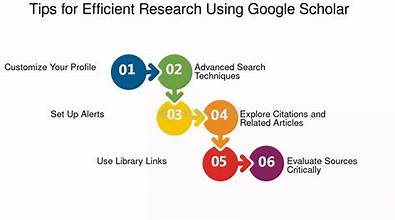
Additionally, don’t forget the Advanced Search menu. Click the three lines in the top left. Then, select “Advanced search.” This form lets you fill in boxes for a very precise search without remembering the commands.
Saving Time: Your Citation and Library Tools
Perhaps the best features are the time-saving tools. Let’s look at them now.
The “Cite” Button: Under every result, you’ll see a quotation mark icon (“). Click it. Immediately, a box pops up with citations in MLA, APA, and Chicago style. However, always double-check these! They are a great start, but sometimes they have small errors.
The “Save” Button: This button looks like a star. Click it to save an article to your personal library. First, you must be signed into your Google account. Then, you can save all your sources for a project in one place. Later, just click “My library” to see them all again.
Creating Alerts: Finally, for long-term projects, create an alert. First, run your most important search query. Then, click “Create alert” in the sidebar. After that, Google Scholar will email you whenever new, relevant papers are published.
Solving the Big Problem: Accessing Full Text
Often, you click a title and hit a paywall. Don’t give up! Instead, try these tricks.
- Look for a PDF Link: Frequently, a direct link to a free PDF is on the right side of the result.
- Click “All Versions”: As mentioned before, this can lead you to a free author’s copy.
- Use Library Links: If you are a student, go to Settings > Library Links. Then, search for your university. Consequently, links to full text through your school’s subscription will appear.
Conclusion: Your Research Superpower
In conclusion, Google Scholar is your key to credible, efficient research. By using its powerful search commands, you find better sources faster. Moreover, by using its library and citation tools, you save enormous amounts of time. Therefore, you can focus on what truly matters: understanding the information and creating great work. So, start your next search with Google Scholar. You will be glad you did.
Frequently Asked Questions (FAQ)
Q1: Is Google Scholar completely free to use?
Yes and no. Searching is completely free. However, the full text of many articles is on publisher sites that charge. Therefore, use the PDF and “versions” tricks to find free copies.
Q2: How is Google Scholar different from regular Google?
Regular Google searches everything, including news and shopping sites. In contrast, Google Scholar searches only scholarly literature. As a result, the quality of sources is much higher for research.
Q3: Can I trust the “Cited by” count?
Generally, yes. A high number usually means a paper is important. However, always read the paper yourself to be sure it fits your needs.
Q4: Why can’t I find a specific article?
Sometimes, the index misses things. Alternatively, the article might be too new or in a language other than English. If so, try a university library database instead.
Q5: What does “Related articles” do?
It finds papers that are similar to the one you’re viewing. It’s a fantastic way to discover more sources without a new search.
Q6: Are the auto-generated citations reliable?
They are a good draft, but not perfect. You must always check them for errors against an official style guide.