
Introduction
In today’s digital world, managing passwords is a challenge. Weak or reused passwords put your accounts at risk, while trying to remember dozens of complex passwords is nearly impossible. That’s where 1Password comes in—a secure, user-friendly password manager that keeps your logins safe and simplifies your online life.
Additionally, do you struggle to remember all your passwords? You’re not alone. Most people use weak or repeated passwords, making their accounts easy targets for hackers. Moreover, a password manager like it solves this problem by storing and protecting all your login details in one secure place.
This guide will show you how to set up and use it easily. You’ll also learn why it’s one of the best tools for keeping your online accounts safe. Let’s get started!
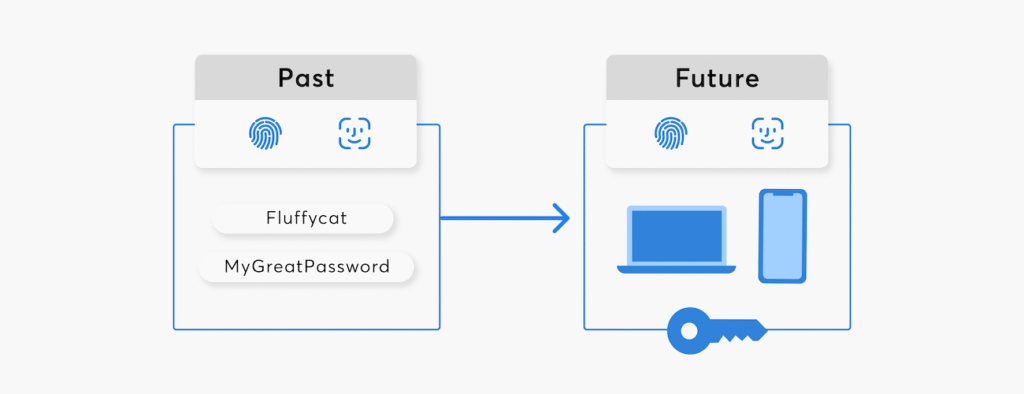
Why Use 1Password?
Passwords are the keys to your digital life. If they’re weak or reused, hackers can easily break into your accounts. Here’s why 1Password is a great choice:
- Firstly, creates strong passwords – No more using simple or repeated passwords.
- Auto-fills logins – Saves time and reduces mistakes when logging in.
- Keeps data encrypted – Even if it gets hacked, your passwords stay safe.
- Then, Store sensitive information – save credit cards, IDs, and secure notes in one place.
Now, let’s walk through how to set it up.
If you want to read about LastPass, click here.
How to Set Up 1Password in 3 Easy Steps
1. Firstly, Sign Up and Download the App
- Go to the 1Password website and pick a plan (personal, family, or business).
- Download the app on your phone, computer, or browser.
- Then, create your account and set a strong master password (this is the only password you’ll need to remember).
2. Save Your First Password
- When you log into a website, it will ask if you want to save the login.
- Then, click “Save in 1Password”, and it will store your username and password securely.
3. Turn on Two-Factor Authentication (2FA)
For extra security, enable 2FA in your settings. This way, even if someone gets your master password, they can’t access your vault without a second verification step (like a code from your phone).
Top Features of 1Password
1. Strong Password Generator
Instead of making up weak passwords, let it create them for you. Then, you can choose the length and whether to include numbers or symbols.
2. Auto-Fill on Websites and Apps
Once saved, 1Password fills in your logins automatically, so you don’t have to type them every time.
3. Travel Mode for Extra Security
Traveling? Turn on Travel Mode to hide sensitive logins from your device temporarily. Then, this prevents security checks at borders from seeing your passwords.
4. Watchtower Alerts for Hacked Passwords
1Password checks if any of your passwords were leaked in data breaches. If a password is unsafe, it warns you to change it immediately.
5. Share Logins Safely with Family or Teams
Need to share a Netflix or work password? Create a shared vault so others can access it without seeing the actual password.
How to Stay Even More Secure with 1Password
- Never reuse passwords – Let it make a new one for each account.
- Use a strong master password – Combine random words, numbers, and symbols.
- Turn on Face ID or fingerprint unlock – Faster and more secure than typing a password.
- Then, check Watchtower regularly – Update weak or compromised passwords right away.
FAQ: Answers to Common Questions
1. Is 1Password really safe?
Yes! 1Password uses bank-level encryption (AES-256). Even if hackers attack their servers, your data stays locked away without your master password.
2. What if I forget my master password?
1Password cannot recover it—this keeps your data safe. However, you can use your Emergency Kit (a recovery sheet you print when setting up) to get back in.
3. Is 1Password free?
It offers a 14-day free trial, but after that, you’ll need a paid plan. The cost is worth it for strong security and convenience.
4. Does it work without internet?
Yes! Once synced, you can access passwords offline. Changes update when you reconnect.
5. How is it better than LastPass or Bitwarden?
1Password has better security features (like Travel Mode) and a smoother experience. LastPass has had more breaches, and Bitwarden, while open-source, isn’t as polished.
Final Verdict: Should You Use 1Password?
Definitely! 1Password makes password management easy and secure. Whether you’re an individual, a family, or a business, it helps protect your online accounts without the hassle.
Ready to try it? Sign up for 1Password today and take control of your digital security!