
Introduction
LastPass, managing multiple passwords in today’s digital landscape, presents significant challenges. As cyber threats grow increasingly sophisticated, relying on memory or insecure storage methods for credentials exposes users to substantial risk.
Additionally, LastPass, a leading password management solution, addresses these concerns through robust encryption and user-friendly features. This comprehensive tutorial explains the platform’s core functionality while providing actionable implementation guidance.
LastPass Why You Need a Password Manager
Moreover, let’s face it – remembering dozens of passwords is impossible. Most people either:
- Use the same password everywhere (dangerous!)
- Write passwords down (even worse!)
- Constantly reset passwords (wastes time!)
This is where it saves the day. It’s like a digital vault that:
Creates and remembers strong passwords for you
Fills in logins automatically
Then, keep your payment info safe
Finally, works on all your devices
If you want to read about Dropbox, click here.
Now, let’s walk through exactly how to set it up and use it like a pro.
Getting Started with LastPass
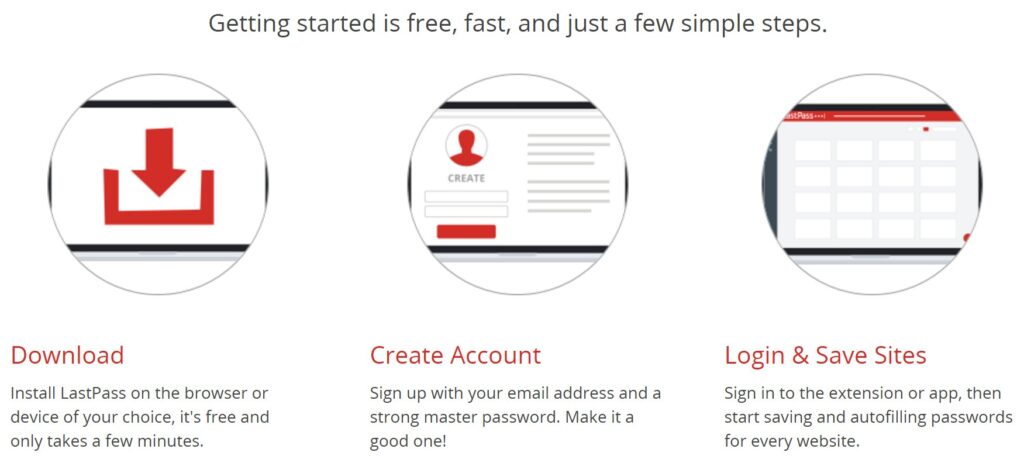
Step 1: Create Your Account
- Go to LastPass.com
- Click “Get LastPass Free”
- Enter your email and create a master password
Pro Tip: Make your master password long but memorable – like a favorite song lyric with numbers mixed in.
Step 2: Install the Browser Extension
This is where the magic happens:
- Chrome users: Get it from the Chrome Web Store
- Firefox fans: Find it in Firefox Add-ons
- Safari/Edge: Available for those browsers too
Just click “Add to Browser” and log in when prompted.
Step 3: Import Your Existing Passwords
If you’ve been saving passwords in your browser:
- Open LastPass (click the icon in your browser)
- Go to More Options > Advanced > Import
- Select your browser and boom – all your logins transfer over!
Using LastPass Every Day
Saving New Passwords
When you log in to a new site:
- LastPass asks if you want to save the login
- Click “Save” – that’s it!
Logging In to Your Favorite Sites
Returning to saved sites is a breeze:
- Go to the login page
- Click the username field
- Select your saved login from the popup
Creating Strong Passwords
Never use “password123” again! Just:
- When signing up somewhere new, click the password field
- Select “Generate Password”
- Choose the length (16 characters is great)
- LastPass creates and saves it automatically
Cool Features You Should Try
1. Secure Sharing (Without Giving Away Passwords)
Firstly, need to share a Netflix account? Here’s the safe way:
- Firstly, open your LastPass vault
- Secondly, right-click the login you want to share
- Thirdly, enter the person’s email
- Then they get access without ever seeing the actual password
2. Emergency Access
Additionally, what if something happens to you? Set up emergency access:
- Firstly, go to Account Settings > Emergency Access
- Secondly, add a trusted family member or friend
- Then, they can request access after a waiting period you choose
3. Two-Factor Authentication (2FA)
Add an extra lock to your vault:
- Firstly, download Google Authenticator or Authy
- Secondly, in LastPass, go to Account Settings > Multifactor Options
- Thirdly, scan the QR code with your authenticator app
Now you’ll need your password AND your phone to log in.
LastPass on Your Phone
The mobile app (iOS/Android) is just as easy:
- Firstly, download from your app store
- Secondly, log in with your master password
- Thirdly, turn on auto-fill in your phone settings
- Then, use fingerprint or face ID for quick access
Moreover, Bonus: Your passwords automatically sync between your phone and computer!
Frequently Asked Questions
Q: Is LastPass free?
A: Yes! The free version covers all the basics. Paid versions ($3/month) add extra features like dark web monitoring and priority support.
Q: What if I forget my master password?
A: Unfortunately, LastPass can’t recover it (that’s good for security!). That’s why we recommend:
- Firstly, setting up emergency access
- Secondly, writing it down in a very safe place
- Thirdly, using a memorable phrase
Q: Is LastPass safe from hackers?
A: Extremely safe. They use the same encryption banks use (AES-256 bit). Then, even if their servers were hacked, your passwords would stay encrypted.
Q: Can I use it on multiple devices?
A: Absolutely! Your vault syncs across all your phones, tablets, and computers.
Q: What happens if LastPass shuts down?
A: You can export your passwords anytime. Then, go to your vault > More Options > Advanced > Export.
Final Tips for Maximum Security
- Always use the password generator – no more weak passwords!
- Enable two-factor authentication – double protection is better
- Organize your vault with folders – keep work and personal separate
- Check your security dashboard – it shows which passwords need updating
- Share wisely – Then, only give access to people you truly trust
Ready to Get Started?
Firstly, now you know how LastPass can:
Secondly, save you time logging in
Thirdly, protect yourself from hackers
Then, make your online life easier
Moreover, the best part? You can be set up in under 5 minutes. Why wait? Head to LastPass.com and take control of your passwords today!
Remember: In today’s world, not using a password manager is like leaving your front door unlocked. LastPass is your digital deadbolt.