
Introduction
Dropbox is one of the most popular cloud storage solutions, helping millions of users store, share, and access files from anywhere. Whether you’re a student, professional, or business owner, understanding how to use it effectively can boost your productivity.
Additionally, in this guide, we’ll walk you through everything you need to know from setting up your account to advanced features like file sharing and collaboration. Plus, we’ll answer common FAQs to help you get the most out of it.
What Is Dropbox?
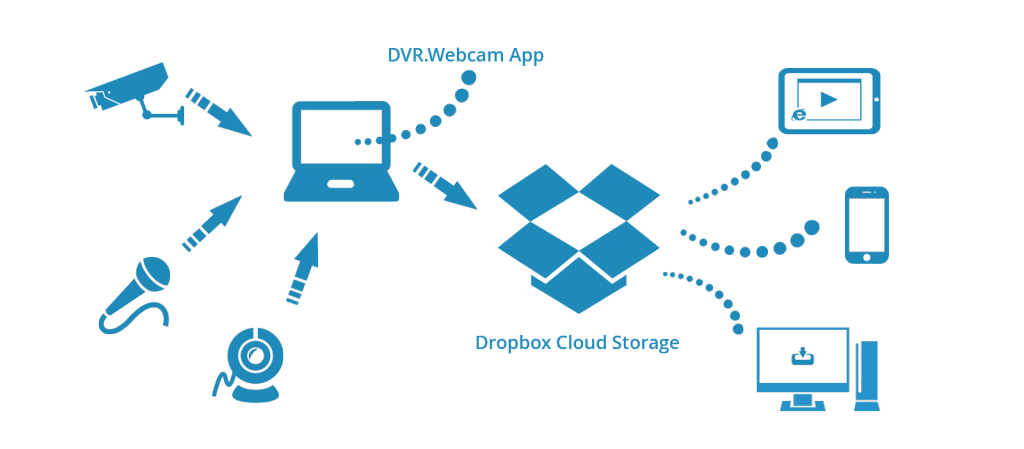
Moreover, it is a cloud-based file storage service that lets you save documents, photos, videos, and other files online. Instead of relying on physical hard drives, you can access your files from any device with an internet connection.
Key Features of Dropbox
- File Storage & Backup – Firstly, keep your files safe in the cloud.
- File Sharing – Secondly, easily send large files via links.
- Collaboration – Thirdly, work on documents with others in real time.
- Syncing Across Devices – Then, access files from your phone, tablet, or computer.
- Security – Encrypted storage and optional two-factor authentication (2FA).
How to Use Dropbox: A Step-by-Step Guide
1. Creating a Dropbox Account
Firstly, visit Dropbox’s official website and sign up. You can choose between a free plan (2GB storage) or paid plans for more space.
If you want to read about Bitwarden, click here.
- Firstly, click “Sign Up” and enter your details.
- Secondly, verify your email address.
- Thirdly, download the app for desktop or mobile for seamless access.
2. Uploading Files to Dropbox
Secondly, once your account is set up, you can start uploading files.
- On Desktop: Firstly, drag and drop files into your Dropbox folder.
- Web: Secondly, click “Upload” and select files from your computer.
- Mobile: Then, tap the “+” icon and choose files from your gallery.
3. Organizing Files & Folders
Thirdly, to keep your files manageable:
- Firstly, create folders by clicking “New Folder.”
- Secondly, move files by dragging them into the right folder.
- Thirdly, use the search to locate documents quickly.
4. Sharing Files & Folders
Moreover, it makes sharing effortless.
- Right-click a file and select “Share.”
- Enter the recipient’s email or generate a shareable link.
- Then, set permissions (view-only or edit access).
5. Collaborating in Real Time
Furthermore, if you’re working with a team:
- Firstly, share a folder with colleagues.
- Secondly, use Dropbox Paper for collaborative documents.
- Thirdly, track changes and comments for seamless teamwork.
6. Syncing Files Across Devices
Additionally, install it on all your devices to keep files up to date automatically. Then, any changes you make on one device will reflect everywhere.
7. Recovering Deleted Files
Accidentally deleted something? It keeps deleted files for 30 days (longer for paid users).
- Firstly, go to “Deleted Files” in the web version.
- Secondly, select the file and click “Restore.”
8. Securing Your Dropbox Account
- Firstly, enable two-factor authentication (2FA).
- Then, use strong passwords.
- Regularly review connected devices.
Advanced Dropbox Features
Dropbox Passwords
Additionally, securely store and autofill passwords across devices.
Dropbox Transfer
Then, send large files (up to 100GB) without taking up storage space.
Dropbox Vault
Moreover, a PIN-protected folder for sensitive documents.
Offline Access
Furthermore, mark files for offline use in the mobile app.
Dropbox Pricing Plans
| Plan | Storage | Price | Best For |
|---|---|---|---|
| Basic | 2GB | Free | Casual users |
| Plus | 2TB | $9.99/month | Individuals needing more space |
| Family | 2TB (6 users) | $16.99/month | Household sharing |
| Professional | 3TB | $16.58/month | Freelancers & pros |
| Business | Custom | Starts at $15/user/month | Teams & companies |
Dropbox FAQs
1. Is it free?
Yes, then, it offers a free plan with 2GB of storage. Paid plans provide more space and features.
2. How secure is it?
It uses encryption and offers 2FA. Moreover, for sensitive files, enable Dropbox Vault.
3. Can I access it offline?
Yes! On mobile, mark files for offline access. On desktop, files sync when you reconnect.
4. How do I share large files?
Use Dropbox Transfer to send files up to 100GB without sharing full folder access.
5. What happens if I exceed storage limits?
You’ll need to upgrade or free up space by deleting unused files.
6. Can I recover old file versions?
Yes, it keeps version history for 30 days (longer for paid users).
Final Thoughts
It is a powerful tool for storing, sharing, and collaborating on files. Whether you’re a solo user or part of a team, mastering its features can save time and enhance productivity.
Ready to get started? Sign up today and take control of your digital files!