
Introduction
Jira is one of the most powerful project management tools used by teams worldwide. Whether you’re a developer, project manager, or part of an agile team, mastering Jira can significantly boost productivity. But if you’re new to it, the platform might seem overwhelming.
Jira helps teams work smarter. Developers, managers, and business teams all use it to track work and hit deadlines. But if you’re new to Jira, it can feel confusing at first.
This easy guide explains how to use Jira in plain language. You’ll learn key tips to save time and work better with your team. No tech jargon – just clear steps anyone can follow.
What Is Jira?
Jira is a digital workspace where teams:
- Create tasks (called “issues”)
- Assign work to people
- Track progress
- Share updates
It started as a tool for software teams, but now helps all kinds of businesses.
Why Teams Love Jira
See all work in one place – No more lost emails or sticky notes
Customize your workflow – Set it up how your team works best
Get automatic reports – Know exactly what’s done and what’s stuck
Works with other tools – Then, it connects to Slack, email, and more
Getting Started with Jira
1. Create Your Account
- Firstly, go to Atlassian’s website
- Secondly, click “Try it free”
- Thirdly, pick the cloud version (easiest for most teams)
2. Make Your First Project
After signing in:
- Firstly, click “Create Project”
- Secondly, choose a template:
- Kanban (like a digital whiteboard)
- Scrum (for teams that work in sprints)
- Bug tracking (for fixing problems)
- Thirdly, name your project (ex, “Website Redesign”)
If you want to read about the Open project, click here.
3. Add Your First Task
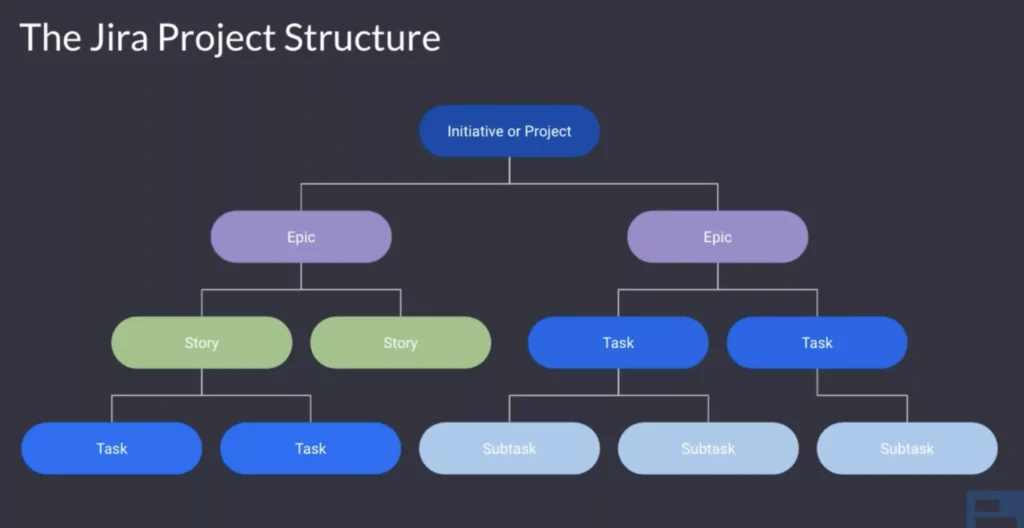
Tasks in Jira are called “issues.” To make one:
- Firstly, click the “+” button
- Secondly, fill in:
- Summary (task name)
- Description (what needs doing)
- Assignee (who’s responsible)
- Then, hit “Create”
Working with Your Team in Jira
The Kanban Board (Best for Ongoing Work)
Looks like columns on a whiteboard:
- To Do → In Progress → Done
Moreover, pro Tip: Drag tasks between columns as work moves forward
The Scrum Board (Best for Sprints)
For teams that work in 1-4 week chunks:
- Firstly, Backlog (all possible tasks)
- Secondly, sprint Planning (pick tasks for this sprint)
- Thirdly, active Sprint (work happening now)
How to Run Better Meetings
- Stand-ups: Use the board to see what everyone’s doing
- Sprint Reviews: Show completed work using the “Done” column
- Retrospectives: Then, check reports to improve next time
5 Power Tips for Jira Beginners
- Use Quick Search
Firstly, press “/” to find anything fast - Set Up Email Notifications
Secondly, get alerts when tasks change - Make Templates
Thirdly, save time on repeating tasks - Try the Mobile App
Then, update tasks from anywhere - Start Simple
Don’t over-customize at first
Answers to Common Questions
Q: Is it free?
A: Yes, for small teams (up to 10 people). Then, paid plans start at $8 per person.
Q: Can non-tech teams use it?
A: Absolutely! Marketing, HR, and operations teams all use it successfully.
Q: How do I move from Trello?
A: It has an import tool that brings all your Trello cards over.
Q: What’s better – Kanban or Scrum?
A: Kanban if work comes in constantly. Then, scrum if you work in set time blocks.
Q: Can I track time in Jira?
A: Yes, with built-in time tracking or add-ons like Tempo.
You’re Ready to Go!
Jira works best when you start small. Try these basics first:
- Firstly, make one project
- Secondly, add 5 test tasks
- Thirdly, move them through your board
After a week, you’ll feel comfortable. In a month, you’ll wonder how you worked without it!
Need help? Bookmark this guide and refer back as you learn. Happy task tracking!