
Introduction
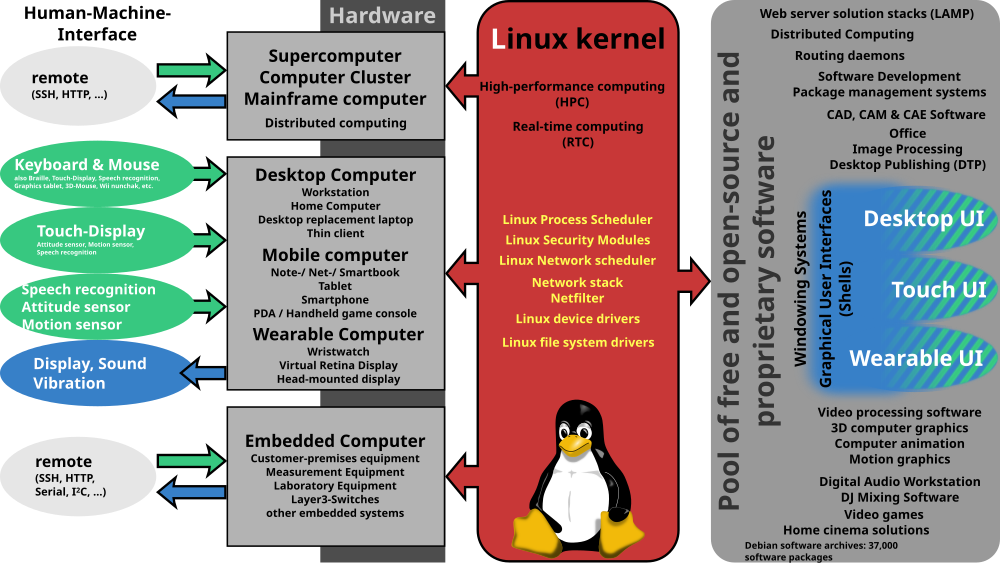
Linux is a powerful, open-source operating system that powers everything from personal computers to enterprise servers. Whether you’re a beginner or an experienced user, mastering Linux can significantly boost your productivity. In this guide, we’ll walk you through essential tips, commands, and best practices, all while keeping things simple and actionable.
Moreover, it is a free, open-source operating system that runs on everything from laptops to supercomputers. If you’re new or want to enhance your skills, this guide provides practical tips to help you work more efficiently and effectively.
Why Use Linux?
Additionally, before we jump into the tips, let’s look at why millions of people choose it:
It’s free – Firstly, no expensive licenses
More secure – Secondly, fewer viruses than Windows
Runs fast – Thirdly, it works well even on old computers
Full control – Then, change anything you want
Now, let’s get into the useful stuff.
If you want to read about AR Glasses vs.Smartphones, click here
1. Linux Basic Commands Everyone Should Know
Firstly, the terminal (command line) is where the real power is. Start with these essential commands:
pwd– Shows your current folderls– Lists files in a foldercd– Moves between folderscp– Copies filesmv– Moves or renames files
Moreover, for example: To see what’s in your Documents folder:
Then, bash
cd Documents
ls
2. Linux Installing Software the Easy Way
Secondly, each version has its app store (called a package manager). Here’s how to use them:
- Ubuntu/Debian: bash sudo apt update sudo apt install firefox
- Fedora:bashsudo dnf install firefox
- Arch Linux:bashsudo pacman -S firefox
Moreover, pro Tip: Always run update First to get the latest software list.
3. Fixing Permission Problems
Thirdly, ever seen “Permission denied”? Here’s how to fix it:
- Make a file executable: bashchmod +x my_script.sh
- Change file ownership: Then, bashsudo chown yourname:yourgroup filename
4. Automate Boring Tasks
Fourthly, save time by making your computer do repetitive jobs:
- Firstly, open the task scheduler:bashcrontab -e
- Then, add a daily backup at 2 AM:bash0 2 * * * /home/you/backup.sh
5. Linux: Keep Your System Safe
It is secure, but you should still:
🔒 Use strong passwords
🔒 Then, turn on the firewall:
bash
sudo ufw enable
🔒 Then, Disable root login:
bash
sudo passwd -l root
6. Check Your Computer’s Health
Moreover, is your system slow? Check with:
top– Shows running programsdf -h– Checks disk spacefree -h– Views memory usage
Furthermore, press q to quit these tools.
7. Make the Terminal Work Better
Furthermore, customize your command line:
- Create shortcuts (aliases):bashalias update=’sudo apt update && sudo apt upgrade’
- Get colorful prompts:
Install Zsh:bashsudo apt install zsh
8. Fix Common Problems
Then, Problem: Can’t install software
Fix:
bash
sudo apt --fix-broken install
Moreover, Problem The Computer froze
Fix: Press Ctrl + Alt + F2, then type:
bash
sudo reboot
9. Try New Things Safely
Test risky changes in a virtual machine first:
- Firstly, install VirtualBox
- Secondly, download a Linux ISO
- Then, create a new VM
10. Get Help When Stuck
Moreover, Great places for help:
- AskUbuntu.com
- Linux.org forums
- Then, the Linux subreddit
Linux FAQs
Q: Is it hard to learn?
A: Not if you start with Ubuntu or Mint, then they’re very user-friendly.
Q: Can I use Microsoft Office on Linux?
A: Try LibreOffice (free) or use Office 365 in a browser.
Q: How do I update my system?
A: For Ubuntu:
bash
sudo apt update && sudo apt upgrade
Q: What’s best for beginners?
A: Ubuntu, Linux Mint, or Zorin OS.
Q: How do I exit the Nano editor?
A: Press Ctrl+X, then Y to save, Enter to confirm.
Final Tip about Linux
Finally, the best way to learn it? Use it daily! Start with simple tasks, and soon you’ll be able to do advanced things without thinking.
Ready to begin? Pick a version and install it today!