
Introduction
Google Drive is one of the most powerful cloud storage and collaboration tools. Whether you’re a student, a professional, or looking to organize files, mastering it can save you time and boost productivity.
1. Setting Up Google Drive
Create Your Account
You’ll need a Google account first. Here’s how:
- Firstly, visit accounts.google.com
- Secondly, click “Create account.”
- Thirdly, fill in your details
- Then, go to drive.google.com to start
Understanding the Layout
The Drive interface is clean and easy to use:
- My Drive: Your main storage area
- Shared with Me: Files others sent you
- Recent: Quick access to recent files
- Starred: Important files you mark
- Trash: Deleted files (stored 30 days)
2. Google Drive: Adding and Managing Files
Uploading Made Simple
Add files in three ways:
- Drag and drop files directly
- Click “New” then “File Upload”
- Use the Backup and Sync app
Stay Organized
Create folders to keep things tidy:
- Firstly, click “New” then “Folder”
- Secondly, name your folder
- Then, drag files inside
Furthermore, Helpful Tip: Color-code folders by right-clicking them.
If you want to read Leonardo AI: How to Start, Click Here
3. Sharing Files with Others
How to Share
Furthermore, sharing takes seconds:
- Firstly, right-click any file
- Secondly, select “Share”
- Thirdly, add email addresses or get a link
- Then, set permissions:
- Viewer: See only
- Commenter: Add notes
- Editor: Make changes
Work Together in Real Time
Multiple people can edit documents simultaneously. Then, all changes are saved automatically.
4. Helpful Extra Features
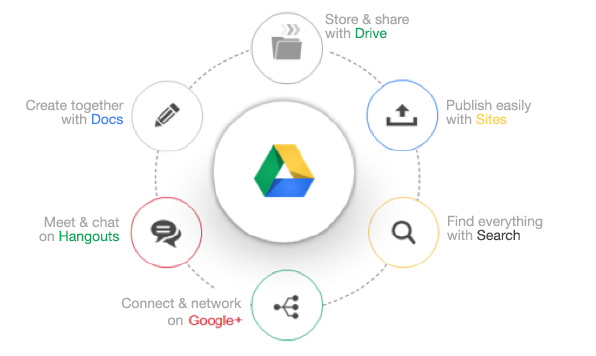
Works With Other Google Tools
Drive connects to:
- Docs (like Word)
- Sheets (like Excel)
- Slides (like PowerPoint)
- Forms for surveys
Use Without Internet
Moreover, enable offline access:
- Firstly, click the gear icon
- Secondly, choose Settings
- Thirdly, turn on Offline
- Then, right-click files for offline use
5. Google Drive: Keeping Files Safe
Security Tips
- Firstly, turn on two-step verification
- Secondly, check shared files regularly
- Then, use strong passwords
Back Up Your Data
Moreover, download everything with Google Takeout at takeout.google.com.
6. Google Drive: Fixing Common Problems
- Out of space? Firstly, delete old files or upgrade storage
- Sync issues? Secondly, restart the app
- Big files won’t upload? Then, check the 5TB limit
Google Drive: Frequently Asked Questions
Q: How much free space do I get?
A: 15GB free across Google services.
Q: Can I get back deleted files?
A: Yes, check Trash within 30 days.
Q: How do I get more storage?
A: Upgrade to Google One starting at $1.99/month.
Q: Can I edit Word files in Drive?
A: Yes! Upload and edit Office files easily.
Q: Is my data secure?
A: Yes, with encryption. Then, always use strong passwords.
Final Thoughts about Google Drive
Google Drive offers powerful tools for storing and sharing files. Moreover, with these tips, you’ll work smarter and stay organized.
Ready to begin? Visit Google Drive today!