
Introduction
GitHub Copilot is revolutionizing the way developers write code. Powered by OpenAI’s advanced AI, this tool acts as a pair programmer, suggesting entire lines or blocks of code in real time. But how exactly do you use it? And what should you know before diving in?
Moreover, in this guide, we’ll walk you through how GitHub Copilot is changing how we write code. This smart AI tool acts like a coding partner, suggesting lines and blocks of code as you work. Want to know how to use it? Let’s break it down in simple terms.
In this guide, you’ll learn:
- Firstly, what GitHub Copilot does
- Secondly, how to set it up in minutes
- Thirdly, the best ways to use it daily
- Finally, common mistakes to avoid
Ready to boost your coding speed? Let’s dive in!
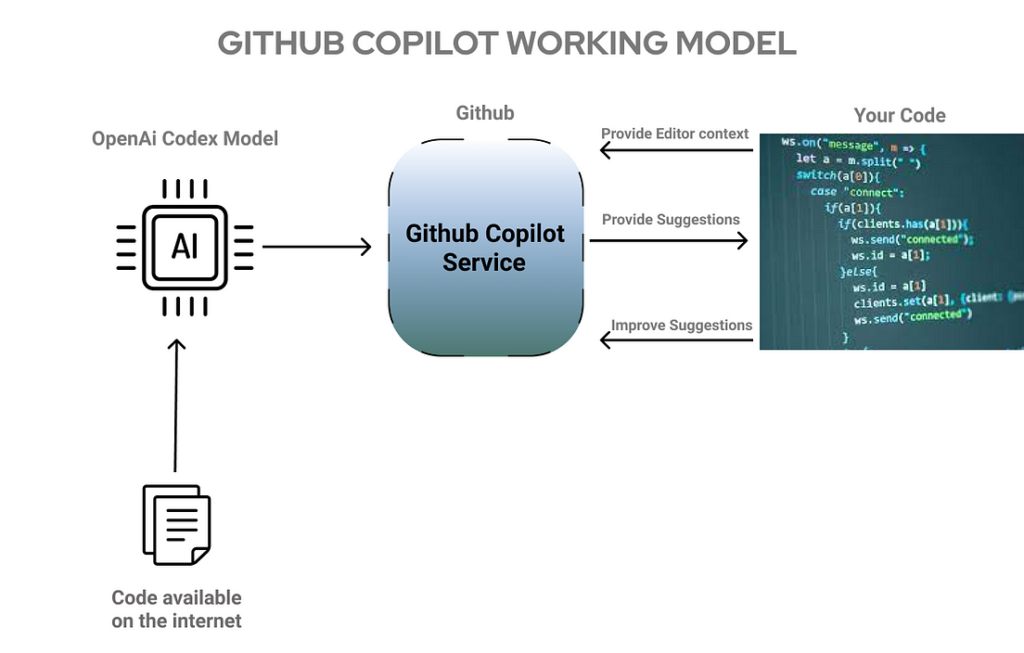
What Is GitHub Copilot?
GitHub Copilot is an AI helper for coding. It works inside your code editor. Furthermore, as you type, it suggests what to write next. It’s like auto-complete but for full lines of code.
Why Developers Love GitHub Copilot
- Firstly, saves time – No more typing every single line
- Secondly, helps learn – Great for new languages
- Thirdly, works anywhere – Supports most coding languages
How to Install GitHub Copilot
Getting started takes just 5 minutes. Here’s how:
1. Get the Right Tools for GitHub Copilot
You’ll need:
- Firstly, VS Code (free download)
- Secondly, A GitHub account
- Thirdly, internet connection
2. Add the Copilot Extension
- Firstly, open VS Code
- Secondly, click the Extensions icon (left side)
- Thirdly, search for “GitHub Copilot”
- Then, click Install
3. Sign In and Start Coding
- Firstly, click the Copilot icon at the bottom
- Secondly, log in with GitHub
- Thirdly, that’s it! Start typing to see suggestions
Using GitHub Copilot Like a Pro
Now for the fun part – making it work for you.
If you want to read Multimodal AI, Click Here
1. Basic Code Help
Moreover, just start typing. For example:
python
Copy
def add_numbers(a, b):
Furthermore, Copilot might suggest:
python
Copy
return a + b
Press Tab to accept or keep typing to ignore.
2. Fixing Errors Fast
Stuck on an error? Try:
javascript
Copy
// Fix this broken fetch request
Copilot can show you how to correct it.
3. Learning New Tricks
Then, Not sure how something works? Ask in a comment:
ruby
Copy
# Show me how to read a file in Ruby
Copilot will give you working examples.
Smart Tips for Better Results of GitHub Copilot
Do These
✔ Firstly, write explicit comments – Helps Copilot understand
✔ Secondly, check suggestions – Not all ideas are perfect
Then, try different words – If one prompt fails, rephrase it
Avoid These
✖ Firstly, don’t trust it blindly – Always review the code
✖ Secondly, never put secrets, Like passwords or keys
Then, don’t stop learning – Use it to help, not replace you
Solving Common Problems
Bad Suggestions?
Sometimes Copilot gets it wrong. Fix this by:
- Firstly, making your comments clearer
- Secondly, breaking tasks into smaller steps
Too Many Options?
Press Ctrl+Enter to see all suggestions. Pick the best one.
Worried About Cost?
Students get it free. Others pay $10/month after trial.
Is GitHub Copilot Right for You?
Good For
✅ Quick coding tasks
✅ Learning new languages
Reducing simple errors
Not So Good For
❌ Very complex problems
❌ Security-sensitive code
Complete beginners (you still need basics)
Final Advice
GitHub Copilot works best when you:
- Guide it with clear instructions
- Double-check its work
- Use it to learn, not just copy
Try it today and see how much time you can save!
Quick Answers
Q: Is it free?
A: Free trial, then $10/month. Free for students.
Q: Does it work offline?
A: No, it needs the internet.
Q: Can it write whole programs?
A: Not well. It helps with parts, not projects.
By following this guide, you’ll master GitHub Copilot in no time. Happy coding! 🚀